Verification
This article explains how to check that calls, recordings, and users arrive in MiaRec.
Step 1. Check the users
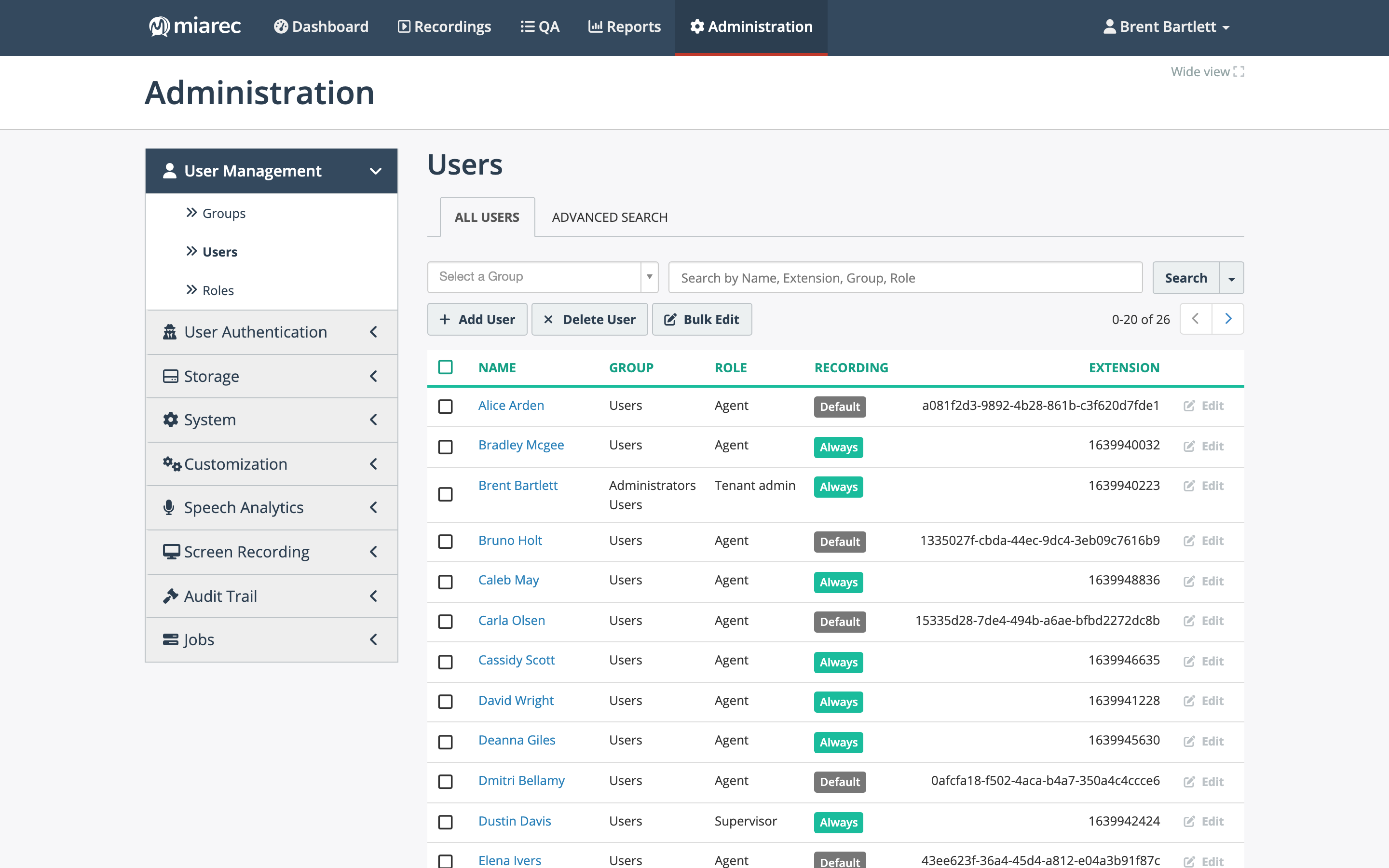
After the first run of the pull users job, go to Administration > User Management > Users. The list has a user for each Genesys Cloud agent that the job imports.
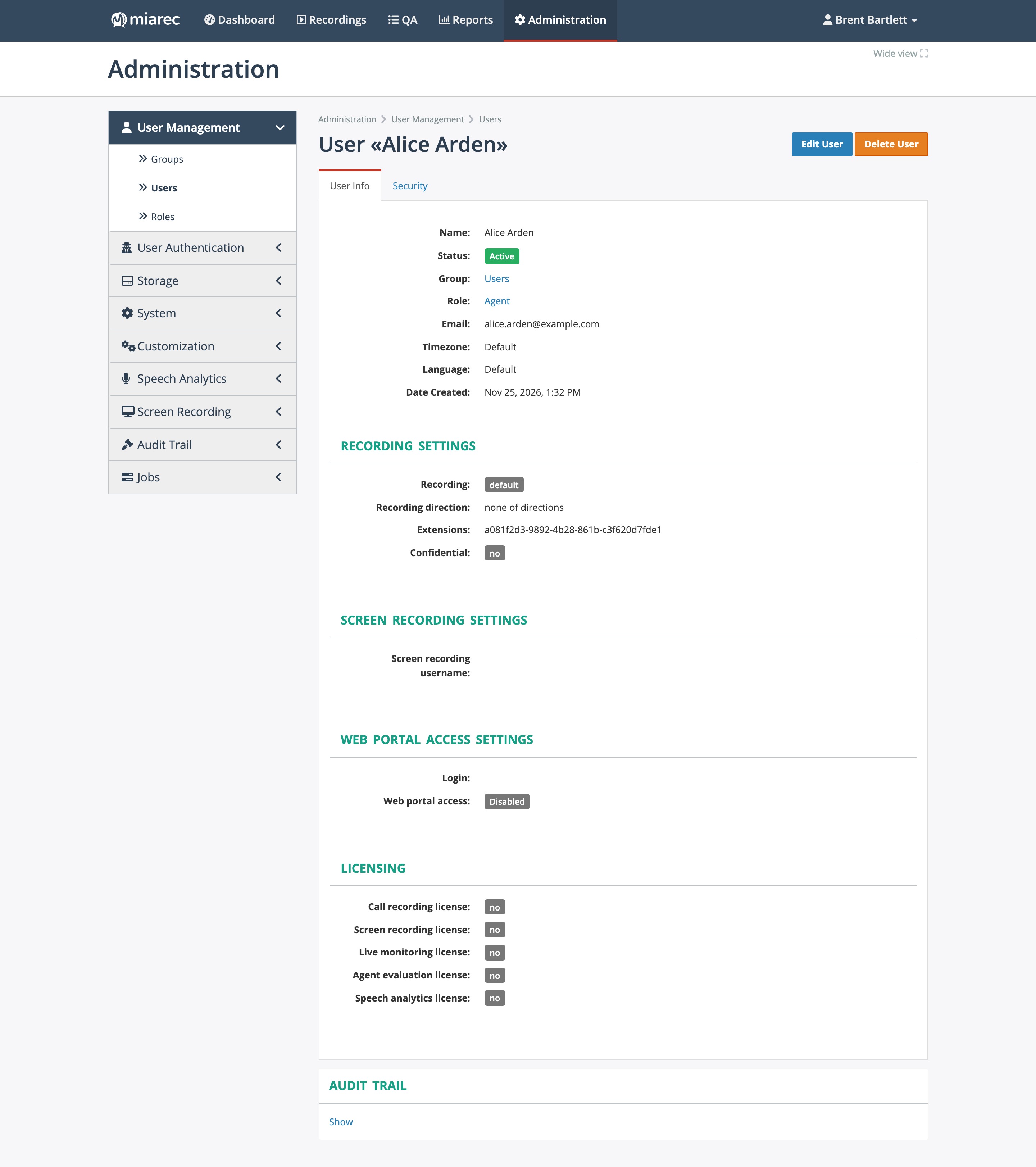
The Extension of an imported user is the agent's Genesys Cloud user ID. MiaRec links the calls to the user by this extension. Don't remove it.
Step 2. Make test calls
Make one call of each kind that your agents handle, for example:
- An inbound call through the IVR and a queue. Finish the after-call work.
- An outbound call.
- A call that one agent transfers to another agent.
- A call that the agent puts on hold.
Speak for at least 20 seconds in each call. Genesys Cloud can report a recording without audio for a call of a second or two.
Step 3. Check that the calls appear
- In MiaRec, go to Recordings > All Calls.
-
Within a few minutes, a call appears. If you selected the
starttopics in Genesys Cloud, the call appears during the conversation and shows In progress.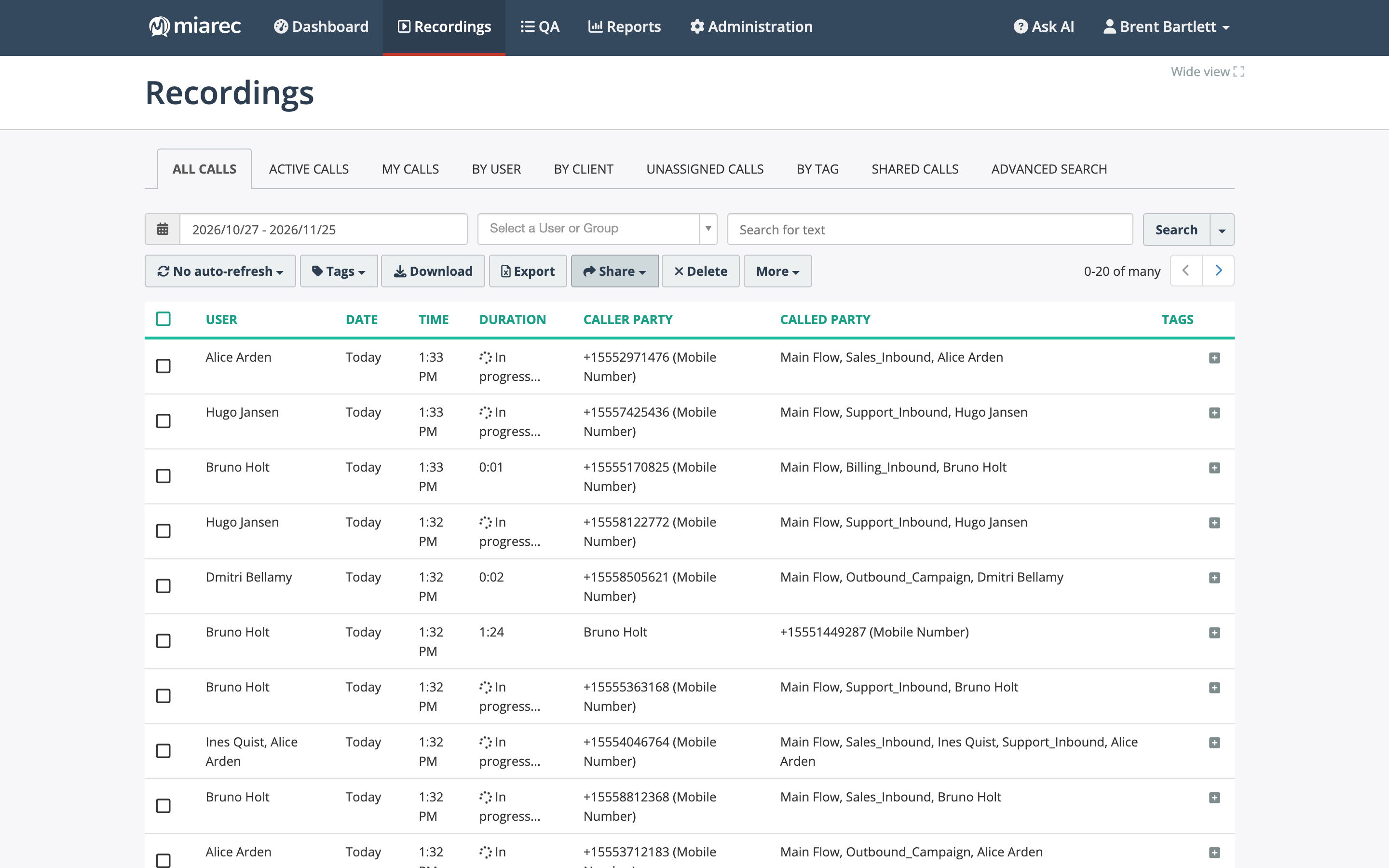
-
After the agent finishes the after-call work, the call shows its duration.
- A few minutes later, the audio is available. See How long does it take for a call to appear in MiaRec after it ends?
Step 4. Play the recording and check the details
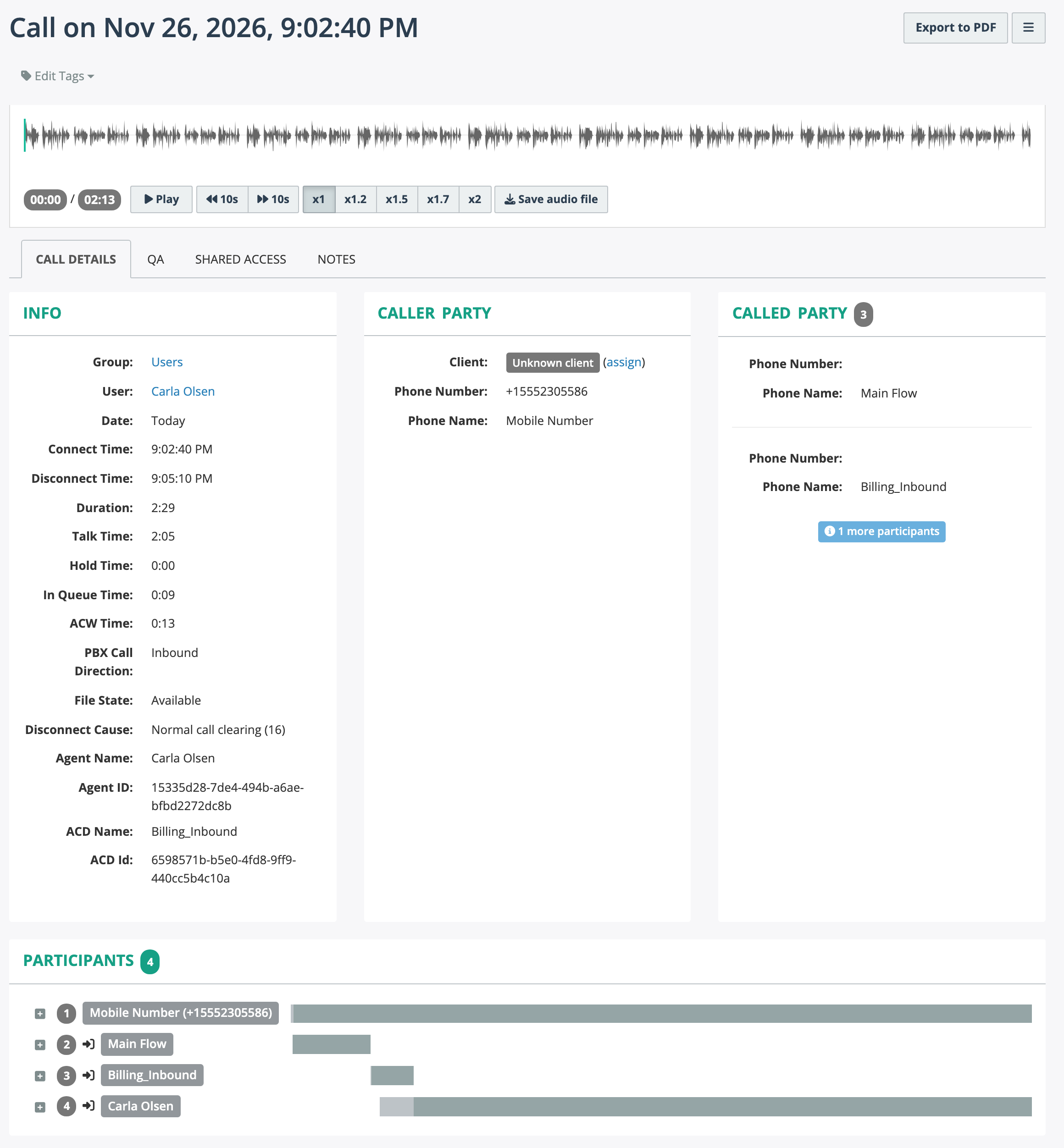
Open the call, select Play, and check that you hear both parties. Compare the call with Genesys Cloud:
| In MiaRec | Check that it matches |
|---|---|
| User | The agents who took the call |
| Caller party, Called party | The phone numbers, and the direction of the call |
| ACD Name | The queue |
| Participants | The customer, IVR, queues, and agents, in the order in which they joined |
| Talk Time, Hold Time, In Queue Time, ACW Time | The times of the interaction |
| Duration | The time from the start of the call to the end of the conversation, without after-call work |
Step 5. Check the access of your users
Sign in as a supervisor or an agent, and check that they see the calls that they should see, and no others. MiaRec controls access with roles and groups.
The users that the jobs create can't sign in to the web portal. To let a user sign in, edit the user, set a Login, and select Web portal access. See Are users synchronized?
Step 6. Check the next day
Check the following on the next day:
- The pull users job ran during the night and finished.
- The pull calls job has one record for the previous day, with no growing error counters.
- The number of calls in MiaRec is close to the number of voice interactions in Genesys Cloud for the same day. MiaRec also imports calls without a recording, unless the job ignores them.
If something is missing, see Troubleshooting.