Running reports
Reports run in two ways:
- On demand — you start a run and choose the period.
- On a schedule — the report runs automatically at the interval defined in its template.
Run a report on demand
- On the Reports page, click Run next to the report — or open the report and click Run Report.
- Configure the run:
- Report Period — the time frame for the data. Required.
- Timezone — override the report's timezone if needed.
- Filtering Criteria — shown if the template allows modifying filters at run time; adjust the pre-set criteria or add more.
- Send Report by Email — optionally email the results when the run completes, as Excel and/or PDF attachments, to one or more recipients.
- Click Run Report.
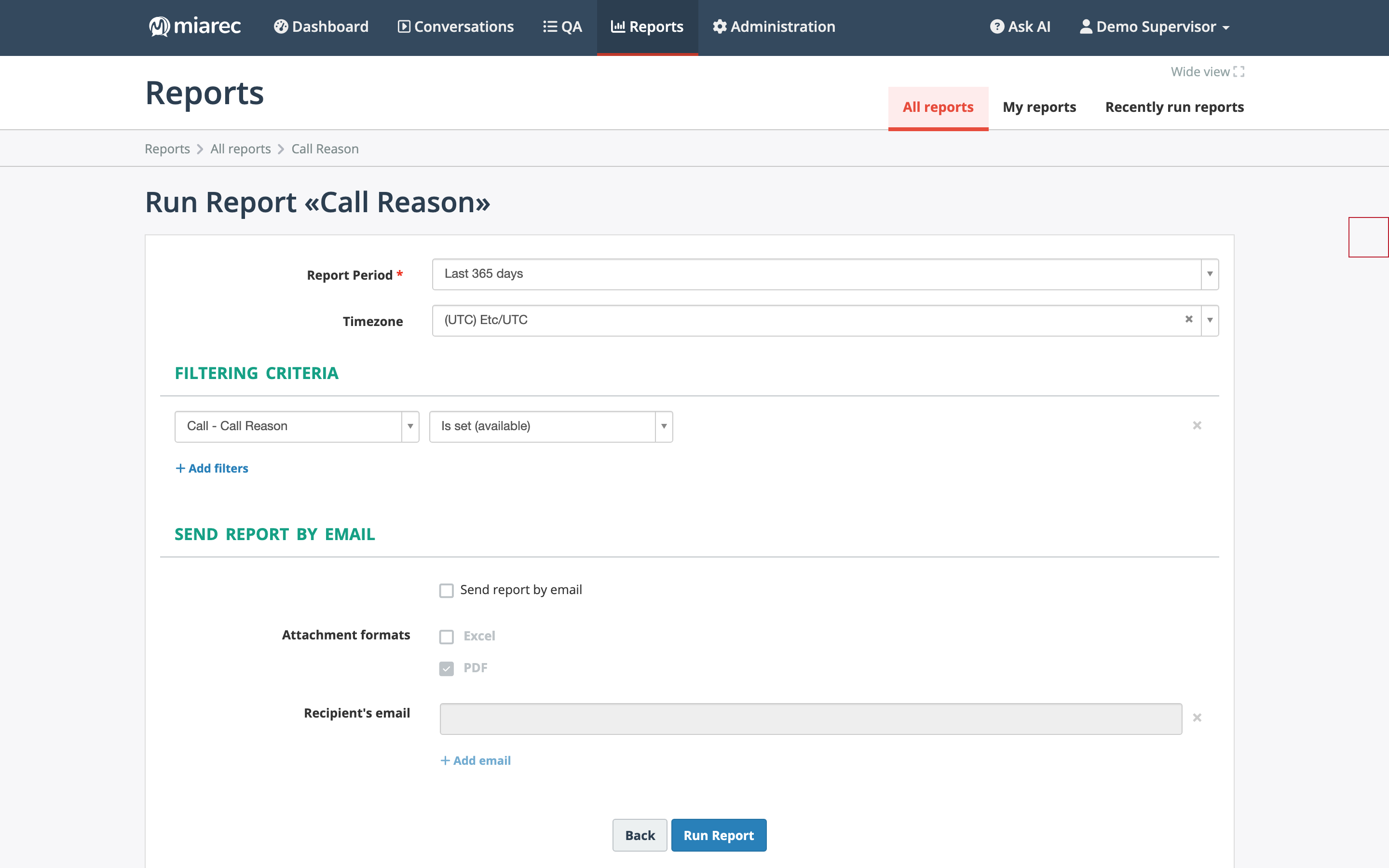
The run form for a report: choose the period and timezone, review the filtering criteria, and optionally enable email delivery before starting the run.
The run opens immediately with its status. Reports are built in the background — larger periods take longer, and the status changes from pending to finished when results are ready. See Viewing reports.
Results depend on who runs the report
Note
The same report produces different results for different users. A run only includes data its runner is allowed to see: an administrator with access to all groups gets the whole organization, while a supervisor with access to one group gets that group's data only.
Scheduled runs
Scheduling is configured in the report template — interval, time of day, and email delivery. Only Private reports with an assigned owner can be scheduled, and scheduled runs execute with the owner's permissions. See Creating report templates.
Related pages
- Viewing reports — finding runs and reading results.
- Exporting report data — Excel/PDF export of a finished run.