Scorecards
A scorecard is the evaluation form your team scores conversations against: sections, questions, answer choices, weights, and passing thresholds. Scorecards are managed in QA › Scorecards by supervisors and QA leads — the tab is visible to users whose role includes scorecard-management permissions, with access scopes down to Selected Groups (see QA permissions in the Administration Guide).
This page covers the scorecard designer. For how a finished scorecard turns answers into a score, see Score calculation; for the concepts, see the Quality Assurance concept page.
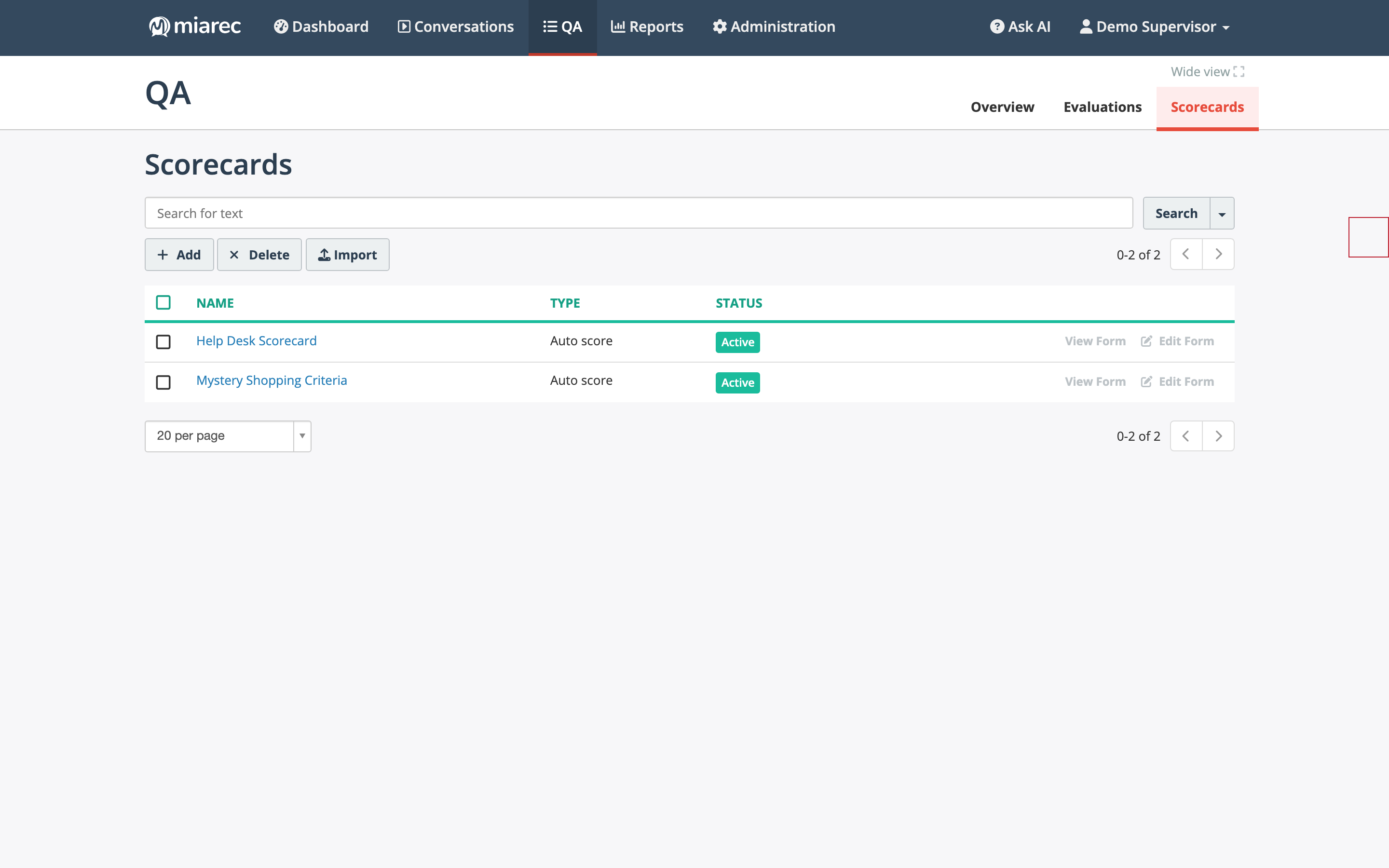
The Scorecards list: each scorecard shows its type (Auto score or Manual score) and status, with View Form / Edit Form actions and Add / Delete / Import in the toolbar.
Creating a scorecard
Click Add on the Scorecards page and fill in the scorecard properties:
- Name and Description.
- Type — Auto score (scored by Auto QA) or Manual score (scored by a person). On an Auto score scorecard, new questions default to the AI assistant type; on a Manual score scorecard, to Multiple choice.
- Status — marks the scorecard as Active or inactive.
- Passing threshold — the minimum overall score (0–100) an evaluation must reach to pass. Evaluations show a PASS/FAIL chip next to the score when a threshold is set.
Then build the form as a list of sections, each containing questions. Sections and questions can be dragged to reorder.
Sections
Each section has:
- Name and Description — the description is also passed to the AI as grading guidance on Auto score scorecards (see AI grading guidance).
- Display N/A option — allow the evaluator to mark the whole section N/A, excluding it from the score.
- Passing threshold — an optional per-section threshold; sections then get their own pass/fail indication in the evaluation.
- Weight — how much this section contributes to the overall score relative to other sections.
Questions
Each question has a Question text, an optional Description, a Type, and a Weight (1–1000, default 1 — see Score calculation for how weights are applied). The question types are:
- AI assistant — answered by Auto QA. Like a multiple-choice question, it has a list of Choices; the AI answers in the terms of those choices (typically Yes / No / N/A) and adds a written justification. Used on Auto score scorecards.
- Multiple choice — the evaluator picks one of the configured Choices. Display as a single-line or multi-line choice list, or a drop-down list.
- Numeric value — the evaluator enters a score up to the question's Maximum points. Display as an input box or a star rating.
For choice-based questions, each choice has a title (for example "Yes"), a number of Points, and an Outcome that controls what selecting it does to the score:
| Outcome | Effect |
|---|---|
| Points | The choice awards its points — the normal case. |
| N/A question | The question is excluded from the score entirely. |
| N/A section | The whole section is excluded from the score. |
| Fail a section | The question and every question after it in the section earn zero points. |
| Fail a report | The question and every question after it in the evaluation earn zero points. |
New choice-based questions start with a ready-made scaffold — Yes (10 points), No (0 points), and N/A — which you can edit freely. A Display N/A option checkbox ("Allow to mark question N/A") controls whether the N/A choice is offered.
AI grading guidance
On Auto score scorecards, write each question in plain language, as you would ask a person — "Did the agent introduce themselves to the customer?". The Description fields of questions and sections are sent to the AI as additional grading guidance, so use them to define what counts as a correct answer — for example, that a proper introduction must include the company name. See Tuning scorecards for how to use this to improve scoring accuracy, and Test in Playground to try changes against real conversations before saving them.
Import, export, and cloning
- Export Form (on the scorecard's page) downloads the scorecard as an XML file.
- Import (on the Scorecards list) creates a scorecard from a previously exported XML file — handy for copying scorecards between environments.
- Clone Scorecard duplicates an existing scorecard as a starting point for a new one.
Revisions
Scorecards are versioned: every change creates a new revision, and each evaluation records the revision it was scored against (shown as Revision on the evaluation page). Editing a scorecard does not change existing evaluations — new evaluations use the updated scorecard. If you re-open an existing evaluation for editing, it is refreshed to the current version of the scorecard.