Manually evaluating a conversation
A manual evaluation is a human review: a supervisor picks a conversation and a scorecard, listens to the recording, and answers the questions. With Auto QA doing the bulk scoring, manual evaluation is the secondary method — use it for calibration against the AI, for sensitive cases, or for scorecards you prefer to keep human-scored. Manual evaluation is included with the Auto QA product.
Starting an evaluation
-
Open the conversation and switch to its QA tab, then click Add. (The tab's badge shows how many evaluations the conversation already has — a conversation can be evaluated more than once.)
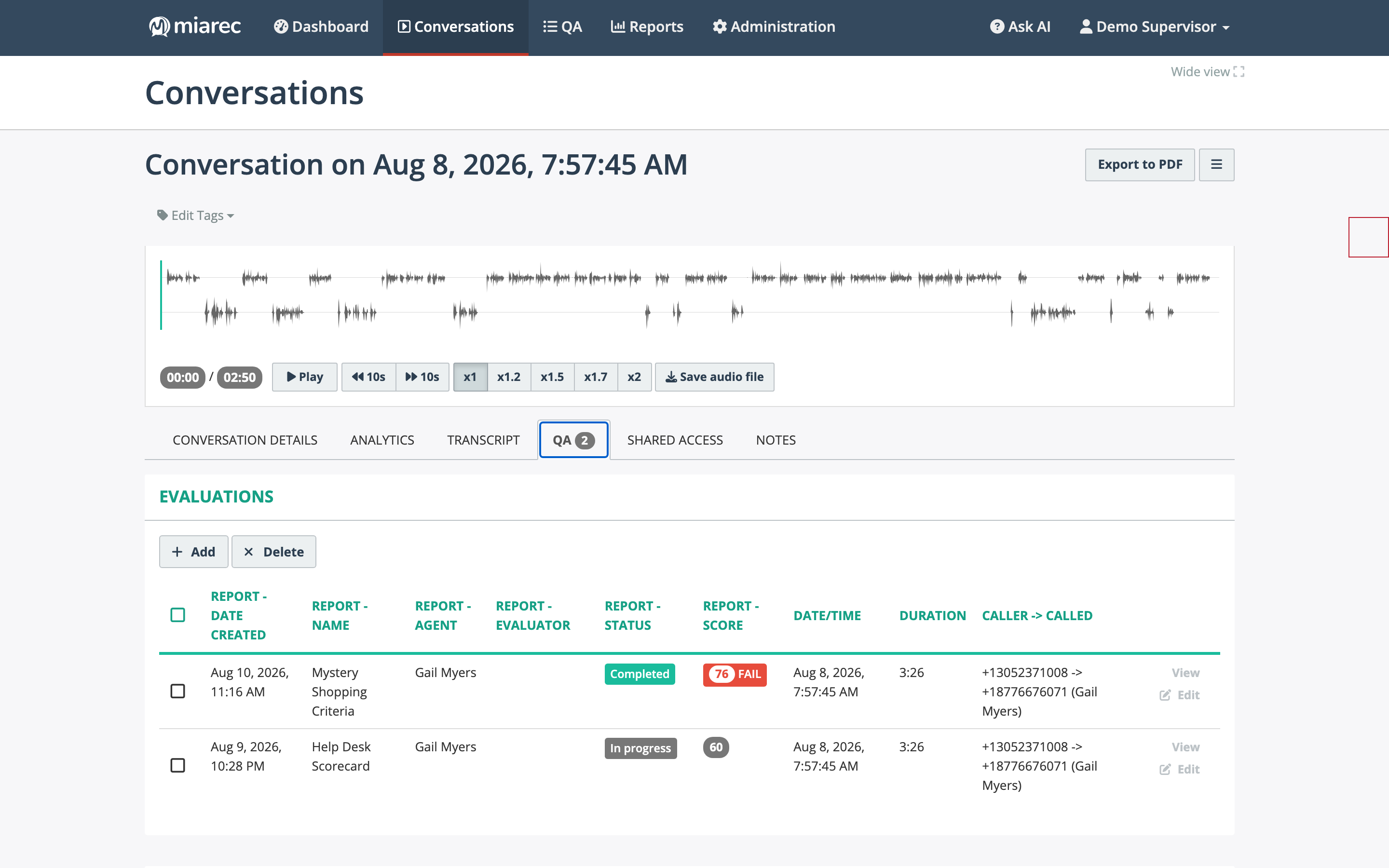
The QA tab of a conversation: existing evaluations with View/Edit actions, and the Add button to start a new one.
-
On the Select Evaluation Form page, fill in:
- Form — the scorecard to use.
- Agent — the user the evaluation is for. This matters on conversations involving more than one agent (for example after a transfer): pick which agent's performance you are scoring.
- Either Evaluate now (you answer the questions yourself, immediately) or Assign to an evaluator — pick the Evaluator and an optional Due date, and the evaluation is created as Pending in that person's queue.
-
Click Continue.
Note
The agent being evaluated must have an evaluation license assigned; otherwise the evaluation cannot be created and an error message names the missing license. Licenses are managed by your administrator.
Answering the questions
The evaluation editor shows the scorecard on the left, the player across the top, and the Info / Call / Analytics / Transcript / Notes tabs on the right, so you can listen and read the transcript while you score.
- Answer each question by picking a choice, entering a value, or selecting N/A where the question does not apply (N/A is excluded from the score, it is not a zero).
- Optionally add section feedback and fill in the report-level What went well, What could be improved, and Additional feedback boxes — this is what the agent reads.
- Click Save. The score is calculated per the scorecard's weights and thresholds.
There is no separate submit step: the evaluation's status is derived from completeness — In progress while any question is unanswered, Completed once all are answered. Assigned evaluations wait as Pending in the evaluator's QA › Evaluations queue until started.
The finished evaluation appears in the Evaluations list and on the conversation's QA tab, and can be exported to Excel or PDF from its page. The evaluated agent sees it in their own Evaluations list, view-only.