Notes & collaboration
Notes are free-text comments attached to a conversation. Teams use them to capture context ("customer will call back Friday"), flag moments for coaching, and discuss a conversation in place — note threads are a natural companion to QA evaluations. Notes are searchable, so they also work as ad-hoc labels you can find conversations by.
Adding a note
- Open the conversation — either expand the row in the Conversations list or open the detail page and select the Notes tab.
- Click Add note, type your text, and save.
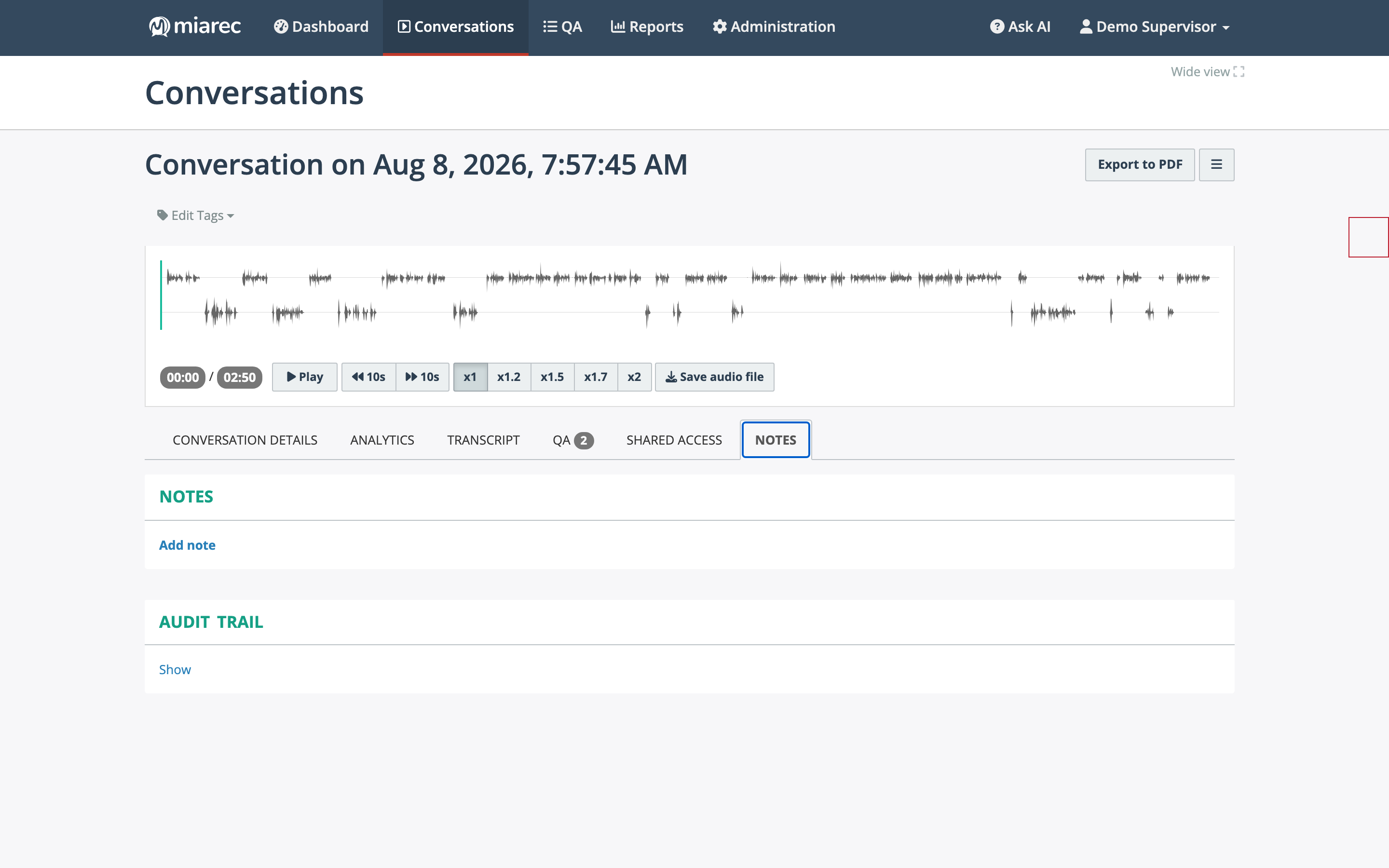
The Notes tab of a conversation detail page. Add note starts a new thread entry; the Audit Trail panel below records access history.
Each note shows its author and timestamp. Notes are listed oldest first.
You can also comment on a specific passage of the transcript by selecting text there — the comment is saved as a note anchored to that moment. See Commenting on a transcript.
Working with notes
- Reply — respond to an existing note to keep the discussion threaded.
- Pin to top — pin an important note above the rest, out of chronological order.
- Delete — remove a note. Deletion happens immediately; an UNDO link appears briefly in case of mistakes.
Note
Notes require note permissions on your role — your administrator controls who can view, add, and delete notes.
Finding conversations by note text
- Quick search: the search box above the Conversations list matches note text (along with party names and numbers) — see Quick search.
- Advanced Search: use the note parameters in the filter builder to combine note text with other criteria such as date range, user, or duration — see Advanced search.
When to use notes vs tags vs custom fields
Notes are best for free-form commentary. If you want consistent, repeatable labels, use tags; if your organization tracks structured values (order numbers, ticket IDs), use custom fields.