Browsing conversations
The Conversations page is the central list of every conversation you have access to. Open it from the Conversations item in the top menu. What you see is governed by your role and access scope — see People & Access in the Overview.
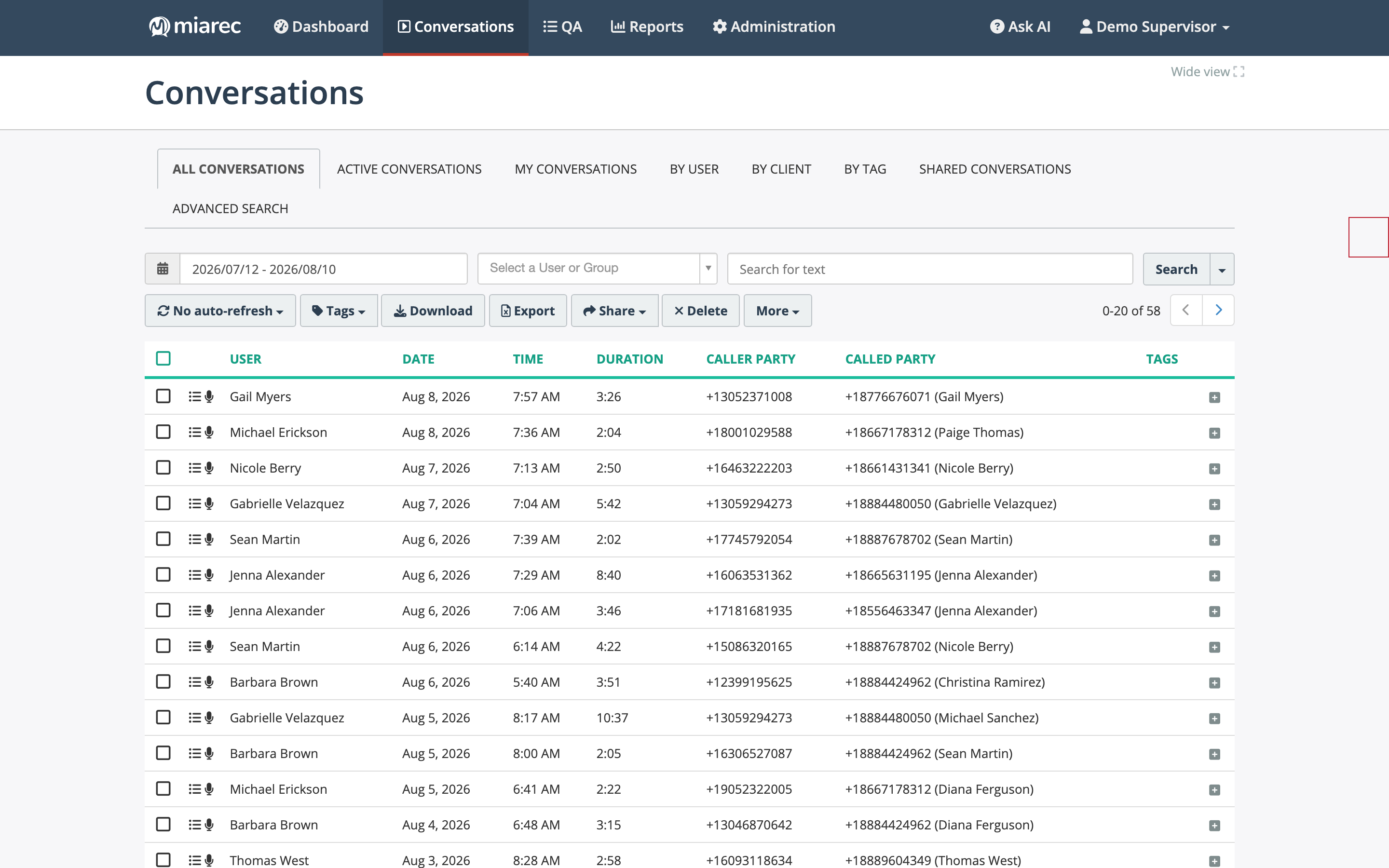
The Conversations list for a supervisor: view tabs across the top, the search toolbar, action buttons, and the list itself. The icon column at the left of each row shows status icons for that conversation.
Views (tabs)
The tab bar at the top of the page switches between predefined views:
- All Conversations — every conversation your role and access scope let you see.
- Active Conversations — conversations in progress right now. This view refreshes automatically and shows a timeline of each live conversation. If your subscription includes live monitoring, you can listen to active conversations from here — see Live monitoring.
- My Conversations — conversations associated with your own user account.
- By User — conversations filtered by a group or user, chosen from a picker on the left. This view appears only if your role gives you access to other users' conversations.
- By Client — conversations filtered by client — see Organizing by client.
- By Tag — conversations filtered by tag — see Tags.
- Shared Conversations — conversations other users shared with you — see Sharing conversations.
- Advanced Search — the filter builder for searching by any attribute, including transcript text — see Advanced search.
Note
For a user whose role only grants access to their own conversations, All Conversations and My Conversations show the same list.
The toolbar
Above the list you will find:
- Date range picker — limits the list to a date range.
- User or group filter and the Search for text box — quick search across conversation metadata; see Quick search for what it matches.
- Auto-refresh — the list does not refresh automatically by default; use this selector to switch between Auto-refresh and No auto-refresh.
- Action buttons — Tags, Download, Export (metadata to CSV, see Exporting to CSV), Share, Delete, and More (confidential and Do-Not-Delete flags, plus Upload recordings). Each button appears only if your role includes the matching permission.
Below the list you can change the page size and sort order (newest or oldest first).
Columns
Typical columns include the user, date, time, duration, caller and called parties, and tags. The set of visible columns is configured per view by your administrator (see List layouts and visible columns in the Administration Guide). Per-user column layout is planned to become user-manageable.
Status icons
The icon column at the start of each row flags the conversation's state. Hover over an icon for its name:
| Icon | Meaning |
|---|---|
| Microphone | Transcription available |
| List | Evaluation report available |
| Speech bubble | Notes available |
| Lock | Confidential — see Confidential conversations |
| Save/disk | Do not delete — see Deleting conversations |
| Screen | Screen recording available |
Numbered badge (for example 1/3) |
Part of a group of related segments — see Grouped conversation segments |
Opening a conversation
Click a row to expand it in place. The expanded view shows the key details, an inline audio player, and the beginning of the AI summary, without leaving the list.
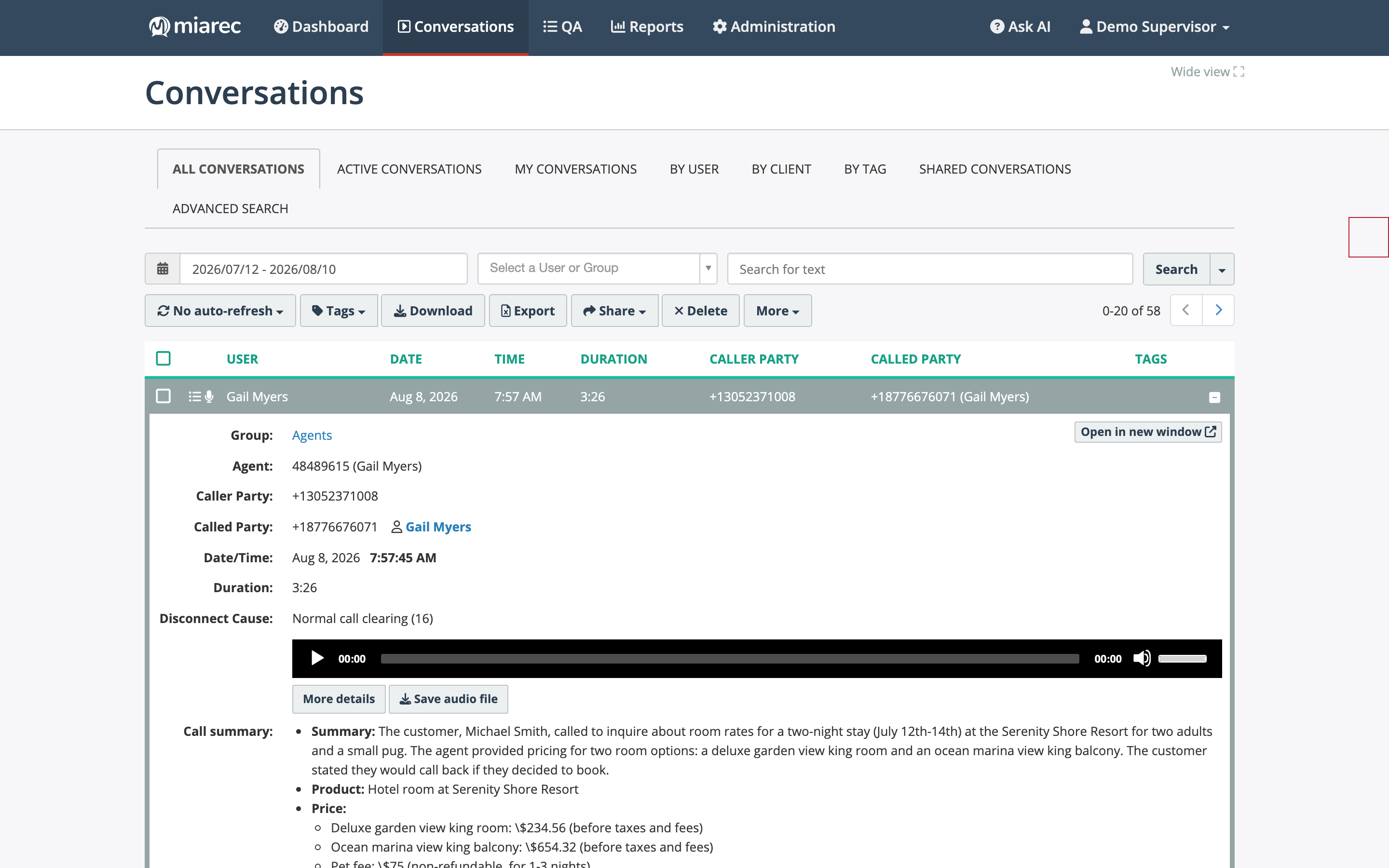
Clicking a row expands it inline: metadata, a mini player with Save audio file, and the summary. Use More details or Open in new window to go to the full detail page.
From the expanded row, More details (or Open in new window) opens the full conversation detail page.
What agents see
A user with an agent-style role sees the same page limited to their own conversations, and without the By User tab.
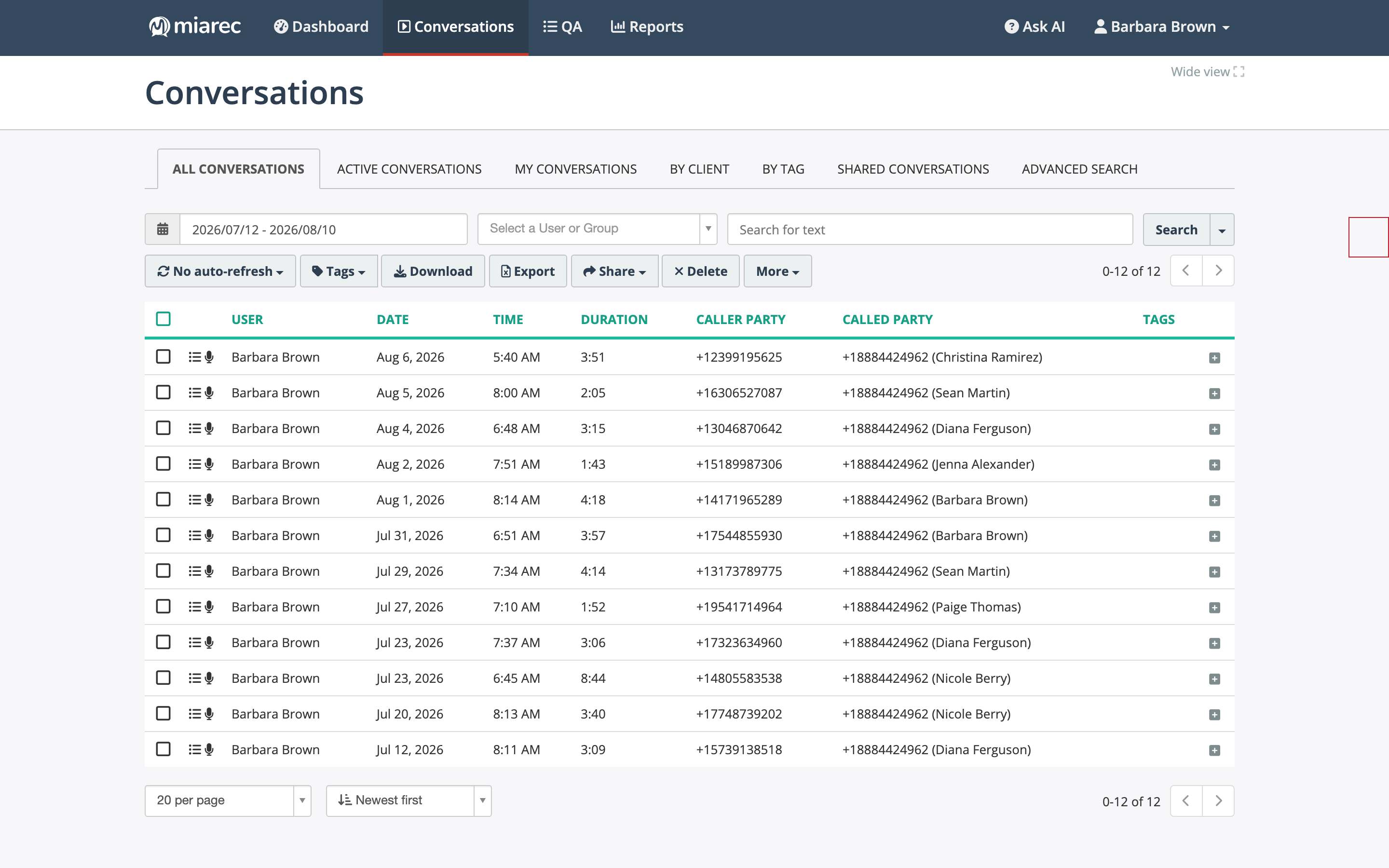
The same list signed in as an agent: only the agent's own conversations are visible, and there is no By User tab.