Tenant administrator configuration
This article explains how a tenant administrator connects MiaRec to the organization's phone platform, tests the connection, and disconnects it when needed.
In MiaRec, the integration is named Other phone platform.
You need tenant administrator permissions to start onboarding, authorize MiaRec with your phone platform provider, test the connection, and disconnect.
How connecting works
Connecting happens in two stages:
- MiaRec checks your phone number. You enter one of your organization's phone numbers, and MiaRec checks whether it can activate services automatically. You don't sign in to the provider for this step.
- You authorize MiaRec. If the number is supported, you sign in to your provider and authorize MiaRec. MiaRec then sets up the provider resources that activate services for your organization.
Because the check comes first, you find out whether MiaRec can serve your number before you sign in anywhere.
Before you begin
- Have one of your organization's phone numbers ready, in E.164 format: a
+, your country code, then the number, for example+14155551234. - Be ready to sign in to your phone platform provider with an account that manages the organization you want to connect.
Connect the integration
Navigate to Administration > System > Integrations, find Other phone platform, and click the connect action.
Onboarding has three steps, shown across the top: Getting Started, Checking Support, and Connect.
Step 1. Enter a phone number
Enter one phone number from your organization, in E.164 format, such as +14155551234. MiaRec uses it only to
check whether services can be activated automatically for your phone platform.
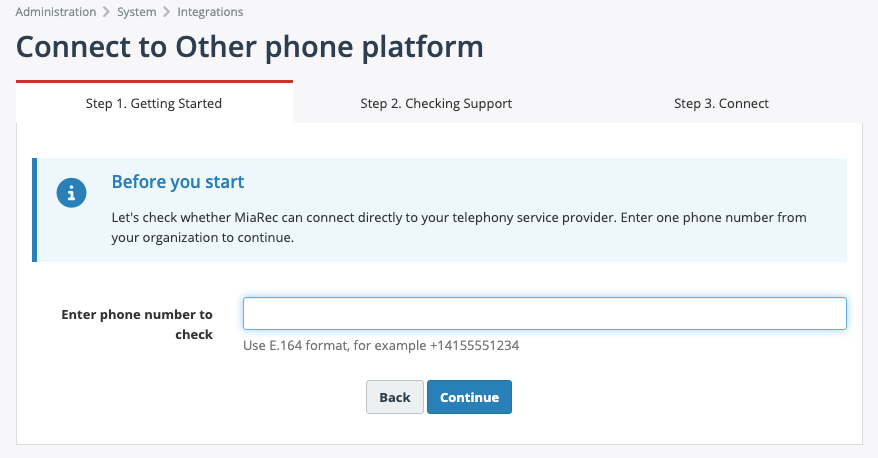
Click Continue.
Step 2. Wait while MiaRec checks support
MiaRec checks the number in the background. Stay on the page while the progress bar updates; you don't need to refresh.
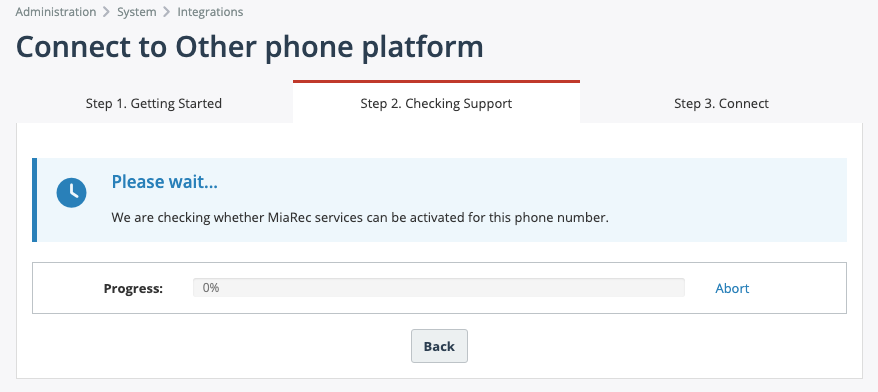
If the check succeeds, MiaRec shows a success message. Click Continue.
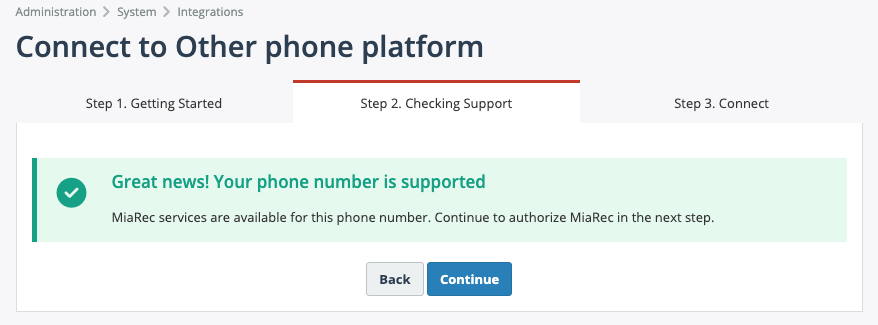
Step 3. Authorize MiaRec
Your provider may ask you to sign in, select an account, or grant consent. Choose the provider account of the organization you want to connect.
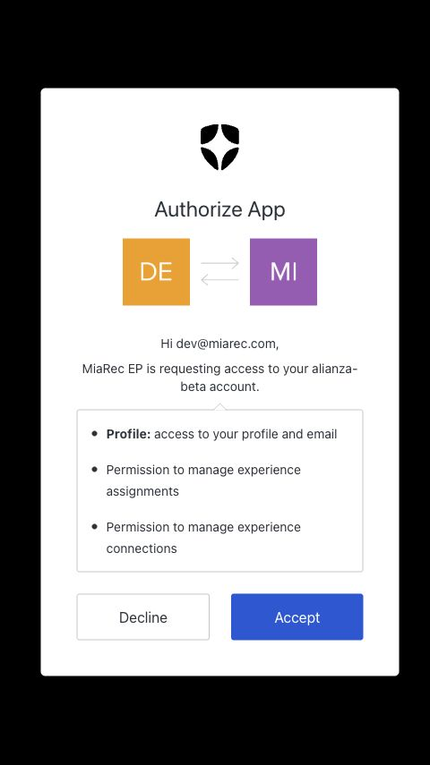
After you authorize, MiaRec provisions the provider resources and confirms that the integration is active. Click Close to return to the integrations list.
If the phone number can't be activated automatically
MiaRec may not be able to activate services automatically for the number you entered, because:
- The number is not managed by a supported service provider.
- The provider returned an error during the eligibility check.
- The check took too long.
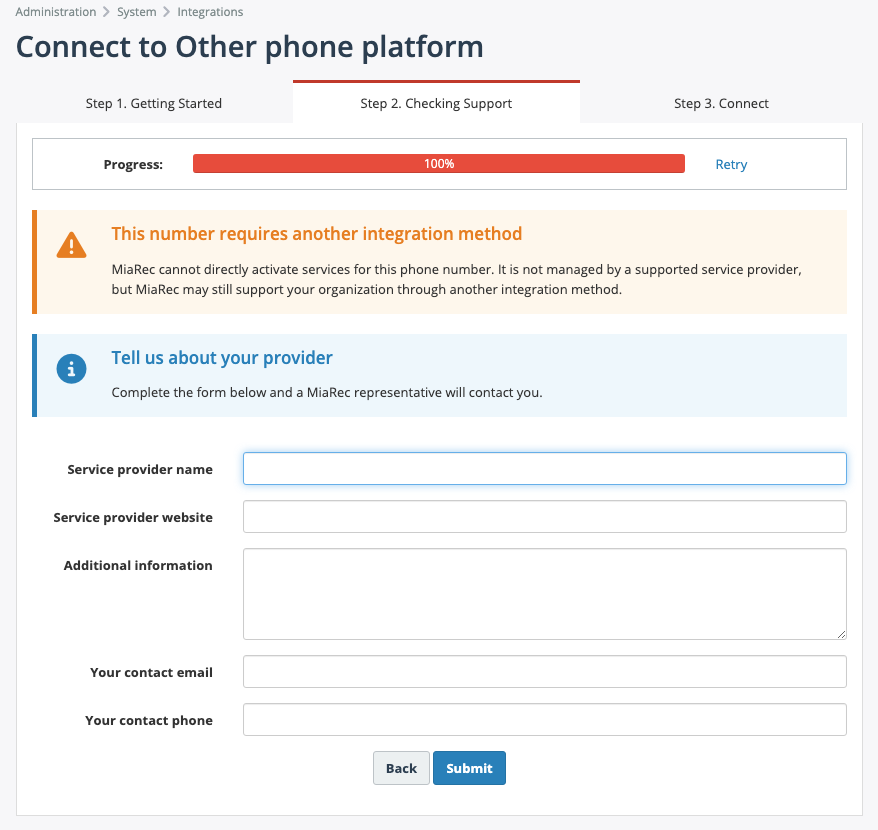
MiaRec may show the result with a short form, so a MiaRec representative can follow up. The service provider name and website, and your contact email and phone, are required; additional information is optional.
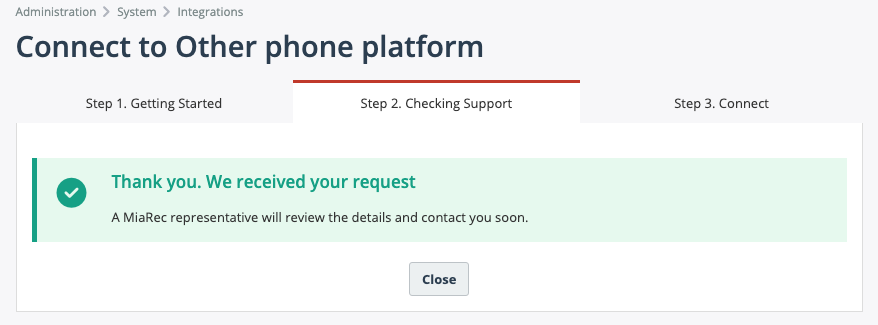
After you submit the form, MiaRec confirms that your request was received.
Otherwise, MiaRec shows the result with Retry, Back, and Close. Use Retry if the problem might be temporary.
View the connection
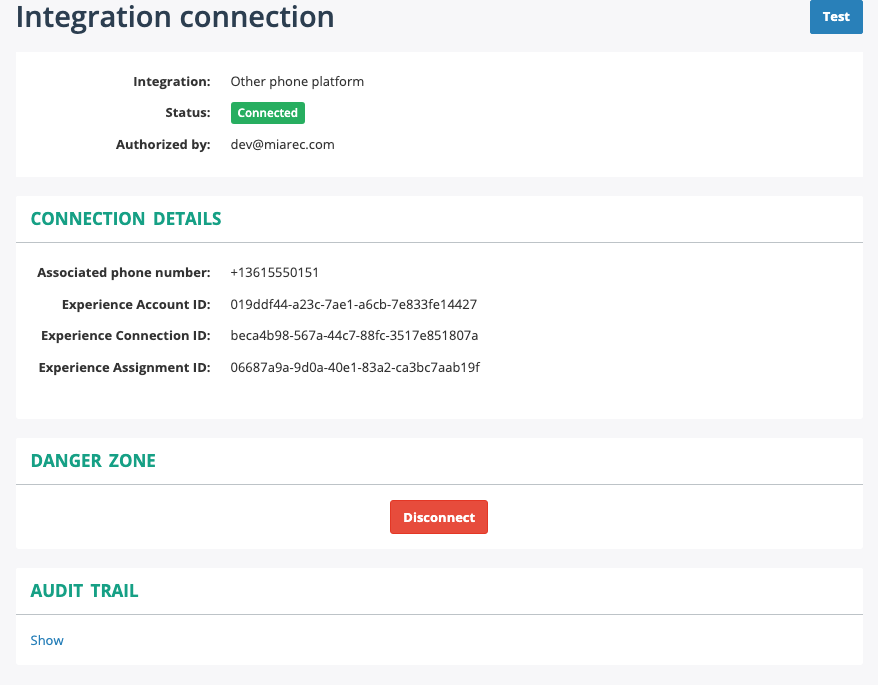
After onboarding, the connection view shows the provider resources of your organization:
- Associated phone number
- Experience Account ID
- Experience Connection ID
- Experience Assignment ID
MiaRec support may ask for these values when troubleshooting.
Test the connection
The connection test confirms that MiaRec can read provider data with your authorization.
- Open the connection and click Test.
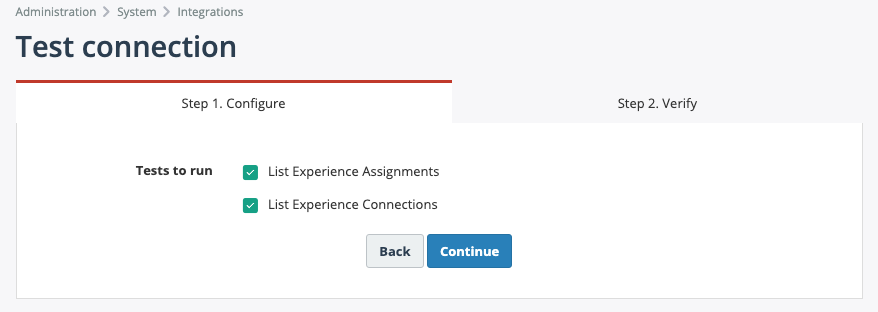
- On Step 1. Configure, choose the tests to run:
- List Experience Assignments
- List Experience Connections
- Click Continue, and complete provider authorization if prompted.
MiaRec shows the results in tables on Step 2. Verify:
- Experience Assignments are checked separately for Account, Phone number, and User records, and merged into one table. Only the first 20 records of each type are shown, which is enough to confirm that provider API access works.
- Experience Connections are listed for your provider account.
Disconnect the integration
Disconnect when your organization should no longer use this provider connection with MiaRec.
- Open the connection and click Disconnect in the Danger Zone.
-
Keep Delete Experience Connection selected to remove the provider resources, which is the default. Type
deletein Confirm deletion to continue.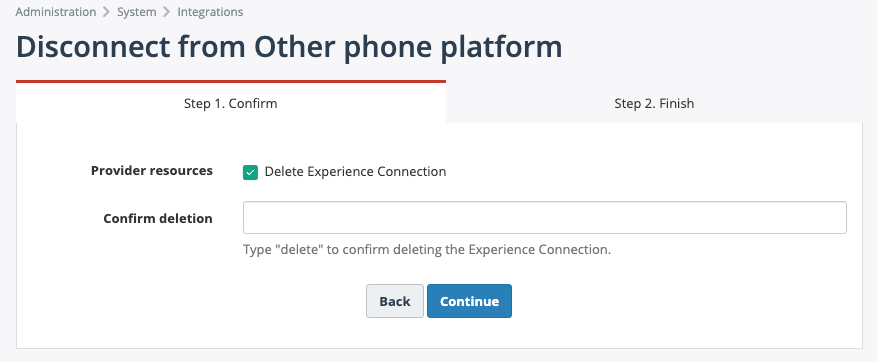
If you clear Delete Experience Connection, MiaRec keeps the provider resources and only marks the connection as disconnected in MiaRec. No provider authorization is needed in that case.
-
If provider resources are being deleted, authorize MiaRec with your provider again when asked. MiaRec removes the Experience Assignment and the Experience Connection, then the MiaRec connection.
- Click Close to return to the connection list.
Troubleshooting
- I don't see Other phone platform. Contact MiaRec support.
- My phone number is rejected. Enter it in E.164 format: a
+, then the country code and phone number, for example+14155551234. - The provider shows the wrong account. Choose the correct account on the provider's authorization screen. If the provider doesn't offer a choice, contact MiaRec support.
- Eligibility validation doesn't succeed. Use Retry if the problem looks temporary. If it repeats, submit the contact form when it is shown, or contact MiaRec support.
- The connection test shows fewer assignment records than expected. The test shows only the first 20 Account, Phone number, and User records. This is expected.