Audio file encryption
Audio file encryption stores your organization's recordings encrypted at rest, adding a second layer of protection on top of role-based access control: even someone with direct access to the storage cannot play the files without the decryption key. Each recording is encrypted with its own random AES-256 key, which is in turn protected with your organization's RSA key pair (2048-bit by default) — the public key encrypts, and only holders of the private key can decrypt.
Encryption is configured under Administration › Storage › File Encryption.
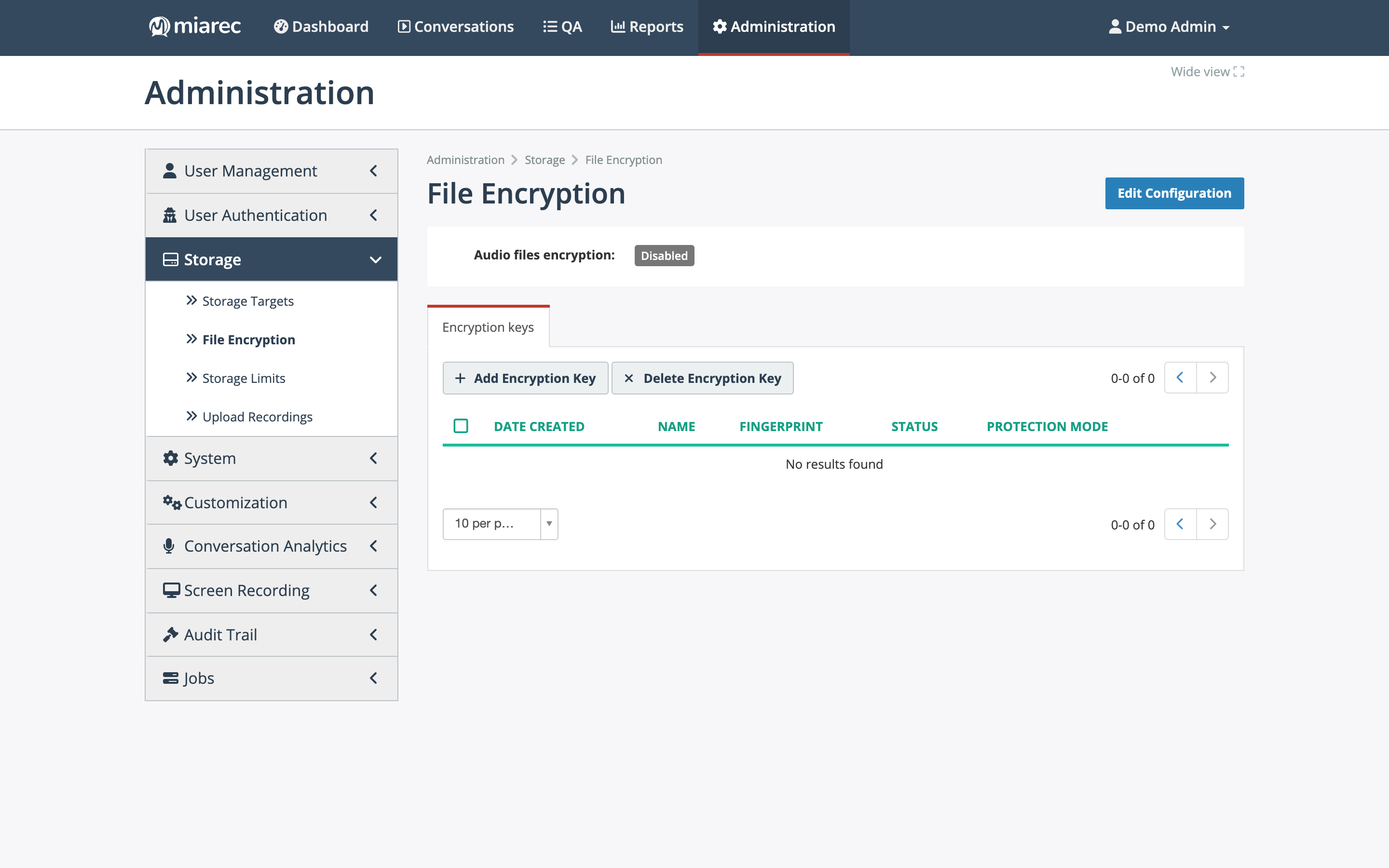
The File Encryption page: the Audio files encryption status at the top (with Edit Configuration) and the Encryption keys list below, where keys are added and managed (empty here — no keys have been created yet).
Enabling encryption
- Create an encryption key first (below) — recordings can only be encrypted when an active key exists.
- Click Edit Configuration, enable Audio files encryption, and save.
From then on, newly captured recordings are encrypted with the active key.
Encryption keys
Click Add Encryption Key to create a key:
- Name — a label for the key.
- Status — "Use this encryption key for new recordings" marks the key as the active one.
- Protection mode:
- User credentials — the private key is protected by the credentials of the users you grant access to; decryption requires one of those users.
- Application credentials — the private key is stored protected by the application itself, so the platform can decrypt recordings without an individual user's credentials.
- Key length, or alternatively an existing key pair imported in PEM format.
The key list shows each key's Date Created, Name, Fingerprint, Status, and Protection mode. Private keys are never stored in plain text.
Warning
Export a backup of every key (the Export button on the key's page — protect the export with a password) and store it safely outside MiaRec. Recordings encrypted with a lost key cannot be recovered.
Granting playback access
With User credentials protection, users need explicit access to a key before they can play or download recordings encrypted with it. On the key's page:
- Open the Unauthorized Users list and select the users to authorize.
- Click Grant access. Use Revoke access on the Authorized Users list to remove access.
An administrator can only grant access to keys they themselves have access to — even a full administrator without access to a key cannot authorize others for it.
When an authorized user plays or downloads a recording, it is decrypted in flight; the audio leaves the platform unencrypted, like any other download.
Related pages
- Storage usage
- Retention
- People & Access — role-based access control, the first layer.