Account security
The Security section of My Profile is where you protect your account: set up two-step verification, review linked single sign-on accounts, and check the devices and web sessions that have accessed your account. To open it, click your name in the top-right corner, select My Profile, and expand the Security pane on the left.
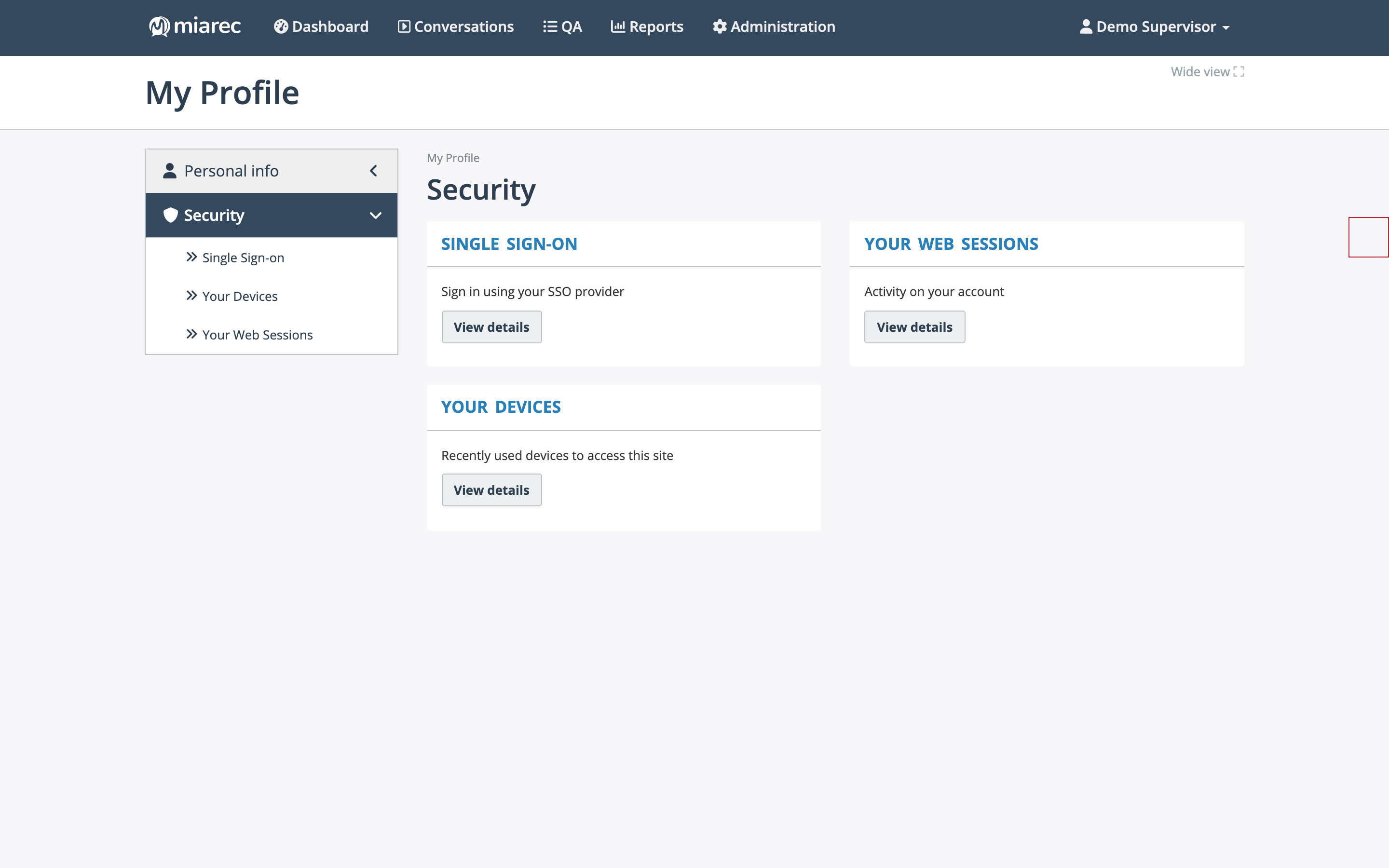
The Security page. Each card links to a detail page; the sections you see depend on what is enabled for your organization — for example, the two-step verification section appears only when the feature is enabled.
Two-step verification
If two-step verification is enabled for your organization, you can add verification methods to your account here. With a method set up, signing in requires a one-time code in addition to your password — see Signing in.
- On the Security page, open 2-Step Verification.
- Click Add 2-step verification method. You are asked to confirm your password.
- Follow the wizard to choose and verify a method. Depending on what your organization has enabled, available methods can include an authenticator app, a code sent by email, or a code sent by text message (SMS).
You can add more than one method; the default method is offered first at sign-in.
Trusted devices
When entering a verification code at sign-in, you can choose not to be asked again on that computer. Such devices are saved as trusted: subsequent sign-ins from them require only your login and password. The Trusted Devices page lists them; click Revoke next to any device you no longer use or do not recognize, and it will require a verification code again.
Note
Whether two-step verification is available — or required — is controlled by your administrator. If you do not see the 2-Step Verification section, the feature is not enabled for your organization. See Two-step verification in the Administration Guide.
Single Sign-on
The Single Sign-on page shows the identity-provider accounts linked to your MiaRec account for signing in with SSO. If your organization does not use SSO, the list is empty. See Signing in for how SSO sign-in works.
Your Devices
The Your Devices page lists the devices you have recently used to sign in to your account, with their location and browser details — click View on a row for the full details. When your account is accessed from a new device, MiaRec notifies you by email. If you see a device you do not recognize, change your password and review your web sessions.
Your Web Sessions
The Your Web Sessions page lists your currently active sign-in sessions, with the start time, location, and browser of each. If you spot suspicious activity, click Terminate to end that session immediately, then change your password.