Understanding Auto QA
Auto QA scores conversations against a scorecard automatically. The AI reads the transcript, answers every AI assistant question on the scorecard, and writes a justification for each answer — so a reviewer can verify the result against the conversation instead of taking it on faith. This page explains how that works and how to read an auto-scored evaluation.
Which conversations are scored, and with which scorecard, is configured by your administrator — see Enabling Auto QA in the Administration Guide. Auto QA requires a transcript, so only transcribed conversations are scored.
How the AI scores a conversation
For each AI-assistant question on the scorecard, the AI:
- Reads the whole transcript.
- Answers the question in terms of the question's choices — typically Yes, No, or N/A (N/A meaning the question does not apply to this conversation).
- Writes a justification for the answer, including a
[MM:SS]timestamp pointing at the evidence in the conversation.
The question and section Description fields from the scorecard are passed to the AI as grading guidance — this is the main tuning lever; see Tuning scorecards.
Beyond the per-question answers, the AI also writes:
- Section feedback — recommendations for the agent, per section, where warranted.
- Report-level feedback — overall Strengths, Areas for Improvement, and optional additional feedback.
The score itself is then calculated from the answers exactly as for a manual evaluation — weights, N/A handling, and thresholds all apply; see Score calculation.
Reading an auto-scored evaluation
Auto-scored evaluations appear in QA › Evaluations and on the conversation's QA tab, like any other evaluation. Open one to see:
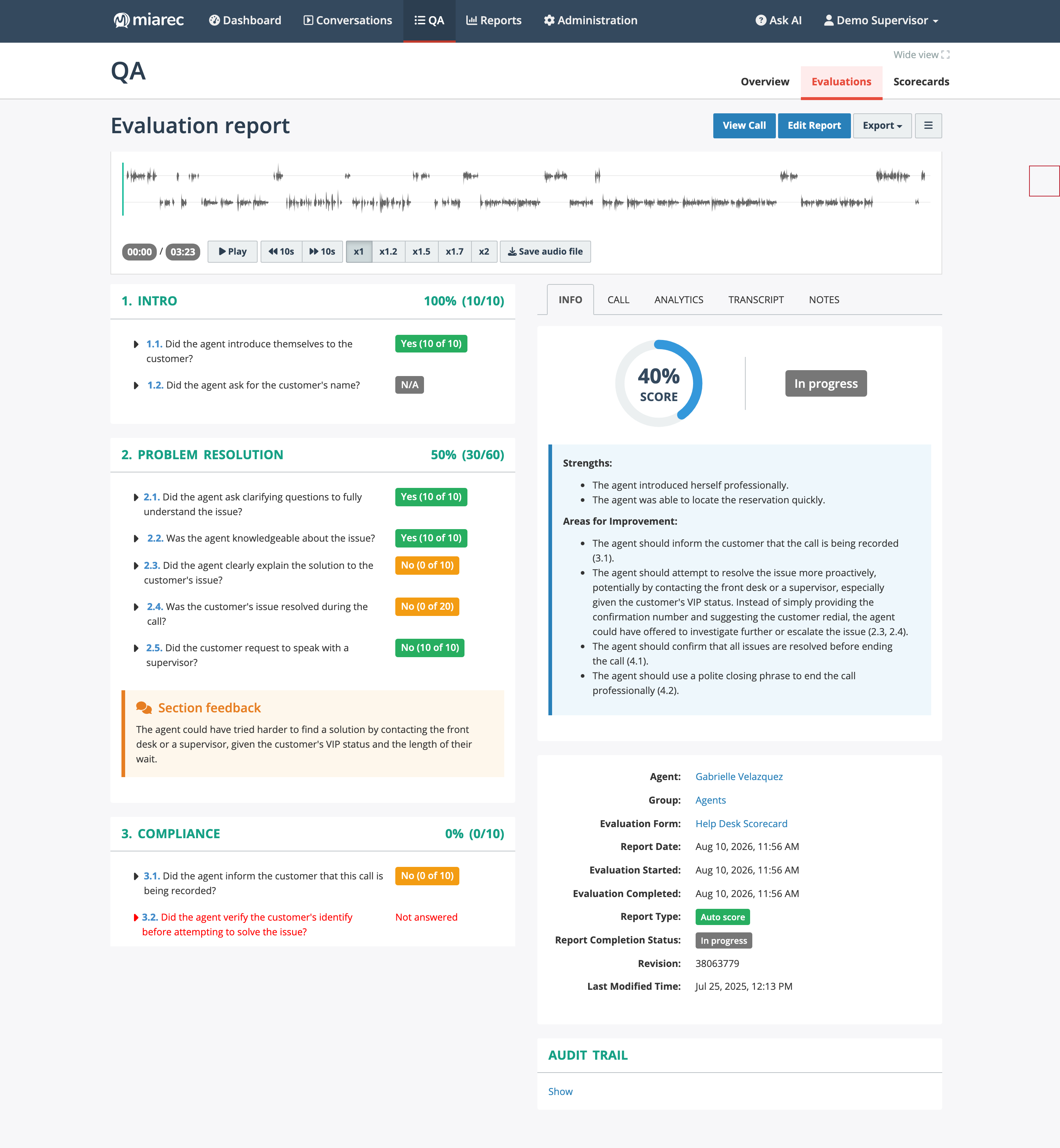
An auto-scored evaluation: per-section percentages with per-question answers on the left; the overall score, the AI's strengths/improvement feedback, and the report info on the right. Note question 3.2 — the AI left it unanswered, so the evaluation stays In progress until a reviewer completes it.
- Sections and questions — each section shows its percentage and points; each question shows the answer and its points (for example "Yes (10 of 10)"). Expand a question to read the AI's justification with its timestamp.
- Score chip — the overall score, with PASS/FAIL against the scorecard's passing threshold.
- Player and tabs — the embedded player plus Info / Call / Analytics / Transcript / Notes tabs, so you can verify any answer against the audio and transcript without leaving the page.
- Info panel — the agent, group, and scorecard, with Report Type: Auto score, the completion status, and the scorecard revision the evaluation was scored against.
- Header buttons — View Call opens the full conversation page, Edit Report opens the evaluation for review and override, and Export downloads it as Excel or PDF.
Auto-scored evaluations have no evaluator — the Evaluator column in the Evaluations list is empty for them, which is the quickest way to tell them apart from manual evaluations.
When the AI does not answer a question
If the AI's answer cannot be matched to one of the question's choices, the question is left Not answered and the evaluation remains In progress. A reviewer completes it by answering the question in Edit Report — see Reviewing and overriding.