Roles and permissions
Every user is assigned a role, and the role defines what the user can see and do. A role combines:
- an access scope — whose data the role can see;
- a set of permissions — what the role can do with that data;
- optional access restrictions — extra limits by IP address or by conversation tags.
MiaRec comes with typical roles such as Admin, Supervisor, and Agent; you can modify them or create your own. The concept is introduced in People & Access.
To manage roles, go to Administration › User Management › Roles.
The role list
The list shows each role with its access scope. From here you can Add Role, delete selected roles (Delete Role), or open a role to view it. A role's page also offers Clone Role — the easiest way to create a variation of an existing role.
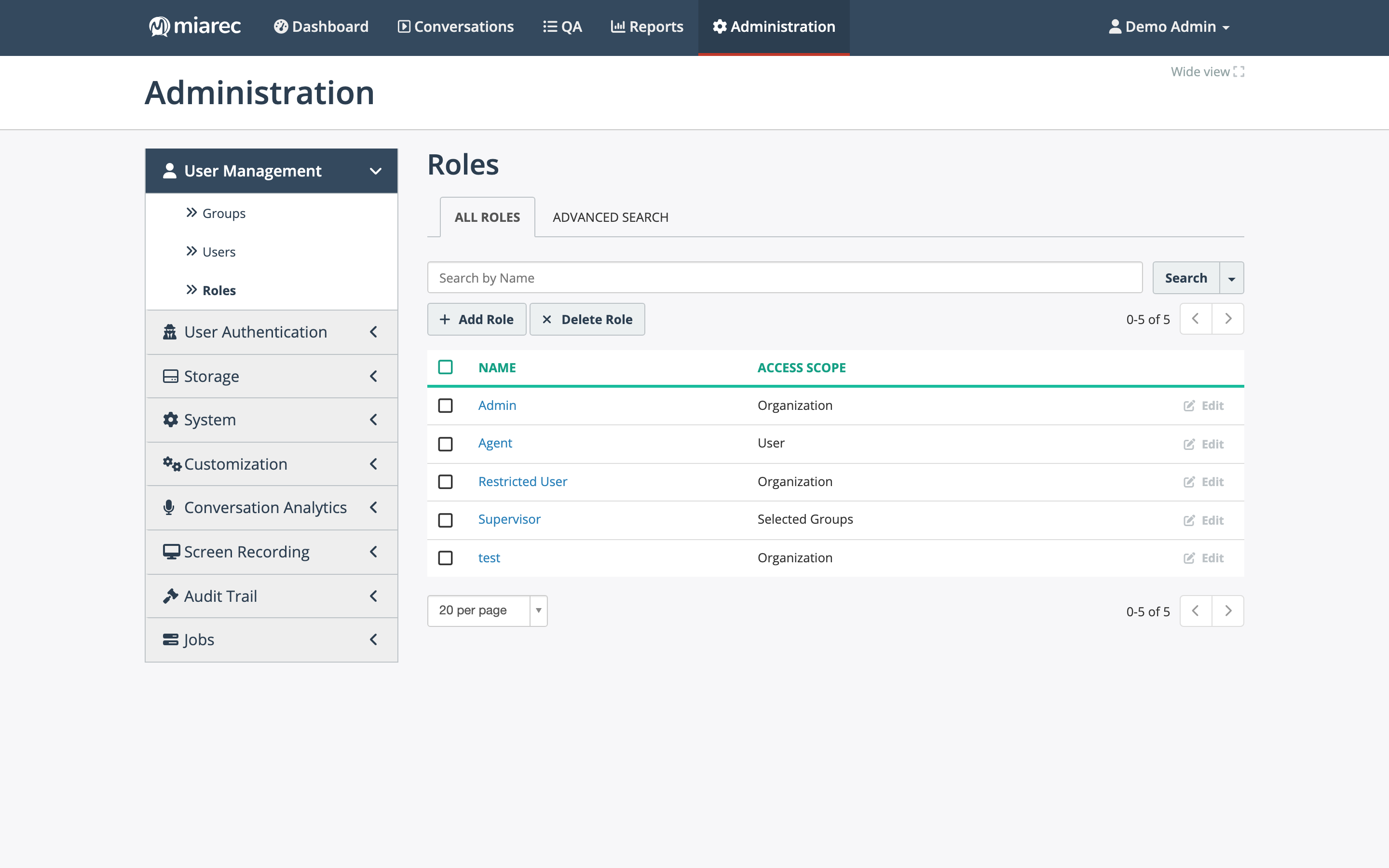
The Roles list. The Access Scope column tells you at a glance whether a role is organization-wide, team-scoped, or personal.
Access scope
The access scope sets how much of your organization's data the role can see:
- Organization — access to the whole organization, restricted by permissions. Typical for administrators.
- Selected Groups — access to selected groups only, restricted by permissions. Typical for supervisors: the groups themselves are chosen per user, in the Managed groups field of the user profile.
- User — access to the user's own data only, restricted by permissions. Typical for agents.
A permission granted to a User-scoped role still applies only to the user's own conversations (see People & access for the concept).
Access restrictions
Two optional restrictions further limit a role:
- IP address restrictions — allow sign-in only from specific IP addresses or networks.
- Restrict Access by Tags — only conversations with the selected tags are visible to users with this role.
The permission grid
The role editor shows a grid of permissions organized into Admin permissions, Job permissions, and Other permissions. Each row is a resource; each checkbox is an action on it — typically View, Create, Edit, Delete, plus resource-specific actions such as Playback, Download, Share, Evaluate, Run, Reset password, or Impersonate. Rows that are not available to the role's access scope are shown as "Not allowed for this access scope" — for example, most administration resources cannot be granted to a Selected Groups role.
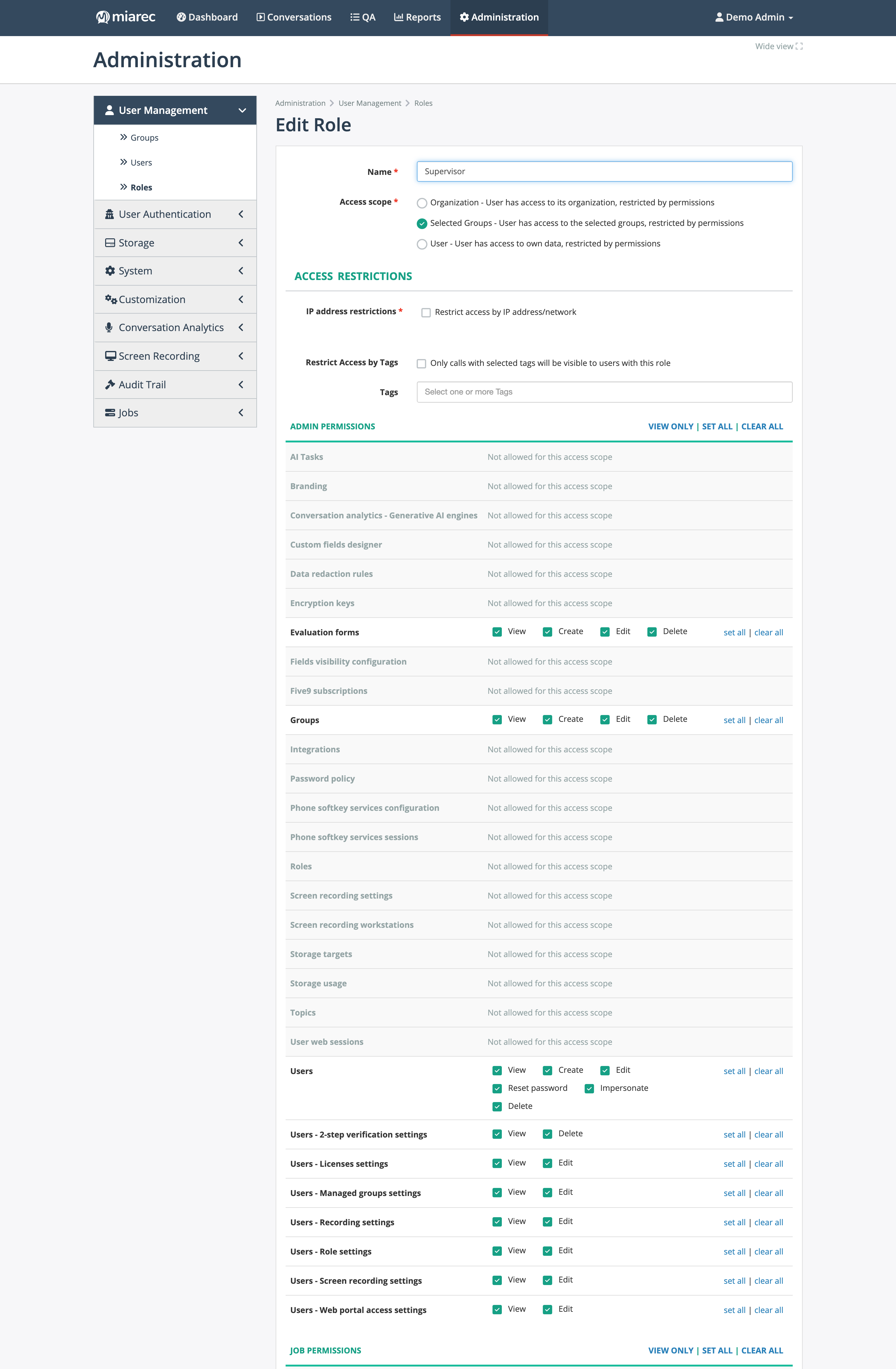
The role editor (a Supervisor role shown). Notice the per-row "set all / clear all" shortcuts, the section-level "VIEW ONLY / SET ALL / CLEAR ALL" controls, and the rows marked "Not allowed for this access scope".
Highlights worth knowing:
- Conversations permissions are split into Conversations - Own, Conversations - Other users', Conversations - Shared, and Conversations - Confidential, each with its own action set (View, Playback, Download, Tag, Add notes, Evaluate, Share, Delete, and more). This is how you give agents access to their own conversations but not their colleagues'.
- Users permissions include the special actions Reset password and Impersonate, and each tab of the user form has its own row (Users - Role settings, Users - Licenses settings, Users - Recording settings, Users - Web portal access settings, and so on) — so you can let a role edit user profiles without letting it change roles or licenses.
- Job permissions control which jobs the role can run.
Reporting permissions
Reporting is controlled by two rows in Other permissions:
- Reports - Own — work with the user's own (private) report templates: View, Create, Edit, Run, Delete.
- Reports - Public — the same actions on public report templates, shared with the whole organization.
Report results still reflect the access scope of the person who runs the report — a Selected Groups supervisor gets results for their groups only. See Running reports in the User Guide.
QA permissions
Evaluation and scorecard rights (who can evaluate, whose evaluations are visible, who manages scorecards and evaluation queues) are covered separately in QA permissions.
Related pages
- User accounts — assign roles to users.
- Groups — the teams that Selected Groups roles are scoped to.
- User reports — report on users, their roles, and permissions.