Enabling Auto QA
Auto QA scores conversations against a scorecard automatically. The scoring is driven by an AI task of type Auto QA: it reads the transcript of each matching conversation, answers the scorecard's questions, and produces a scored evaluation. This page covers that administrative configuration — everything else (designing the scorecard, reviewing results, tuning) happens in the QA menu and is documented in the User Guide QA chapter.
Who can do this
Administrators whose role includes the AI Tasks permission. Auto QA is available if your subscription includes it — see Subscriptions & Licensing.
Before you begin
- An Auto score scorecard must exist and be active — scorecards are designed under QA › Scorecards, see Scorecards in the User Guide.
- Conversations are auto-scored only when assigned to a user who holds the speech-analytics (Conversation Analytics) license. The evaluation license gates manual and assigned evaluations — see QA permissions.
The Auto QA task
Auto QA tasks live with the other AI tasks under Administration › Conversation Analytics › AI Tasks (see AI tasks for the page in general). To create one, click Add, choose the type Auto QA, and click Continue.
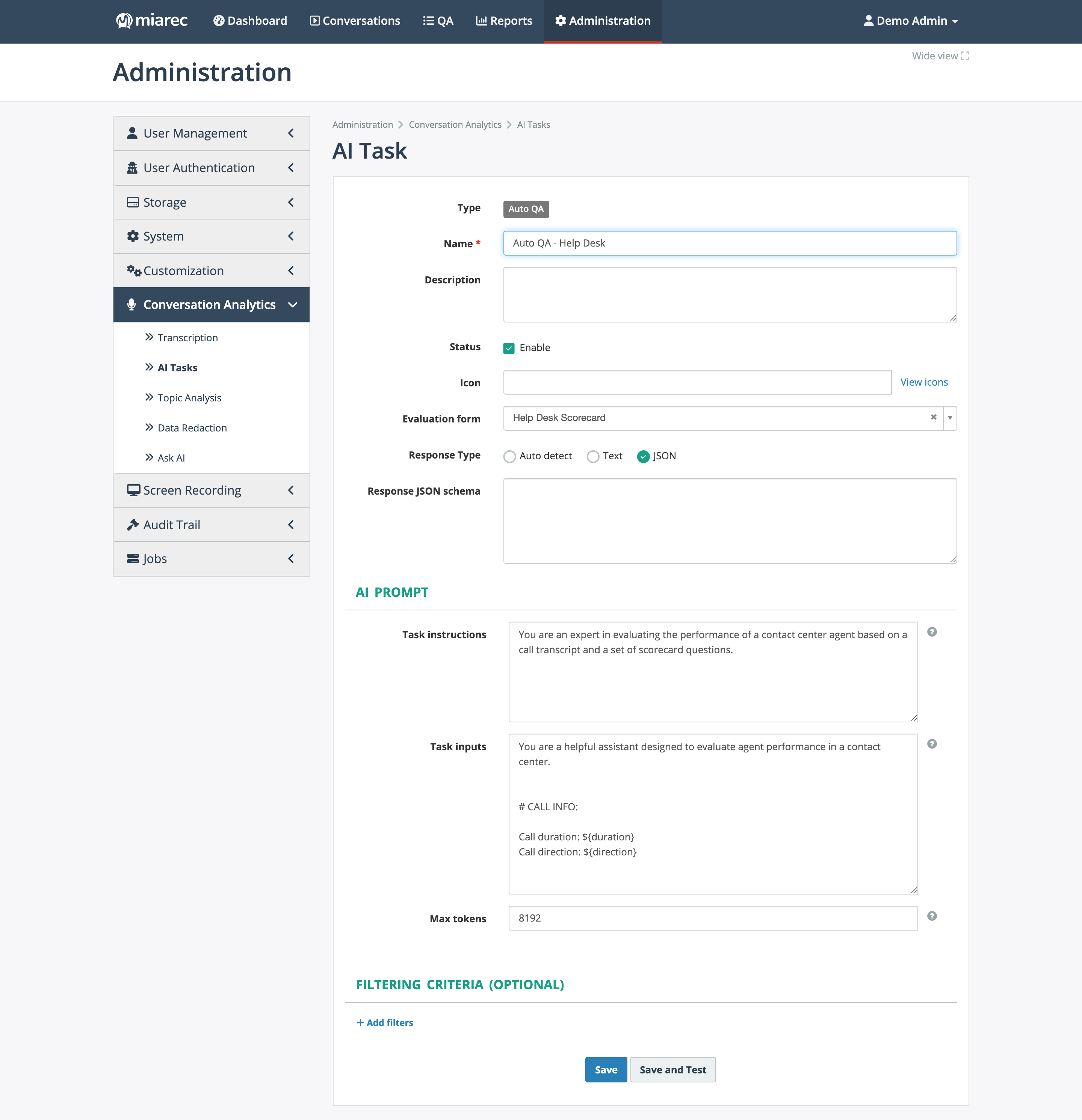
An Auto QA task in the editor. Notice the Evaluation form field — this is the link between the task and the scorecard it scores against — and the Filtering criteria (optional) section at the bottom, which limits which conversations get scored.
The task settings are:
- Name, Description, and Status (Enable) — a disabled task does not score anything.
- Evaluation form — the scorecard this task scores against. Each Auto QA task is linked to exactly one scorecard; to score with several scorecards, create a task per scorecard.
- Response Type — how the AI's response is parsed; Auto QA tasks typically use JSON.
- AI Prompt — the Task instructions and Task inputs sent to the AI. The inputs use template
variables (for example
${transcript}for the conversation transcript); the scorecard's questions and their grading guidance are supplied to the AI automatically. The defaults work for most organizations — the per-question tuning belongs in the scorecard, not in the prompt (see Tuning scorecards). - Max tokens — the response size limit.
Managed by your service provider
The AI Tasks list separates Global tasks — preconfigured by your service provider — from your organization's own tasks and overrides. A global Auto QA task may already exist; you can override its settings for your organization instead of creating one from scratch.
Task filters
Filtering criteria (optional) limits which conversations the task scores, using the same filter builder as advanced search — for example only conversations longer than a minimum duration, only a specific group, or only a call direction. With no filters, every conversation that has a transcript and is assigned to a licensed user is scored (conversations that already have an evaluation for this scorecard are skipped).
Thresholds
Pass/fail is not configured on the task: the passing threshold — overall and optionally per section — is part of the scorecard, and the score is calculated from the scorecard's weights. See Scorecards and Score calculation.
Verifying results
- Save and Test in the task editor (or Test on the task page) runs the task against a conversation you pick, so you can check the output before enabling it broadly. The same quick iteration is available to scorecard owners as Test in Playground.
- Once the task is enabled, auto-scored evaluations appear in QA › Evaluations and on the conversation's QA tab as new conversations are processed — see Understanding Auto QA.
- AI token consumption is visible under Usage & limits.
Related pages
- QA permissions — who can see and review the resulting evaluations.
- AI tasks — the AI Tasks page in general.
- Quality Assurance in the Overview.