Jobs
Jobs are background tasks that administrators run against the organization's conversations in bulk — for example tagging every conversation that matches a filter, or marking a set of conversations confidential. Jobs are managed under Administration › Jobs.
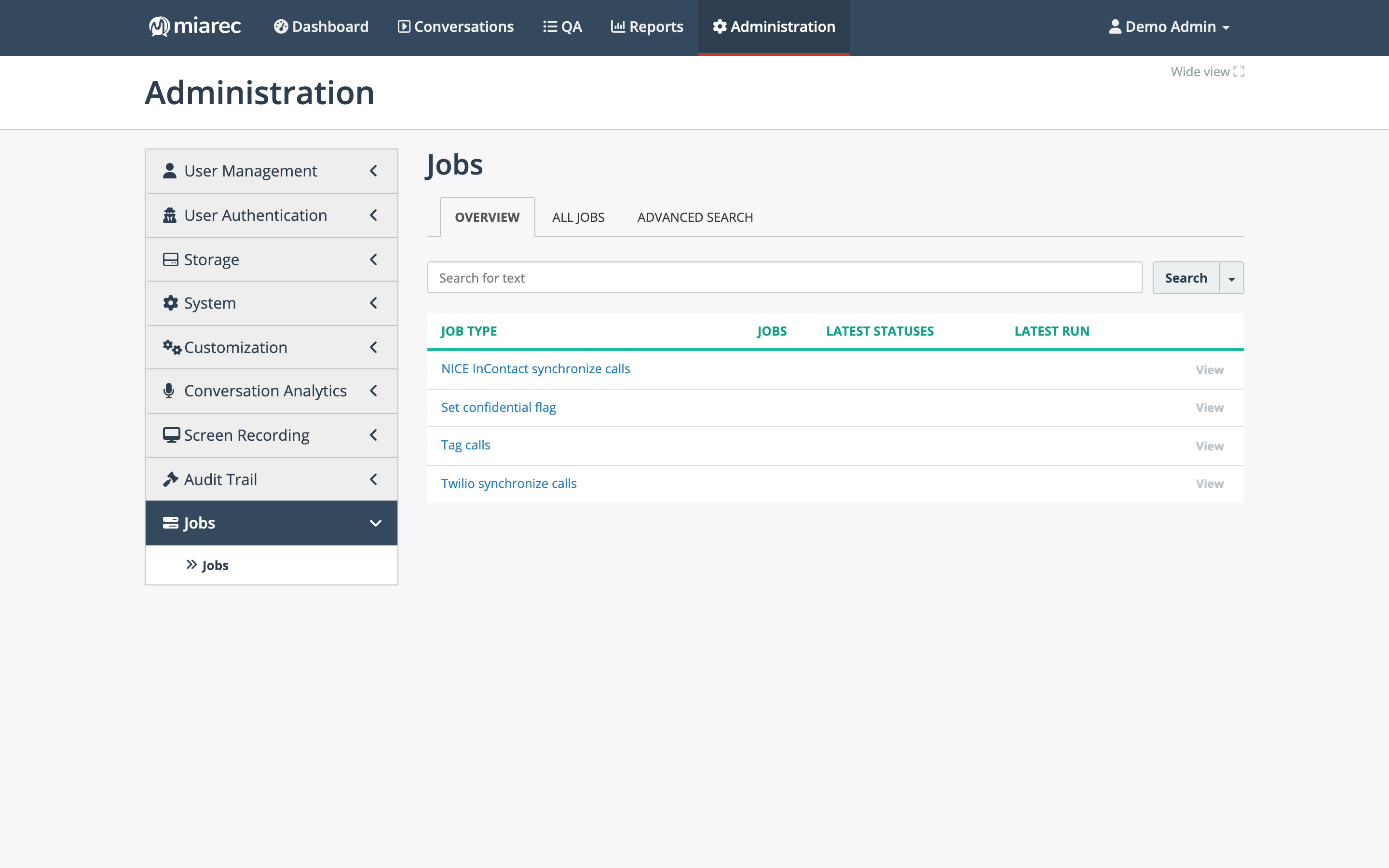
The Jobs page, Overview tab: the catalog of job types available to your organization, with the number of configured jobs, their latest statuses, and last run per type.
Job types
The job types available to your organization's administrators are:
- Tag calls — assigns a tag to, or clears a tag from, every conversation matching the job's condition. See Tags in the User Guide.
- Set confidential flag — sets or clears the confidential flag in bulk. See Confidential conversations.
- Telephony sync jobs — for example Twilio synchronize calls and NICE InContact synchronize calls: they pull conversations from a connected telephony platform. See Integrations.
Each visible type requires the matching row in the Job permissions section of your role; telephony sync types may also require the integration to be connected. Each job type is a separate permission row (see Roles and permissions).
Note
Routine processing — transcription, AI analysis, Auto QA scoring — happens automatically and does not appear here. This page is only for the jobs your organization runs itself.
Creating a job
- On the Jobs page, click Create and pick the job type.
- Configure the job:
- Condition — the filtering criteria selecting which conversations the job processes, using the same filter builder as advanced search (date ranges, groups, tags, durations, and so on).
- Action — the type-specific action, for example Assign a tag or Clear a tag and the tag to use, or Set confidential flag / Clear confidential flag.
- Job Advanced Settings — technical options; the defaults are usually right.
- Schedule — see below.
- Click Save, or Save and Start to save the job and run it immediately.
Scheduling
A job's Schedule section sets its Frequency:
- Not scheduled — the job runs only when started manually.
- Every Hour / Every Day / Every Week / Every Month — periodic runs at the configured minute, time, weekday, or day of month.
- Custom (crontab) — a crontab expression for anything more specific.
Scheduled or not, a job can always be started manually with Start on its page (and stopped with Abort).
History and results
Each job's page shows its details — including the last and next scheduled run — and its execution history in tabs:
- Latest run / All runs — per-run results with counters of processed records.
- Processing records — the individual records a run processed.
- Logs — the job's log output.
The All jobs tab lists every configured job across types, and Advanced Search finds jobs by their attributes. Jobs can also be edited, cloned, and deleted from their pages.
Related pages
- Integrations — connecting the platforms that sync jobs pull from.
- Roles and permissions — granting job permissions.