Transcription monitoring and troubleshooting
The Transcription page (Administration › Conversation Analytics › Transcription) bundles everything needed to keep transcription healthy: the Usage dashboard, the Jobs tab for run history and logs, and the Results tab listing individual transcriptions.
Monitoring usage
Open the Usage tab. As the system operator you can view usage across all tenants or select one tenant; tenant administrators see the same dashboard scoped to their own organization. The dashboard shows:
- Used minutes and denied requests counters for the selected period.
- Where limits are configured: licensed-user counts, the per-user and total monthly limits, current consumption against them, and days remaining until the monthly reset.
- A historical chart of daily minutes and denied requests.
A non-zero denied requests count means the tenant hit a limit and conversations are going untranscribed — see Tenant and user configuration for the limit knobs.
Note
Usage is metered when the engine processes a request. Conversations skipped by job filters (no license, duration outside the filter range) consume nothing and appear nowhere on this dashboard.
Monitoring the transcription job
Open the Jobs tab and click the transcription job.
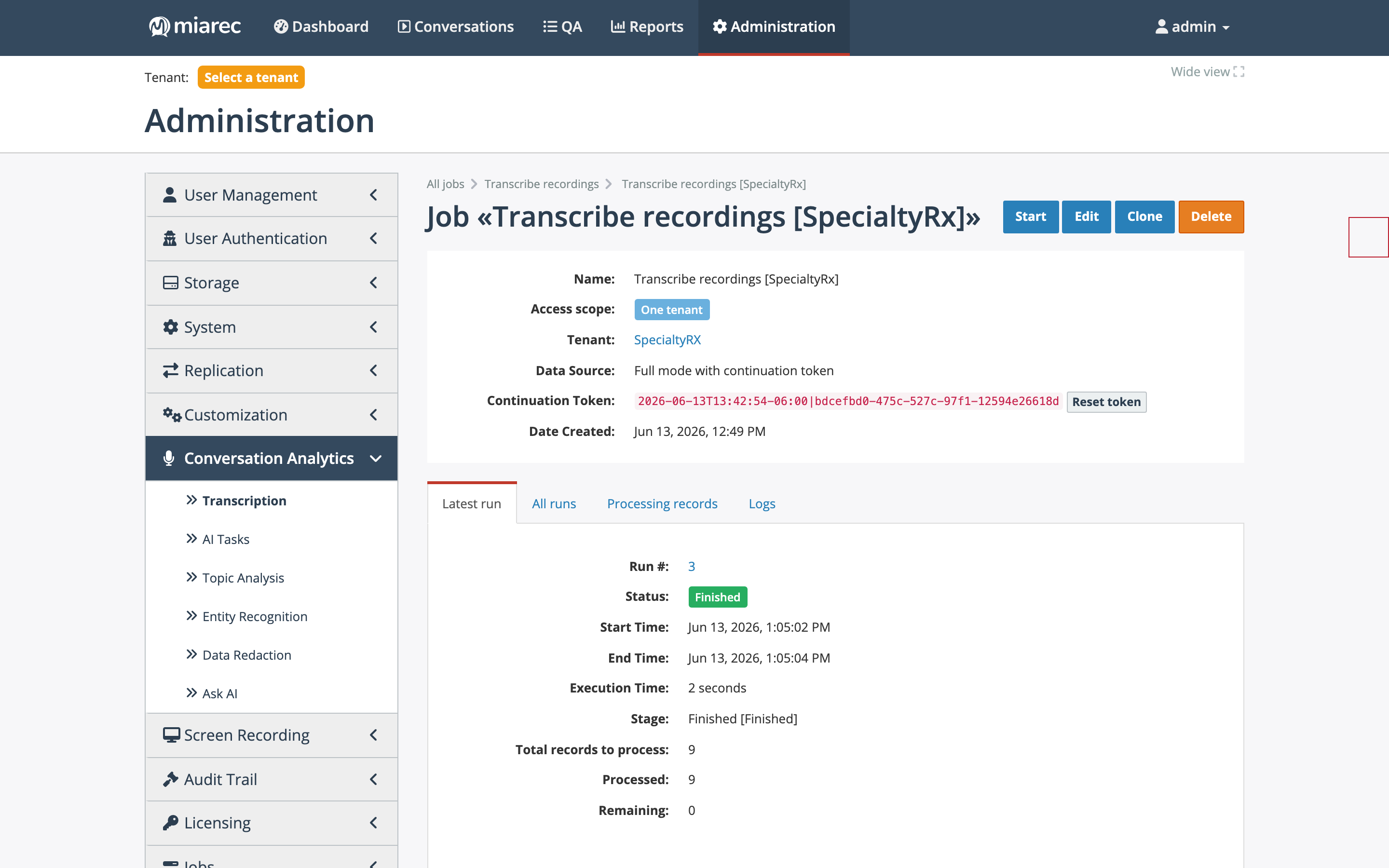
A "Transcribe recordings" job. Notice the Latest run tab: status, execution time, and the records total/processed/remaining counters, plus the four sub-tabs (Latest run, All runs, Processing records, Logs) used throughout this page.
Latest run shows the most recent run: how many records were uploaded for transcription, completed, or still pending.
Note
Transcription is asynchronous. Audio is uploaded to the transcription service and the text comes back later, so there is normally a delay between a conversation entering the queue and its transcript becoming available. For uploaded records the job checks periodically for results, up to 50 times; a record whose result never arrives in that window is marked Failed.
All runs shows the run history with a processed-per-day chart and three metrics:
- Processed — records successfully transcribed.
- Errors — records that failed (invalid license, network issues, and so on).
- Recovered errors — records that initially failed but succeeded on retry.
Info
Because the job polls for asynchronous results, each "not ready yet" check counts as a retry — a high Recovered errors number is normal behavior, not a problem.
Processing records lists individual records with totals for Completed, In Progress, Failed, Aborted, and Skipped, filterable by date, status, and record ID. The Record ID is the conversation's unique identifier — click it to open the conversation and view the transcript, or click View on a row to see the processing details including any error text.
Logs shows recent log messages for the job, with severity filtering, per-record search, auto-refresh, and export.
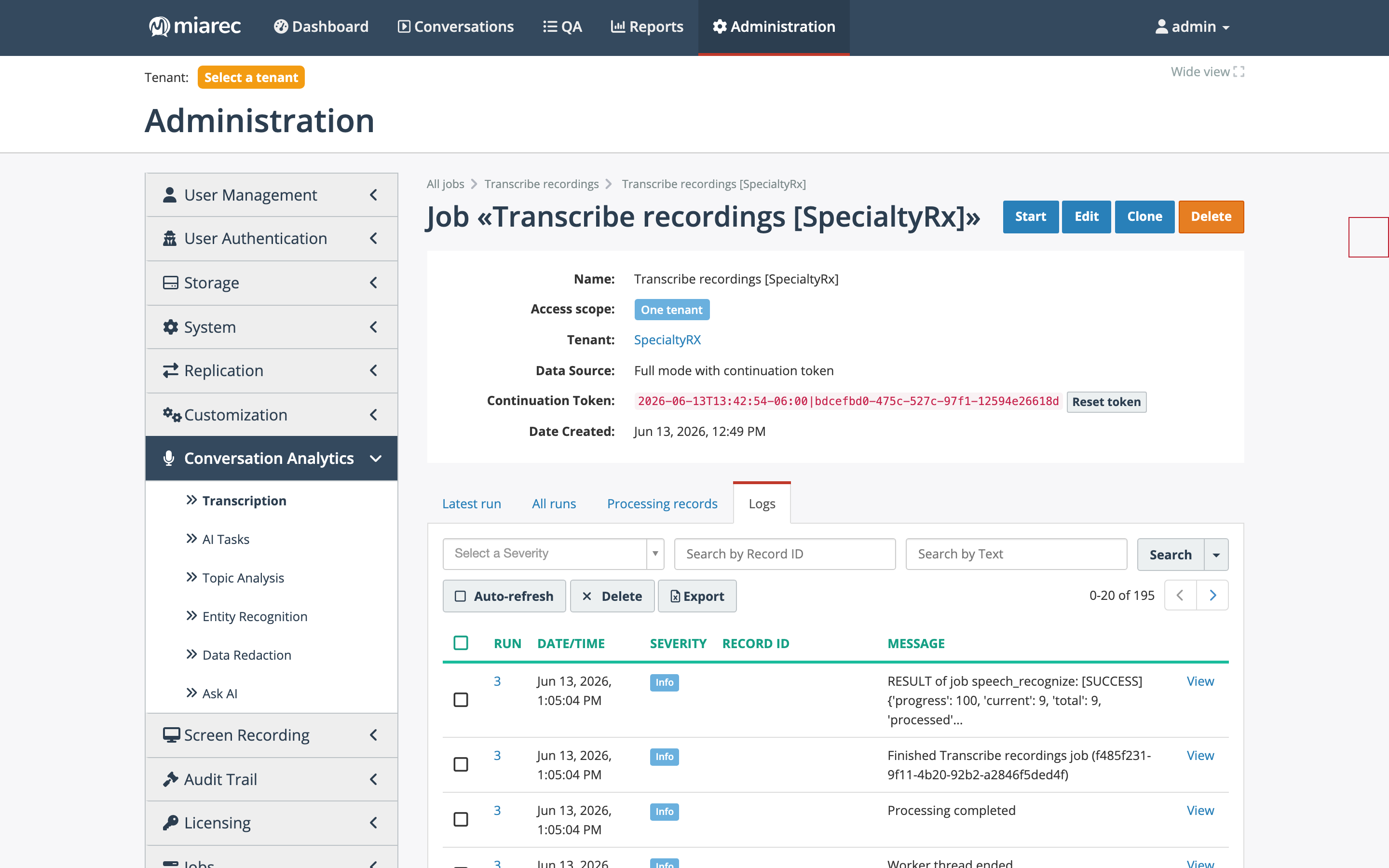
The Logs tab of a transcription job. Notice the severity filter and the Search by Record ID field — the fastest way to find out what happened to one specific conversation.
Checking results
The Results tab lists all transcriptions with created time, status, conversation date, duration, and parties — a quick way to confirm that transcripts are being produced across tenants without opening the job.
Troubleshooting checklist
- Did the job run recently, and with what status? Check the Latest run tab.
- Any errors or warnings in the job's Logs tab?
- If the job is not consuming work: how many records are pending in the processing queue? Administration › Jobs › Processing Queues shows each queue's backlog.
- If the job runs but transcribes nothing: are its Filtering Criteria excluding all records?
- Are users assigned the Speech analytics license?
- Has the tenant hit its transcription limits? Check the Usage tab for denied requests and the tenant profile for the limits.
- Does the engine still reach the service? Open the engine and click Test a Connection (see System configuration).