Configuring replication
Replication is configured in two places: a replication token on the receiving server (authorizes and constrains incoming data) and, for incremental system-configuration replication, a replication slot on the sending server (captures changes). Both live under Administration › Replication and are available in the System tenant only.
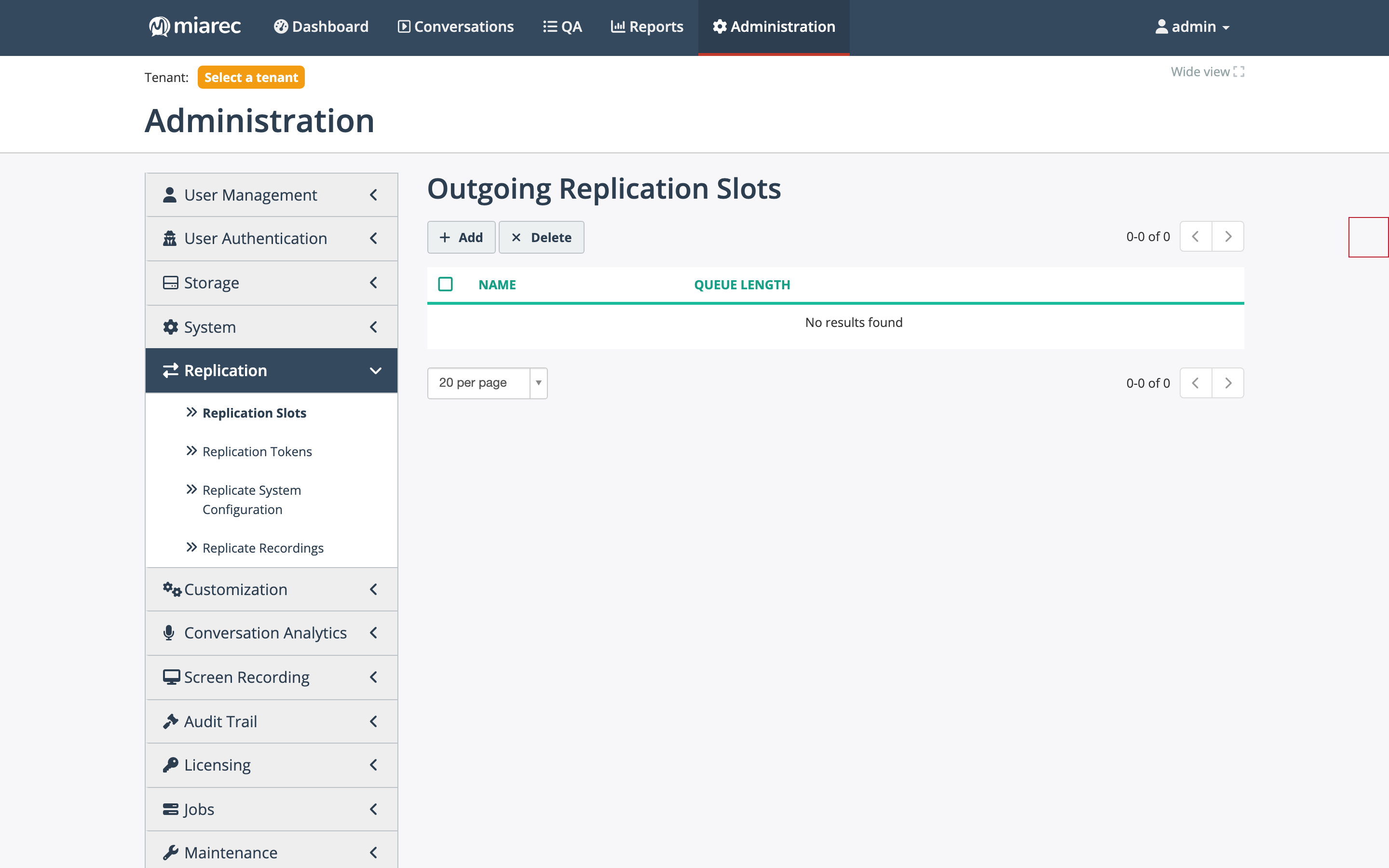
The Replication section of the Administration menu on a freshly installed system: Replication Slots (shown) and Replication Tokens start as empty lists until you add them; the two replication jobs have their own menu entries below.
Receiving server: create a replication token
On the server that will receive data, go to Administration › Replication › Replication Tokens and click Add. The token settings are:
- Status — Active; inactive tokens reject all requests.
- Name — a label identifying the sending server.
- Replication Token — generate a random secret or enter your own. The sending server presents the token ID and this secret with every request; the secret is stored hashed and cannot be viewed later, so copy it now.
- Remote IP address — optionally restrict which source network may use the token.
- Replicate data — which data types this token accepts: System configuration, Call metadata, Audio files, Evaluation Reports, Transcripts. Grant only what the sending server should be allowed to push.
- Update existing data — conflict handling when a received record already exists: Always (incoming data wins) or If newer (the default; the record is updated only if the incoming copy is newer).
- Related data sync mode — for a record's related child data: Merge with existing data (default) or Replace with source data.
- Call assignment — whether replicated conversations are matched to local users and clients on arrival.
- Storage Target, Directory, and Filename format — where received audio files are written; see Storage targets.
- Tenant (optional) — pin all data received with this token to one tenant account.
- Publish received records to queue(s) — push each received conversation into one or more processing queues so the receiving server can run its own pipeline (transcription, AI tasks) on replicated data. See Replication jobs.
Sending server: create a replication slot
A slot is needed when the Replicate System Configuration job runs in incremental mode. On the sending server, go to Administration › Replication › Replication Slots and click Add:
- Name — a label for the slot.
- Monitor changes in data — the configuration tables to capture: Users, Groups, Roles, Tenants, Processing Queues, Storage Targets, Jobs, Custom Fields, Report Templates, Evaluation Forms, SAML Identity Providers, Tags, Topics, Clients, AI Tasks, Integrations, Redaction Rules, and Speech Engines.
From the moment the slot exists, every insert, update, and delete in the monitored tables is recorded. The slot list shows each slot's Queue Length — the number of captured changes not yet consumed by a replication job. A steadily growing queue length means no job is draining the slot.
Warning
Create the slot before the first full replication run. Changes made while no slot exists are not captured, so an incremental job that starts later would miss them.
Conversation data does not use slots — the Replicate Recordings job tracks its own progress. Continue with Replication jobs.