Password policy
The password policy controls the password rules for your organization: complexity requirements, self-service password reset, and forced resets. The same page also holds your organization's single sign-on and two-step verification settings, which are documented on their own pages.
To view the policy, go to Administration › User Authentication › Password Policy. Click Edit Configuration to change it.
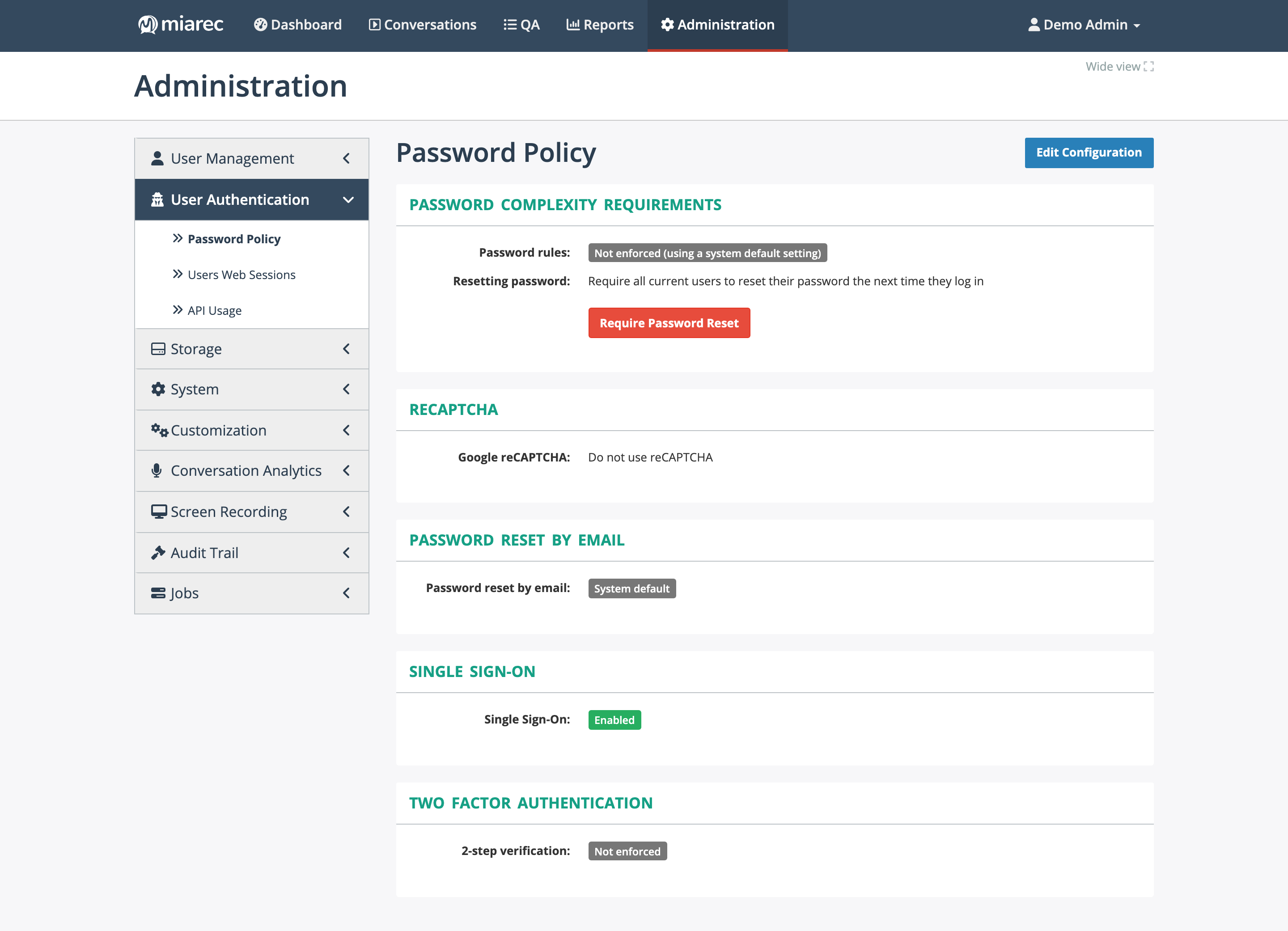
The Password Policy page for your organization. Notice the "system default" values — where your organization has not set its own rule, the platform-wide default applies.
Password complexity requirements
By default, password rules are not enforced by your organization and the platform's default rules apply. To set your own rules, enable Password rules in the edit form and configure:
- Minimum password length
- Requirements — any combination of:
- At least one UPPERCASE letter (A-Z)
- At least one lowercase letter (a-z)
- At least one numeric character (0-9)
- At least one special character (!, %, @, #, etc.)
The rules apply when a password is created or changed; existing passwords are not checked retroactively — use a forced reset (below) to bring all accounts under the new rules.
Managed by your service provider
The platform-wide default rules — used when your organization's policy shows "Not enforced (using a system default setting)" — are managed by your service provider.
Forcing a password reset
Under Resetting password, the Require Password Reset action requires all users of your organization who sign in with a password to reset it the next time they sign in (SSO-authenticated accounts are unaffected). Use it after tightening the password rules, or as a precaution after a security incident.
To force a reset for a single user instead, use Reset Password on the user's profile — see User accounts.
Password reset by email
The Password reset by email setting controls the self-service Forgot your password? link on the sign-in page:
- Enabled — users can request a reset link by email. Choose what the user must provide: their email only, or both login and email.
- Disabled — no self-service reset; users must ask an administrator.
- System default — follow the platform-wide setting.
Self-service reset only works for users with an email address on their account.
Related pages
- Single sign-on — the Single Sign-On section of this page.
- Two-step verification — the Two factor authentication section of this page.
- Signing in — what users see at the sign-in page.