List layouts and visible columns
Every list view in MiaRec — the Conversations views, user lists, evaluation reports, and so on — has a configurable layout: the set of columns it shows and their order. Layouts are configured centrally under Administration › Customization › Fields Visibility and apply to everyone in your organization.
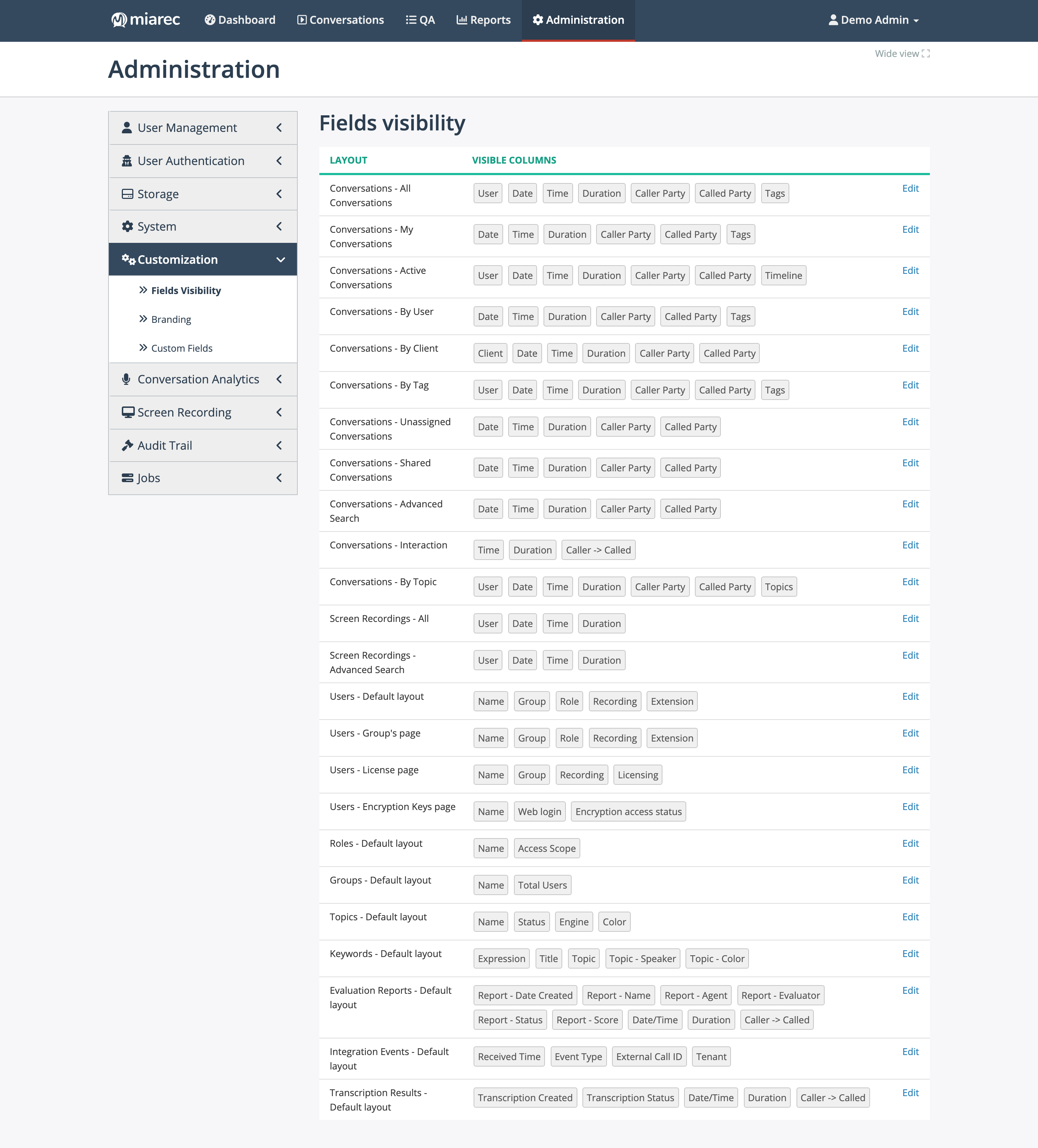
The Fields visibility page: one row per list view, with a summary of its currently visible columns and an Edit link. Notice that the Conversations list has a separate layout per view tab (All Conversations, My Conversations, By User, …), so each view can show different columns.
What has a layout
The page lists a layout for each list view in the product, including:
- Conversations — one layout per view tab (All, My, Active, By User, By Client, By Tag, Unassigned, Shared, Advanced Search, By Topic, and the grouped-segments view). See Browsing conversations in the User Guide for the views themselves.
- Screen Recordings — the list and its advanced search.
- Users — the default list plus the group, license, and encryption-key pages.
- Groups, Roles, Topics, Keywords — the administration lists.
- Evaluation Reports — the QA evaluations list.
- Transcription Results and Integration Events.
Editing a layout
- Click Edit next to the layout.
- The editor shows two lists: Visible columns and Hidden columns. Click hide or show to move a column between them, and drag columns to change their order.
- Click Save.
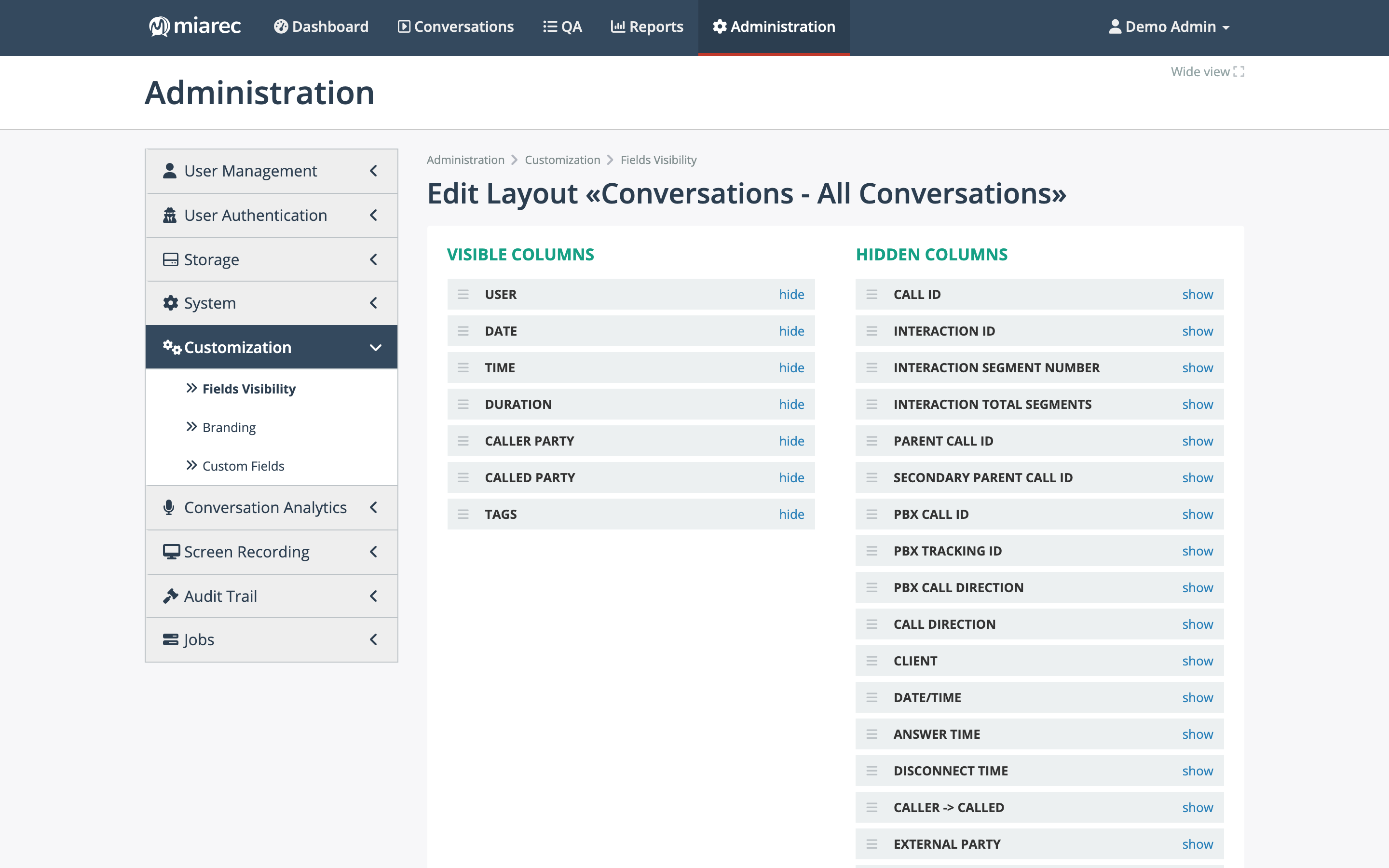
Editing the «Conversations - All Conversations» layout. The hidden-column list reveals everything the view can show — identifiers, timing fields, call direction, client, and more.
The change takes effect for all users of your organization the next time the list is loaded.
Note
Layouts are organization-wide: individual users cannot currently pick their own columns, so choose a set that works for your least and most technical users alike.
Related pages
- Custom fields — your organization's own metadata fields on conversations.
- Browsing conversations in the User Guide.