Viewing reports
Find a report
On the Reports page, switch between the All reports, My reports, and Recently run reports tabs. To locate a specific report, filter by report type or search by name, then click the report name or its View button.
Read a run
Opening a report shows its latest run. The page has three tabs:
- Latest Run — the most recent results: run metadata (period, timezone, who ran it), the applied filters, the summary table, chart, and the result rows.
- All Report Runs — the run history: run time, run by, execution time, period, and status, with View Results per run.
- Template — the report's definition (see Report templates).
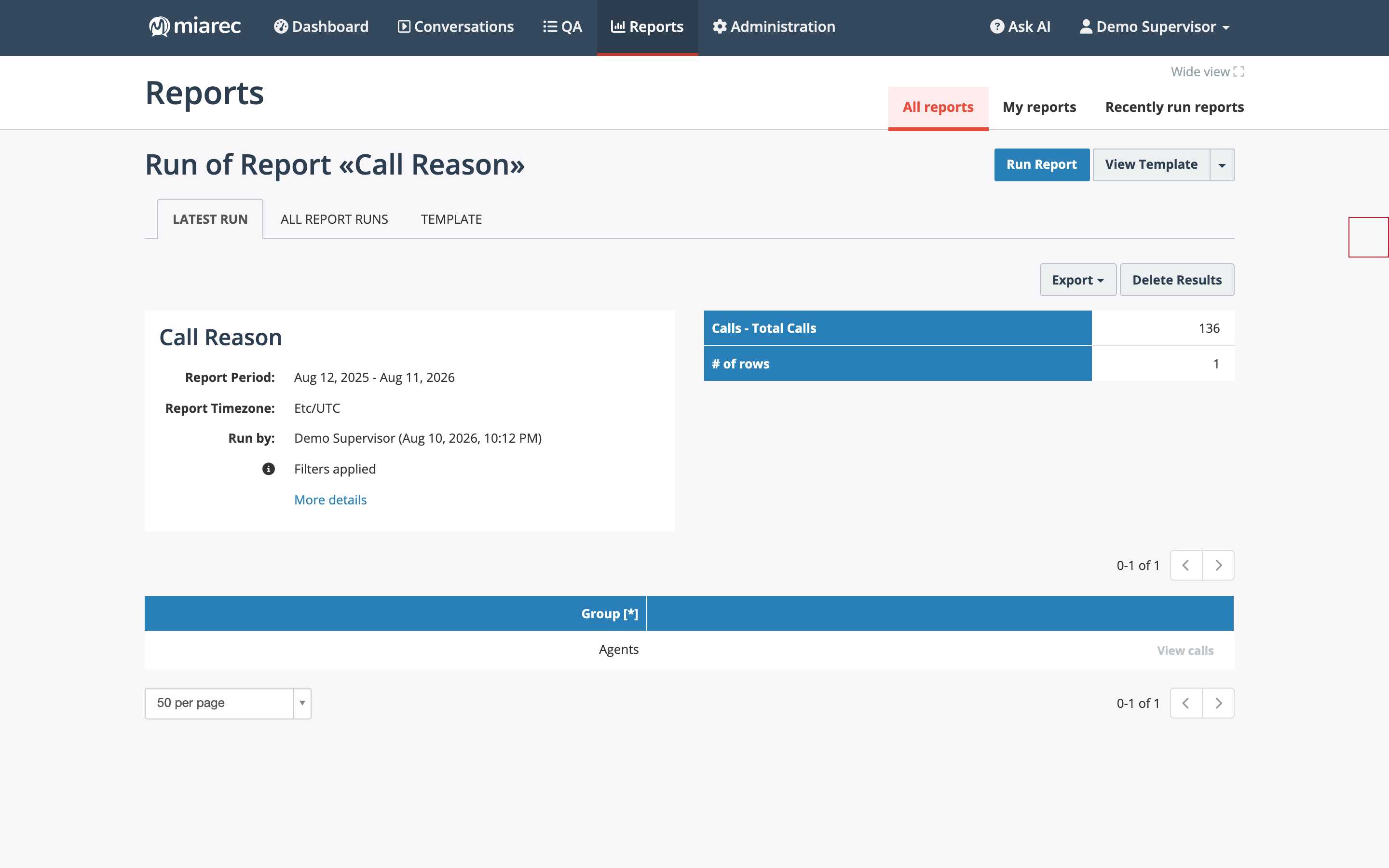
The Latest Run tab of a finished report: run metadata on the left, summary values on the right, and the result rows below. Rows in summary reports include a View calls link that opens the underlying conversations.
If the report has never been run, the page shows an empty state with a Run Report button.
A run's status progresses from pending to Finished while the report builds in the background. Refresh or revisit the page if a run is still in progress.
Delete a report vs delete results
These are two different actions:
- Delete Results removes the built data while keeping the report and its template:
- To delete one run's results, open the All Report Runs tab, select the run, and click Delete Results.
- To delete the currently shown results, click Delete Results on the run page.
- Deleting a run's results is limited to the user who started the run, unless your role grants wider report permissions.
- Delete (from the Reports list toolbar, or Delete Template on the report) removes the report and all its results. See Managing templates.
Note
Run history is not kept forever — each template's Keep reports history setting controls how many days built results remain available.
Related pages
- Running reports — starting runs and scheduling.
- Exporting report data — taking results out of MiaRec.