Reporting
This release adds call note columns and filters to reports, adds a Client dimension, and lets you change the visibility and owner of an existing report.
Call note columns in Call Details reports
New feature for supervisors and report designers.
A Call Details report can list notes one row per note. The new columns are:
- Call Note - Text
- Call Note - Replies
- Call Note - Text with Replies
- Call Note - Created By
- Call Note - Created By User ID
- Call Note - Created At
- Call Note - Audio Position Begin
- Call Note - Audio Position End
- Call Note - Resolved
A call without notes keeps one row with empty note cells.
Three count columns are available in reports and in the call list layout:
- Call - Notes Count (Incl. Replies)
- Call - Notes Count (Excl. Replies)
- Call - Notes Count (Replies Only)
The existing Call - Notes column now lists the replies under each note with the author and the audio position as a duration.
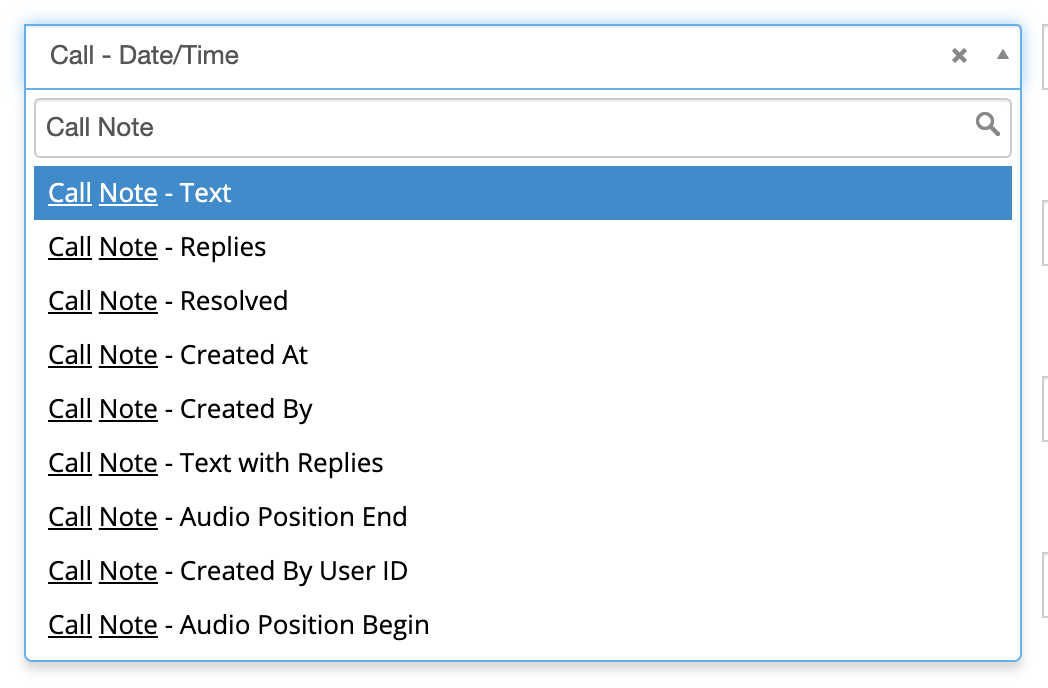
The column picker of a Call Details report, filtered to the call note columns.
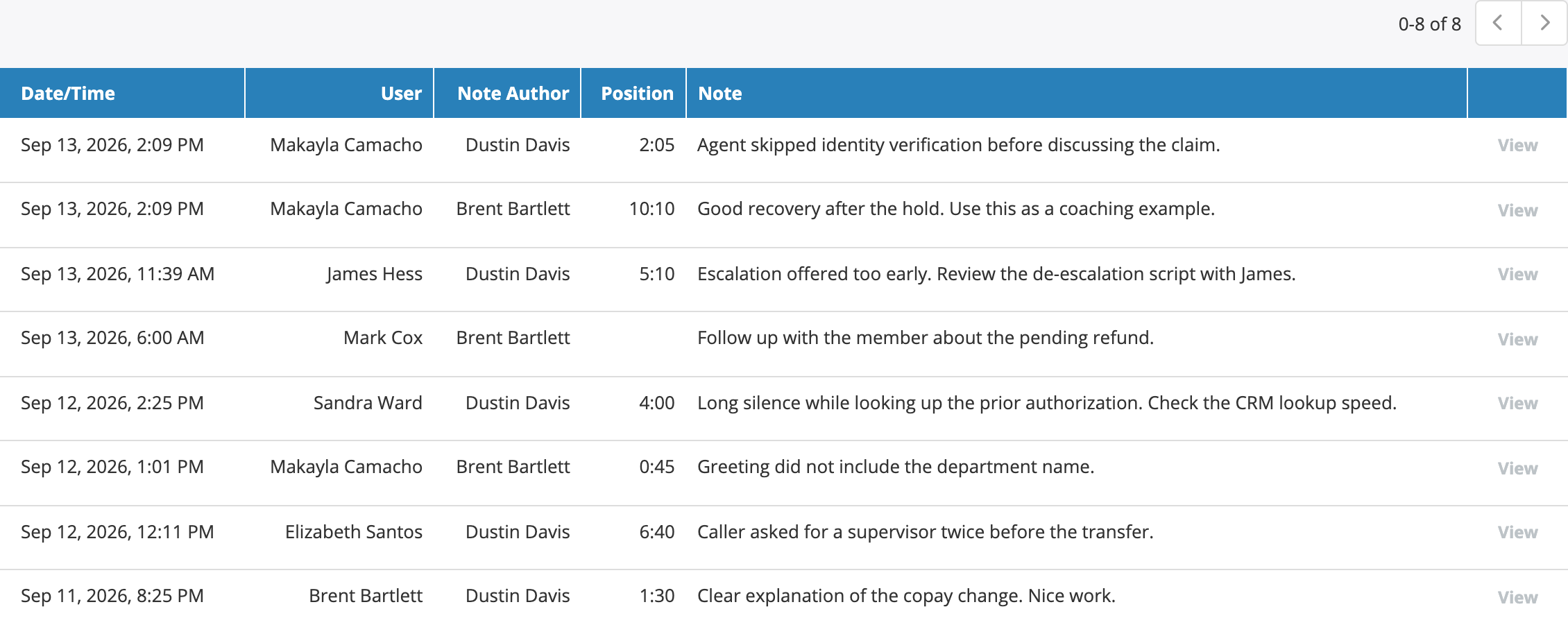
A Call Details report with the Call Note - Created By, Call Note - Audio Position Begin, and Call Note - Text columns. Each row is one note.
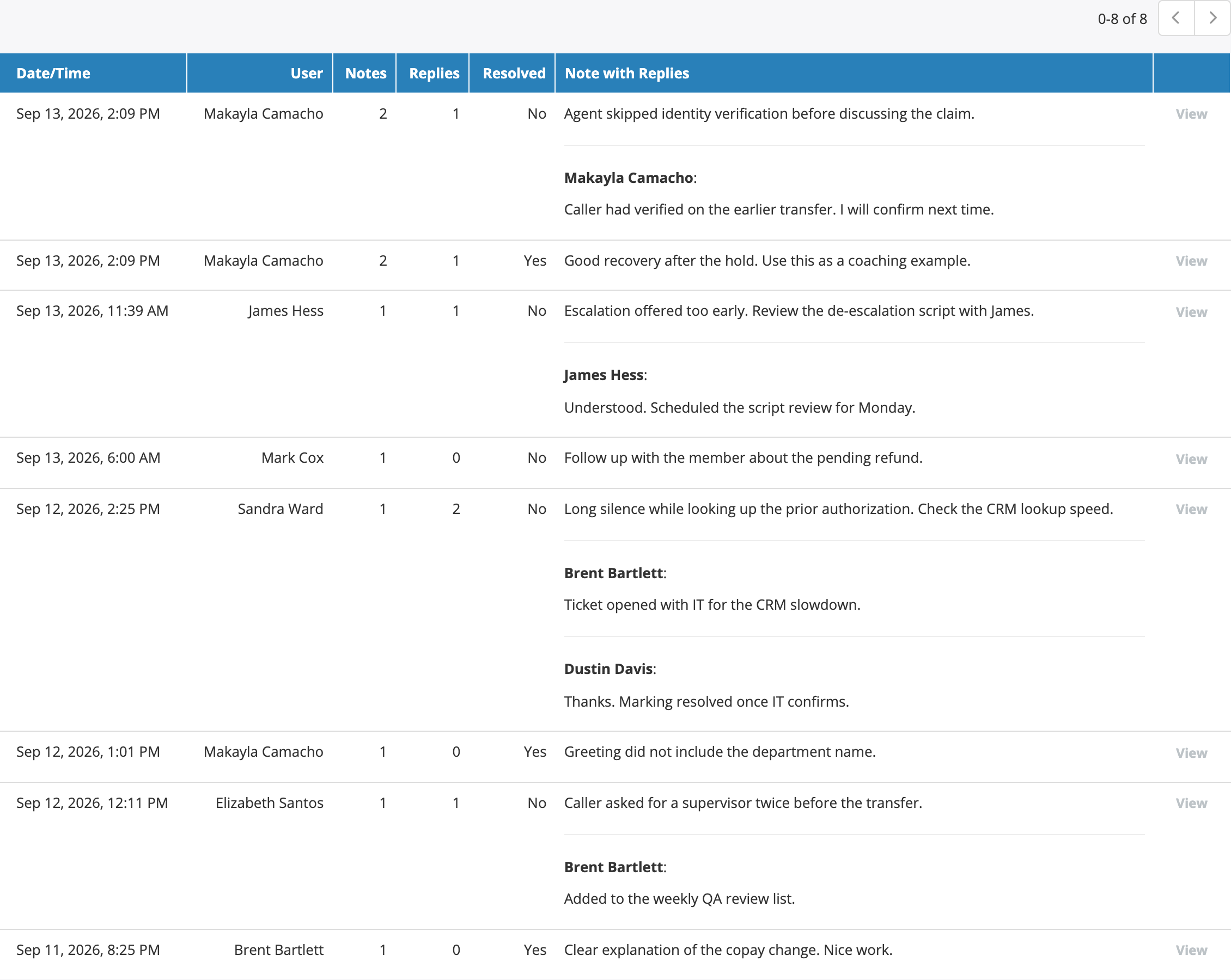
The Call - Notes Count (Excl. Replies), Call - Notes Count (Replies Only), Call Note - Resolved, and Call Note - Text with Replies columns. Replies appear under the note with the author's name.
Advanced search gains matching filters:
- Call Note - Note
- Call Note - Created By
- Call Note - Created By User ID
- Call Note - Created At
- Call Note - Audio Position Begin and Call Note - Audio Position End
- Call Note - Pinned
- Call Note - Resolved
- The three count filters
The same parameters are accepted by the advanced search endpoint of REST API v2. A note can have one level of replies. Deleting a note deletes its replies, and undo restores the thread.
See Column reference and Advanced search.
Client dimension in call reports
New feature for supervisors and report designers.
Calls Summary reports can group, break down, chart, and sort by Client and Client - ID, the client that the call's external participant belongs to. Calls without a client fall into a (No client) bucket. Clicking a client cell opens the call list filtered by that client. Call Details reports gain a Call - Client column.
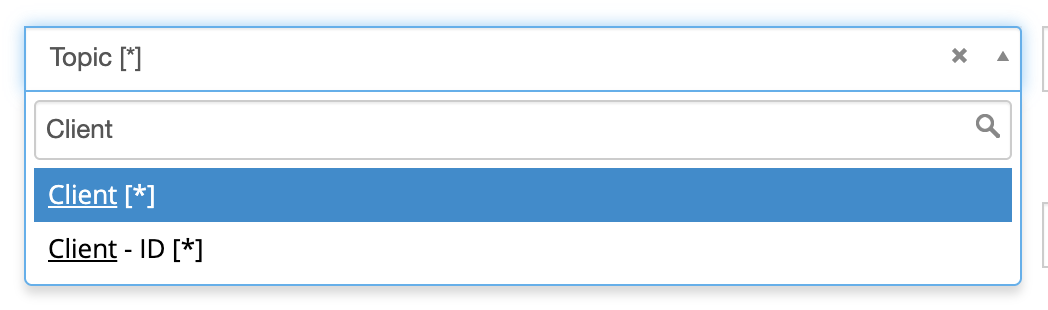
The Client and Client - ID dimension columns in a Calls Summary report.
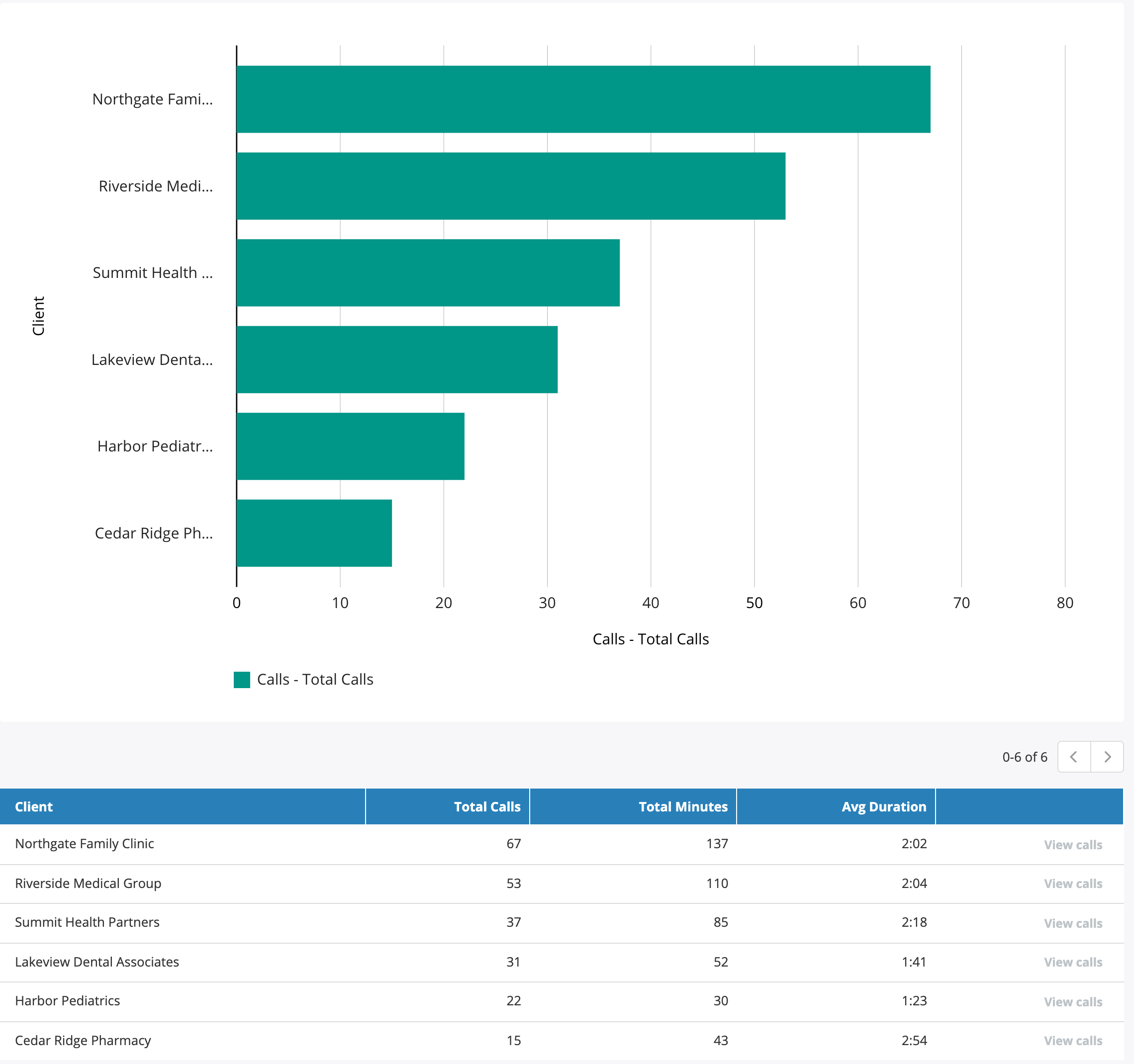
A Calls Summary report grouped by Client, with the chart and the View calls drill-down links.
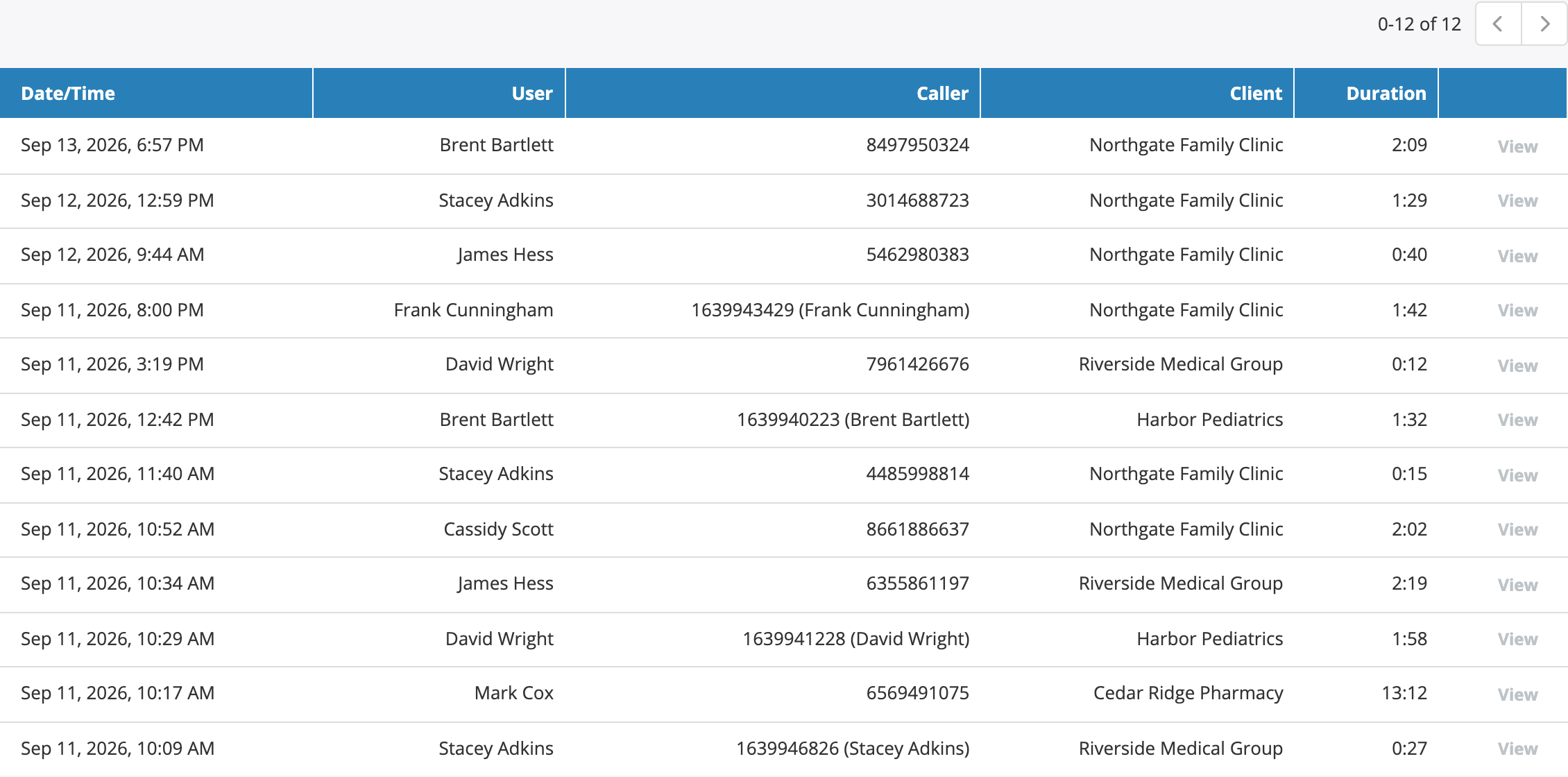
The Call - Client column in a Call Details report.
See Organizing by client and Column reference.
Report visibility and owner editable after creation
Improvement for administrators.
An administrator can change the Visibility (Public or Private) and the Owner of a report when editing it, not only when creating it. The Owner field appears when the report is private. A public report has no owner and cannot be scheduled, so the Schedule controls are disabled while Public is selected. Scheduled runs of a private report execute as its owner. The two fields appear only for roles that may edit public reports.
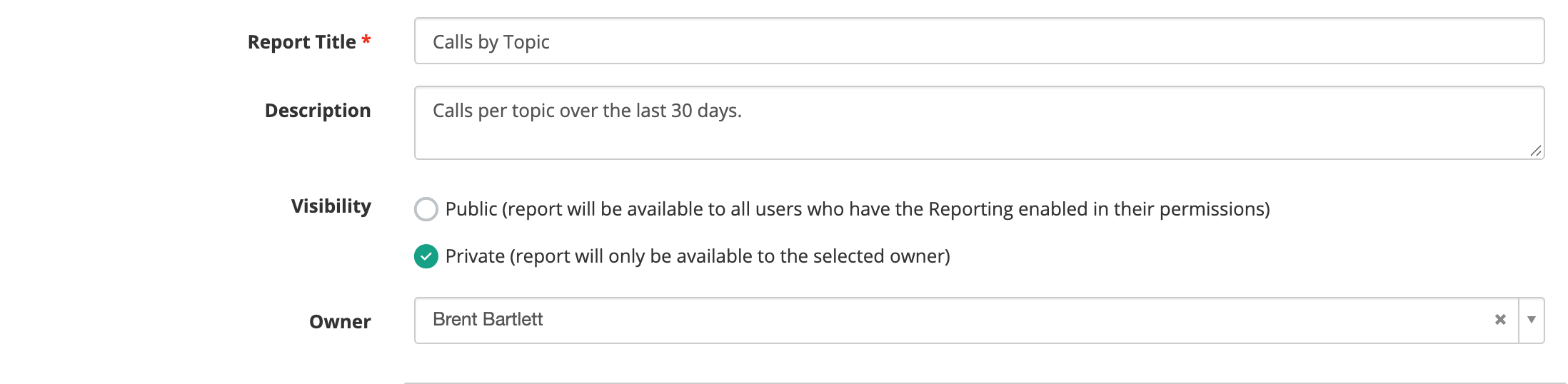
Visibility and Owner on the report edit form.
See Manage templates.
Fixes
- Call Details reports show the explanation text of a numeric AI custom field, such as CSAT, instead of "None".
- Saved report and Insight filters show the evaluation form or option name instead of "Unknown" when a system administrator views them.
- You can export a report template before it has run for the first time, and its latest run page no longer raises a browser script error.
- Global report templates are visible to administrators with the managed tenants access level.
- Static bucket drill-downs for Client and for evaluation section and question breakdowns open the call list scoped to the clicked bucket.
- Report template import and speech engine credential uploads reject a file over 100 KB with an inline error instead of a server error.