Reviewing and overriding evaluations
Auto QA is designed for human oversight: supervisors review auto-scored evaluations, correct any answer they disagree with, and add their own feedback for the agent. The original AI answer is always preserved, so overrides are transparent — and the feedback you leave when overriding helps scorecard owners tune the scorecard.
Working through evaluations
Open QA › Evaluations to see the evaluations you have access to. The tabs act as work queues:
- Pending — evaluations assigned but not started (manual evaluations assigned to an evaluator).
- In progress — partially answered evaluations, including auto-scored ones where the AI left a question unanswered.
- Completed — fully answered evaluations.
- Advanced Search — filter evaluations by scorecard, agent, score, status, and other attributes.
Click View to read an evaluation, or Edit to open it for review. You can also reach an evaluation from the conversation's QA tab, or click Edit Report on the evaluation page.
Overriding an AI answer
In the evaluation editor, every AI-answered question has an Override control:
- Verify the AI's answer against its justification — the timestamp points at the evidence; use the embedded player and the Transcript tab to check the moment in question.
- If you disagree, enable Override for that question and pick the correct answer (for example Yes / No / N/A).
- Optionally fill in Feedback for AI Assistant ("What did the AI Assistant miss?") — explain why the AI's answer was wrong. Scorecard owners read this feedback when tuning the scorecard so future scoring improves.
- Save the evaluation. The score recalculates using your answers.
The override does not erase anything: the evaluation keeps the original AI answer alongside yours, and the question is marked as overridden with your name — hover over the indicator to see "Score is overridden by ‹name› (original score: ‹value›)". Original and overridden answers are also available as separate criteria in advanced search and in report columns, so you can measure how often the AI is corrected.
Adding feedback for the agent
Reviewing is also where coaching feedback is written:
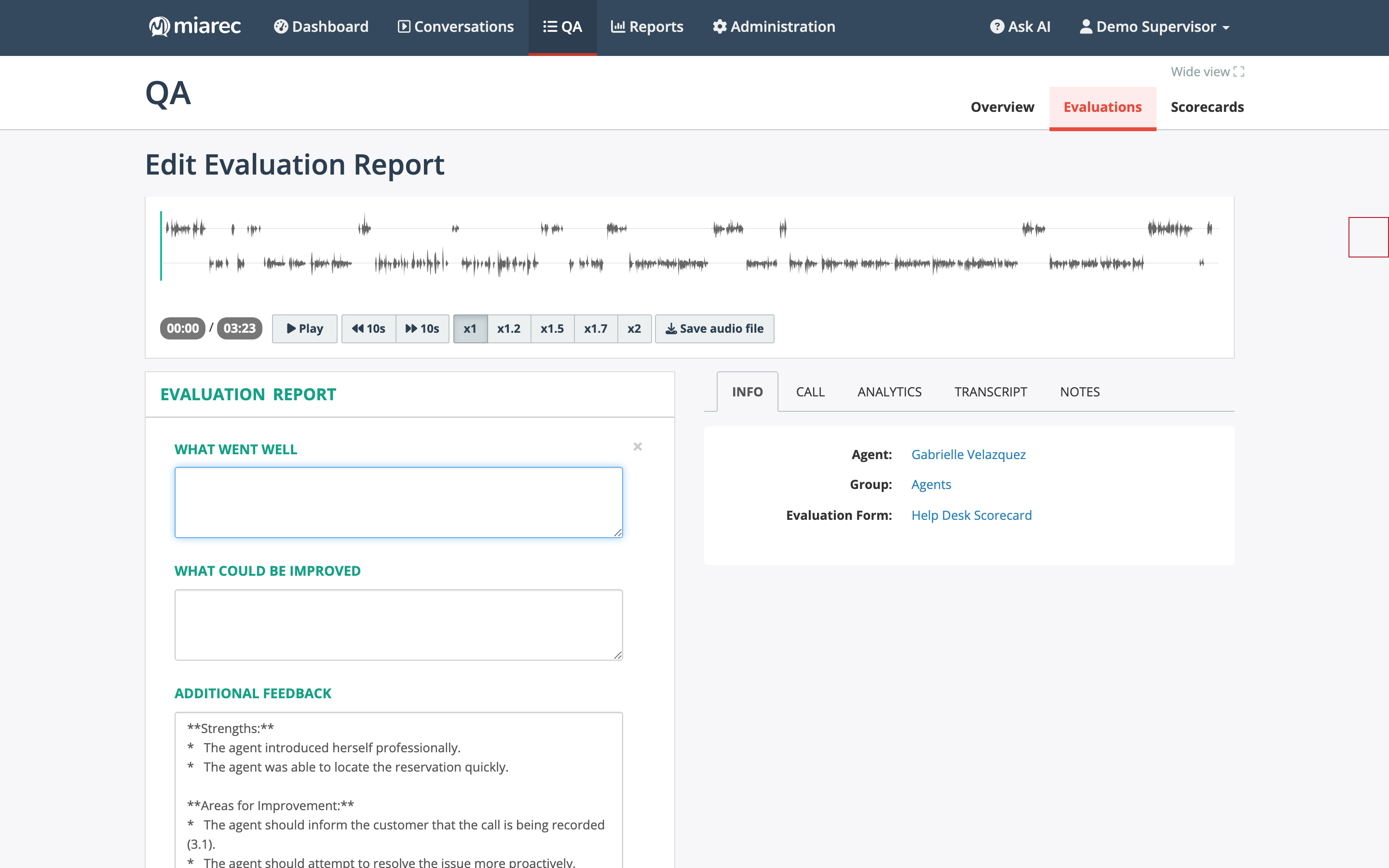
The evaluation editor: report-level feedback boxes at the top — What went well, What could be improved, and Additional feedback (here the AI feedback landed in Additional feedback) — with the scorecard questions and their Override controls below.
- Add section feedback — a comment attached to a specific section of the scorecard.
- What went well / What could be improved / Additional feedback — the report-level summary the agent sees. On auto-scored evaluations the AI pre-fills its strengths and improvement findings; edit them or add your own.
Agents see their completed evaluations in their own Evaluations list (view-only), so the feedback reaches them directly. For coaching tied to specific moments of the conversation, you can also add notes anchored to the transcript on the conversation itself.