Troubleshooting
This article explains where to look when calls, recordings, or users don't arrive in MiaRec as expected.
Where to look
| Where | What it shows | Who has access |
|---|---|---|
| Test of the connection | Whether the credentials, permissions, and queue work | Tenant administrator |
| Result of the job | How many calls, recordings, and errors a job had | System operator, or a tenant administrator with permission for the job |
| Job log | What a job did for each call | Same |
| Processing records | Each event and call that a job works on, with its stage and last error | Same |
| Events of the integration | Every message that MiaRec read from the queue | System operator |
| Full call details | What Genesys Cloud reported about a call | System operator |
To trace one call, you need its Genesys Cloud conversation ID.
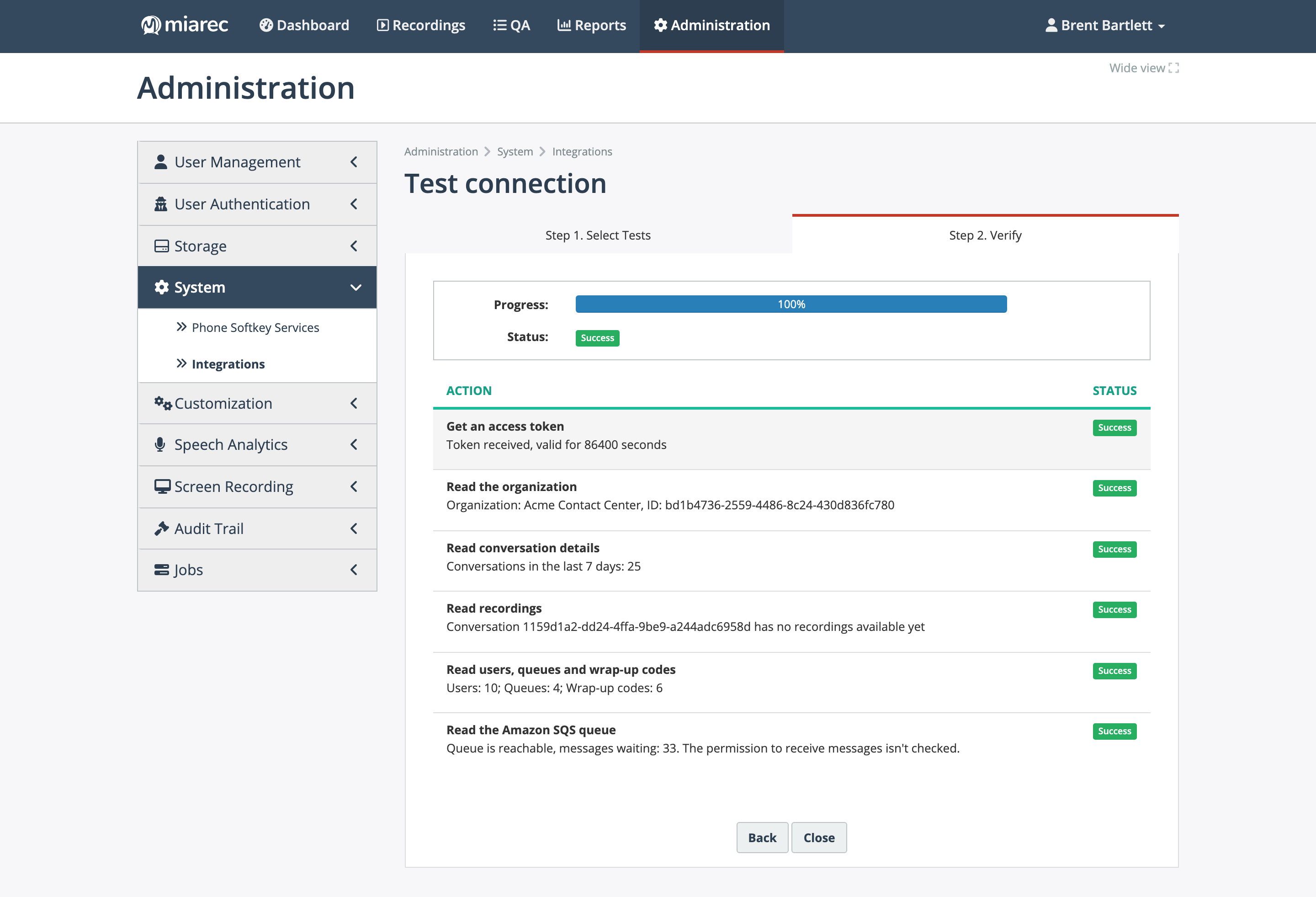
Test of the connection
Open the connection, and select Test. Each check names what failed, for example a rejected secret, a missing permission, or a host that can't be reached.
Result of the job
Go to Administration > Jobs > Jobs, and open the job. The Latest run tab shows the result. With Create one job record per day, the numbers are those of the whole day, except for the record counts, which are those of the last run.
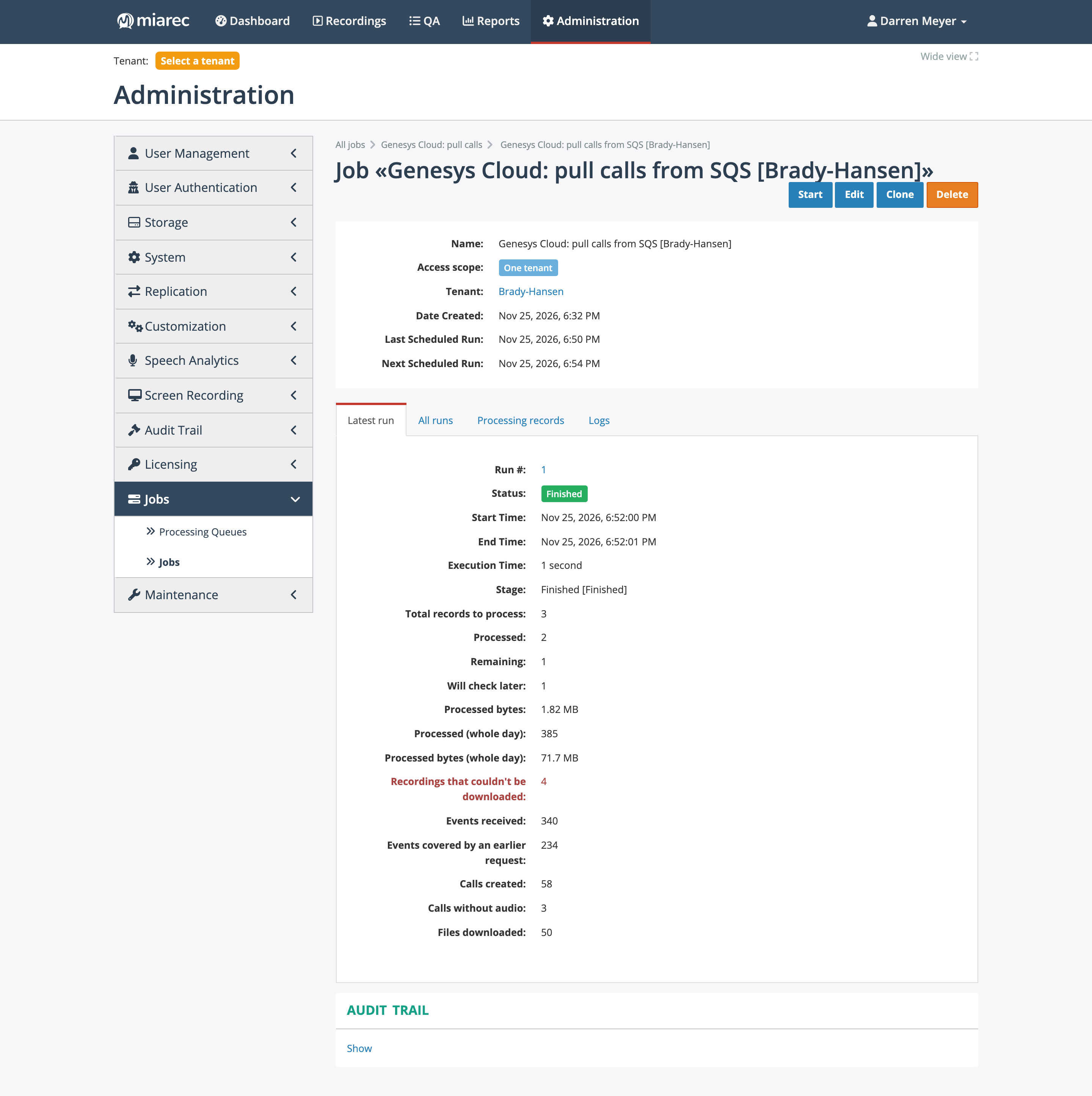
| Result | Meaning |
|---|---|
| Will check later | Calls in progress, and recordings that Genesys Cloud hasn't prepared yet. Not an error. |
| Events received | Messages that the job read from the queue |
| Events covered by an earlier request | Events that needed no request of their own. Not an error. |
| Calls created, Files downloaded | Imported calls and recordings |
| Calls without audio | Calls that Genesys Cloud didn't record |
| Conversations imported before they ended | Calls that reached the maximum conversation duration or the maximum callback wait, and calls whose conversation was deleted in Genesys Cloud |
| Recordings that couldn't be downloaded | Recordings that the job gave up, or that have no audio |
| Genesys Cloud API errors, Amazon SQS errors, Download errors | Failed requests. The job log has the reason. |
| Rate limit responses (429) | How often Genesys Cloud refused a request because of its limits |
Job log
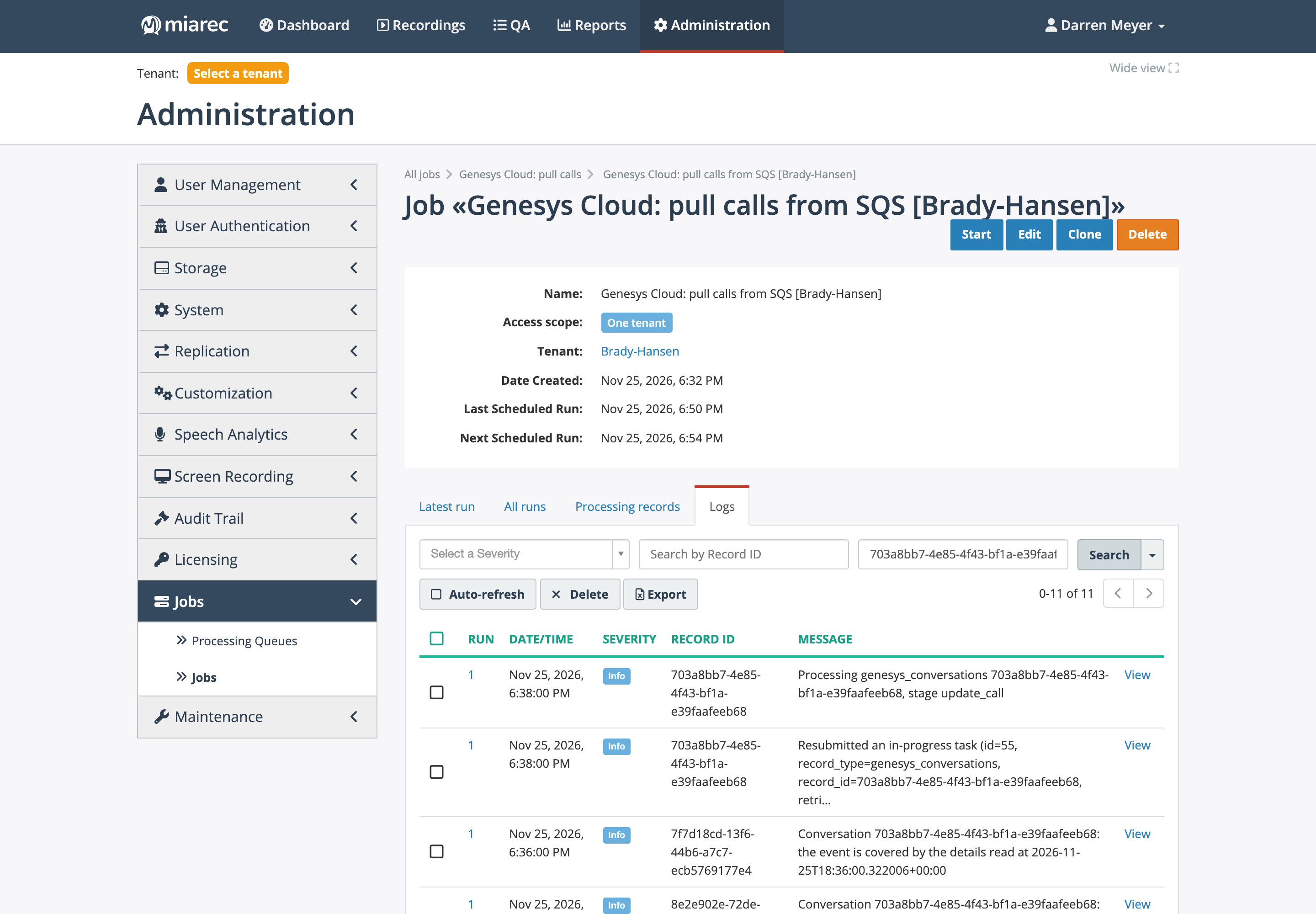
Open the job, and select the Logs tab. To see what the job did for one call, enter the conversation ID in Search by Text.
Increase the log level
By default, a job logs only warnings and errors. To see every step:
- Open the job, and select Edit.
-
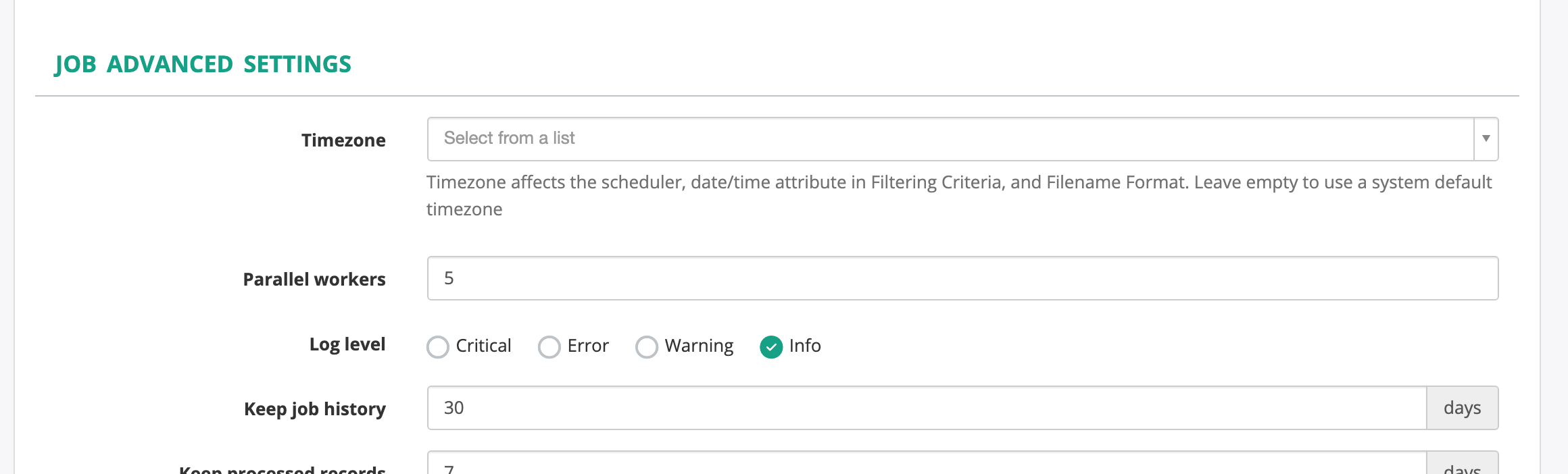
Under Job Advanced Settings, set Log level to Info.
-
Select Save only. The next run uses the new level.
- After you solve the problem, set the level back to Warning. The level Info writes several lines for each call.
Processing records
Open the job, and select the Processing records tab. Each record is an event or a call that the job works on.
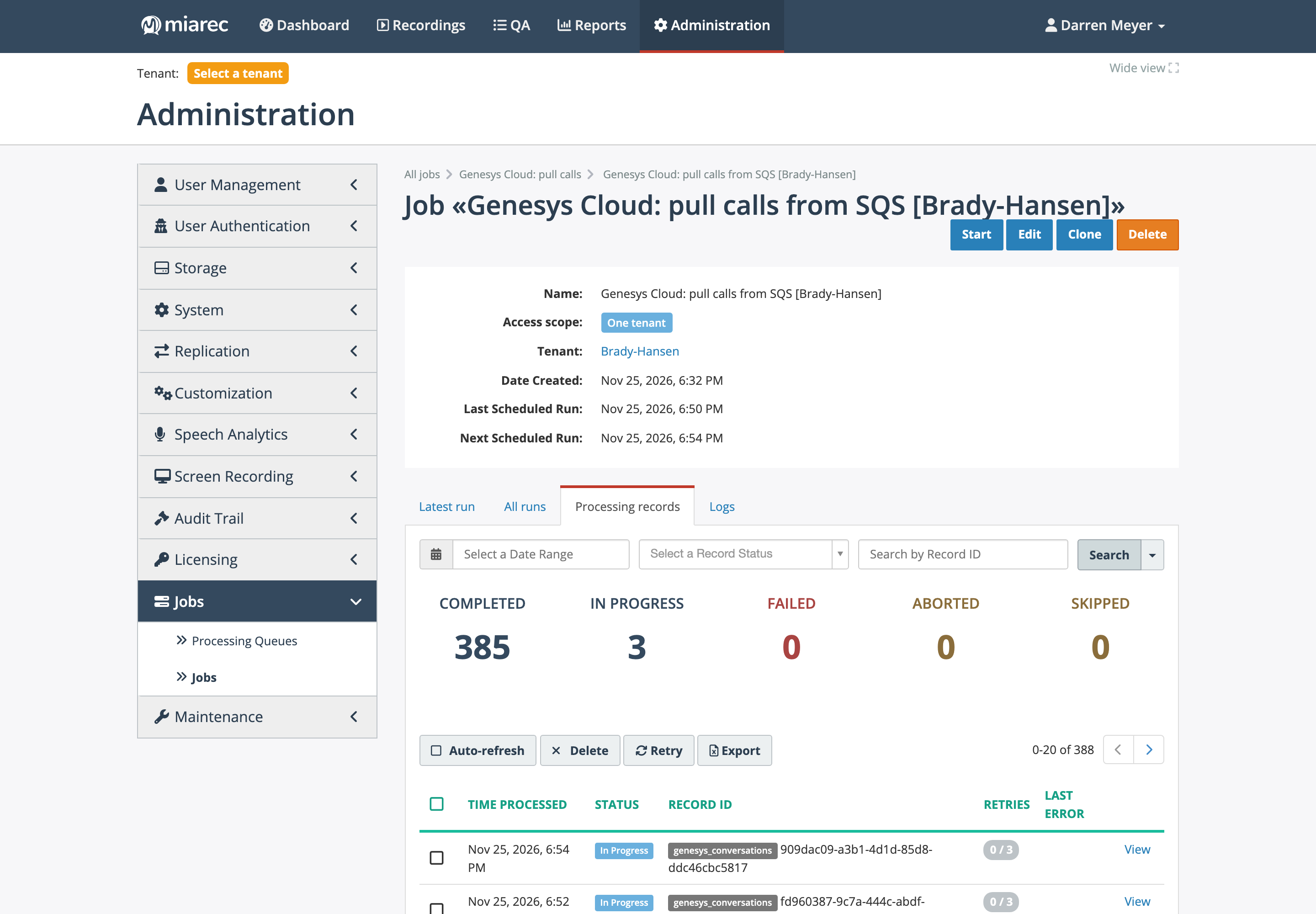
Select View to see the stage of a record, its data, its last error, and its log. The conversation_id is under
Data, and the call_id links to the call in MiaRec.
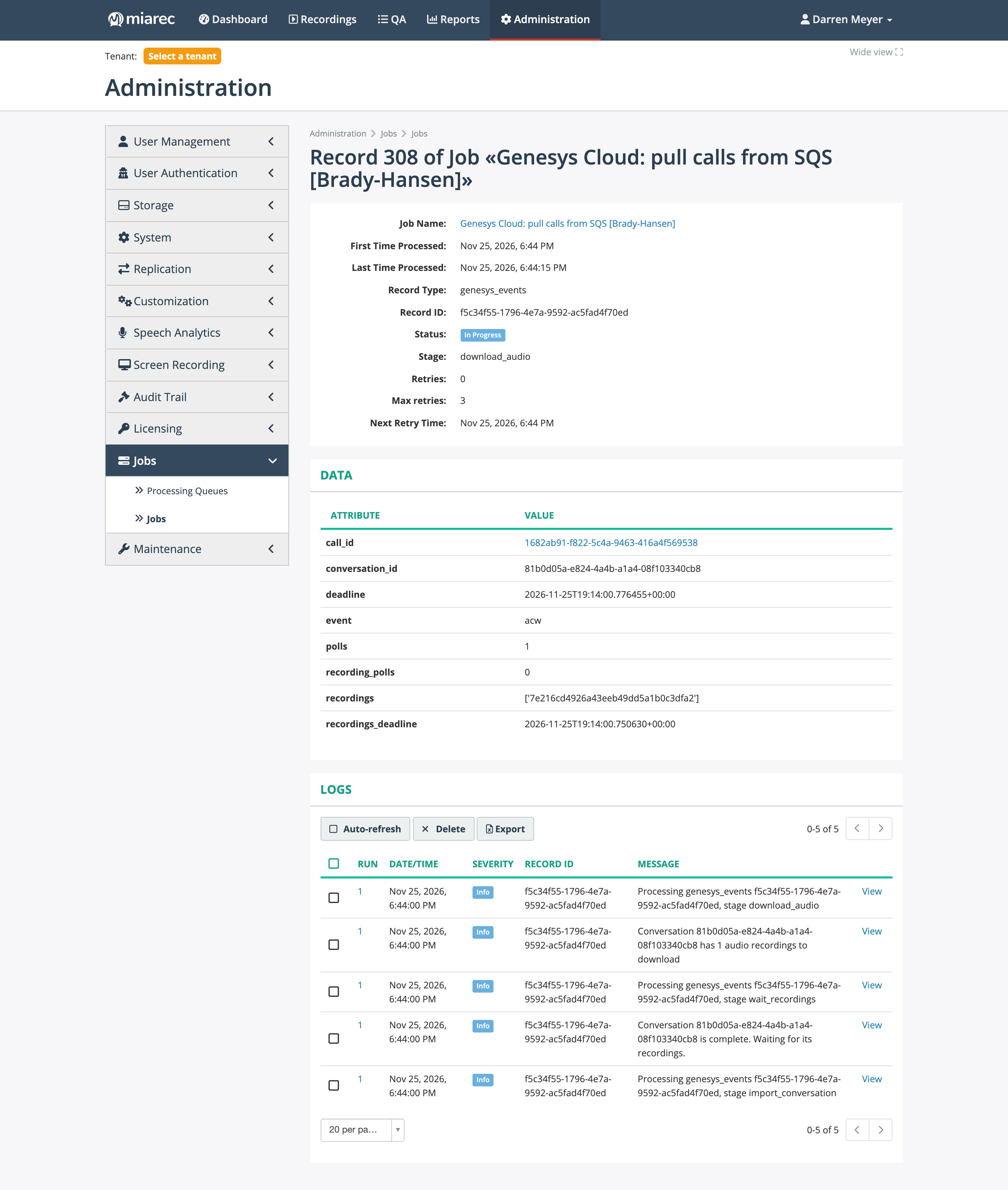
| Stage | What the job does |
|---|---|
import_conversation |
Reads the call details of an event or of a call that polling found |
update_call |
Follows a call in progress |
wait_recordings |
Waits until Genesys Cloud lists the recordings of the call |
download_audio |
Waits until Genesys Cloud has prepared the audio, and downloads it |
To repeat a failed record, select it, and select Retry.
The records are kept for 7 days by default (Keep processed records).
Events of the integration
Go to Administration > System > Integrations, open Genesys Cloud, and select the Events tab. It lists every message that MiaRec read from the queue, with the type of the event and the conversation ID (External Call ID).
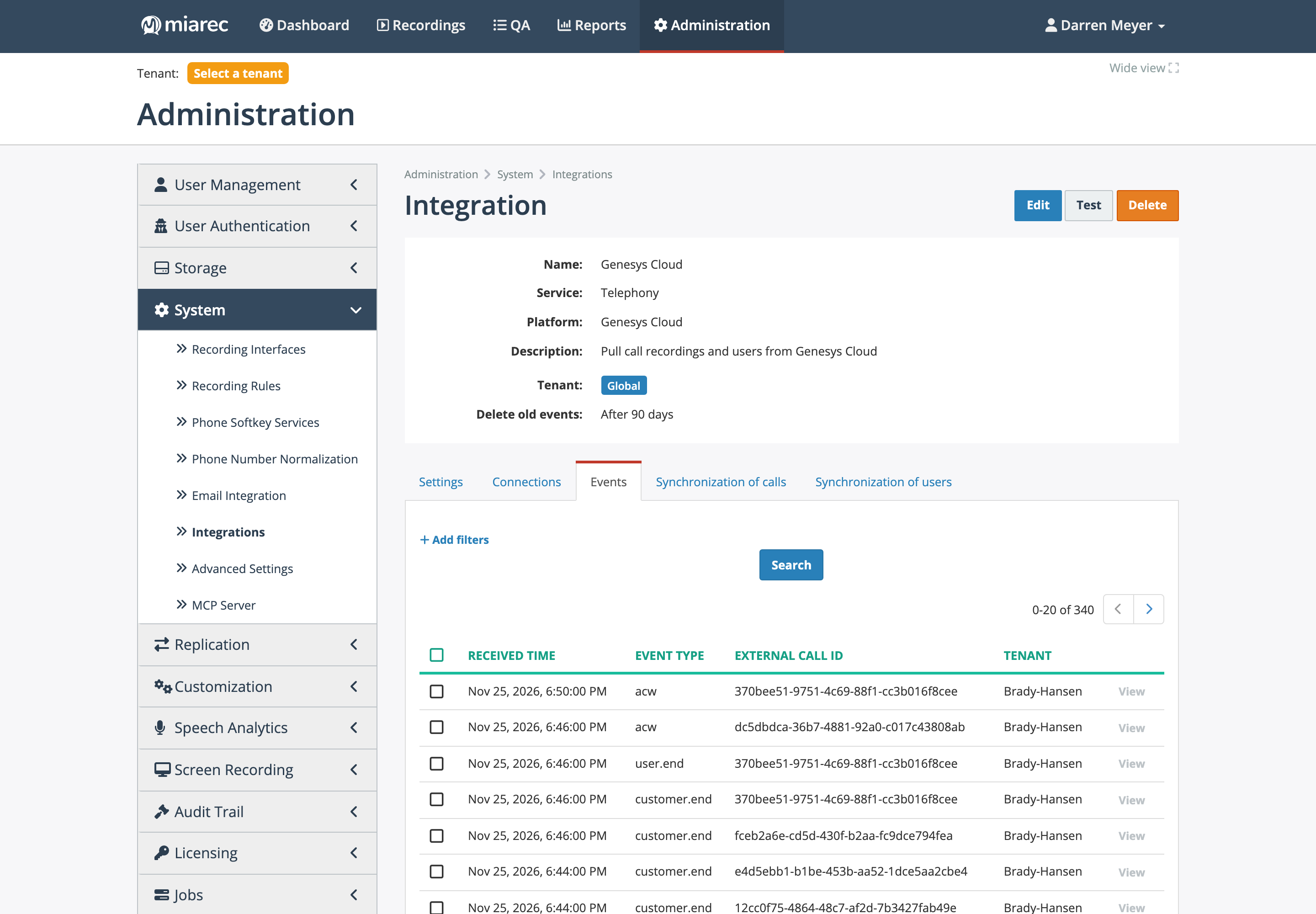
Select View to see the message.
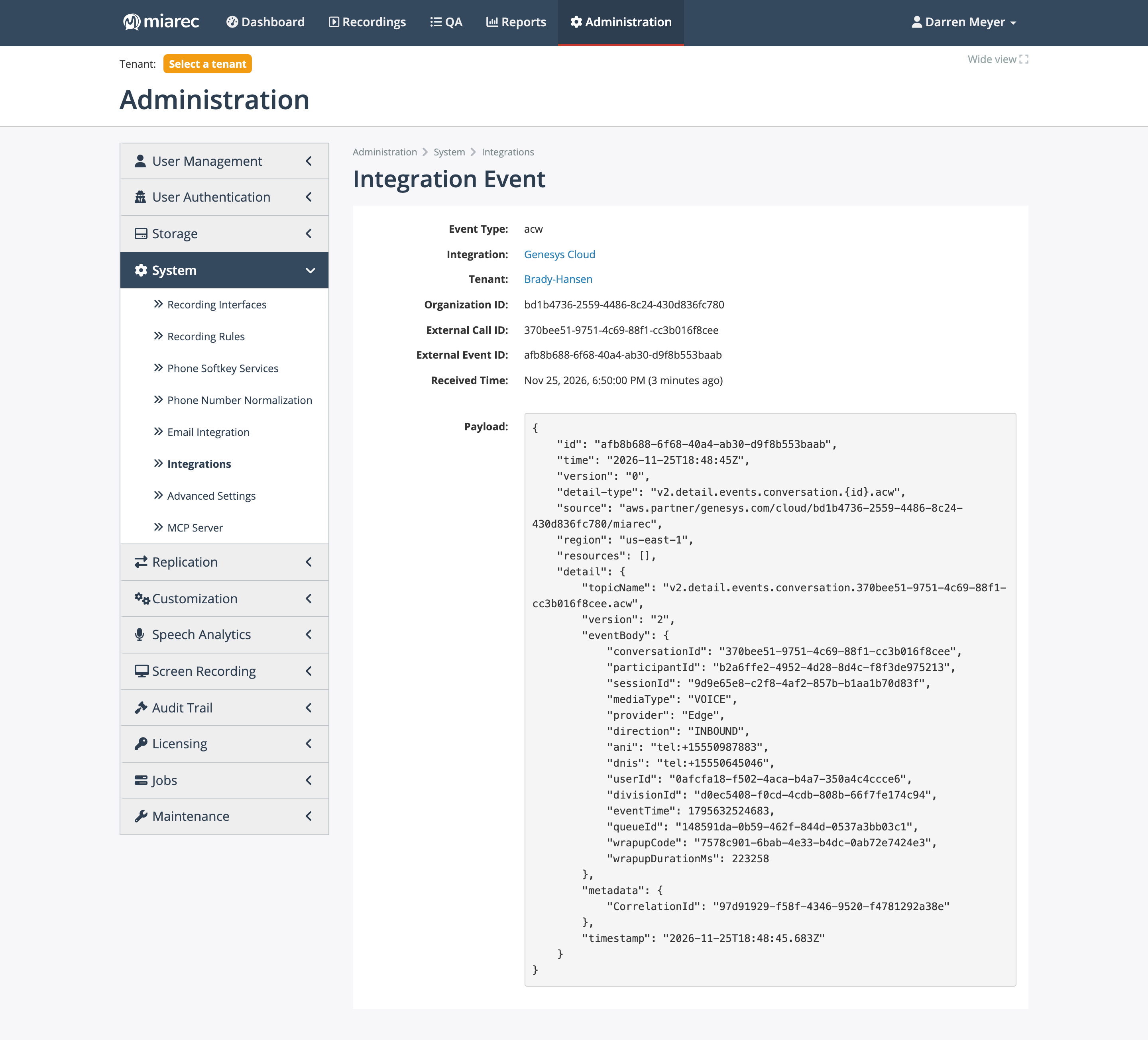
The events are kept for 90 days by default.
Full call details
Open a call, and select Full call details at the bottom of the page. The page is available to system operators.
-
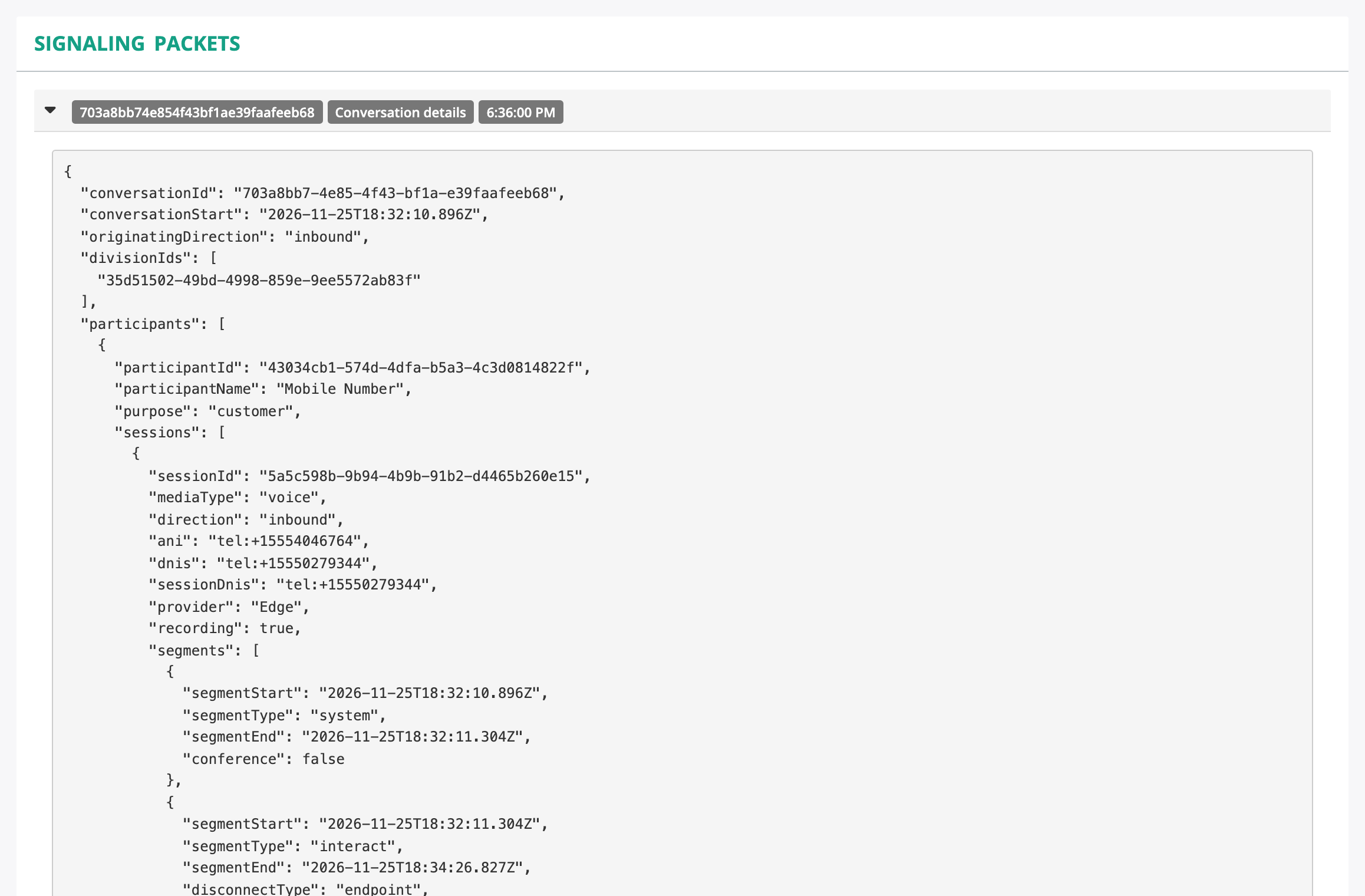
Signaling Packets hold the data that Genesys Cloud returned for the call and its recordings. Compare it with what MiaRec shows.
-
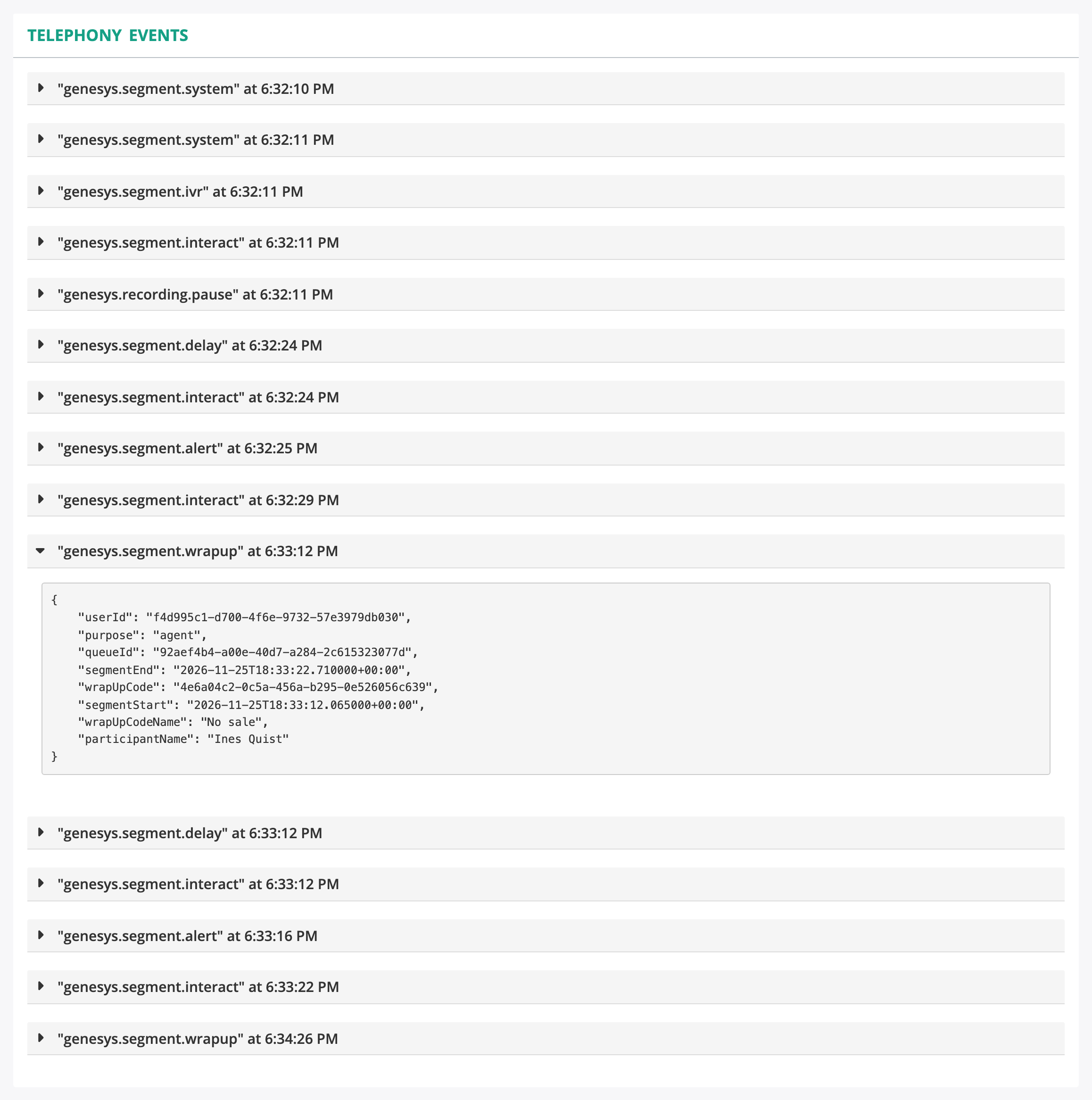
Telephony Events list every segment that Genesys Cloud reports (IVR, queue, alert, interact, hold, wrap-up) and every pause of the recording, with the times. The wrap-up segments have the name of the wrap-up code.
-
Integration Events list the events of the call that arrived through the queue.
Common problems
The connection test fails
| Failed check | What to do |
|---|---|
| Get an access token | Check the region, client ID, and client secret. Check that the grant type of the OAuth client is Client Credentials. If the client has a list of allowed IP addresses, check that MiaRec's addresses are on it. |
| Read the organization | Check that the firewall allows api.<domain>. |
| Read conversation details, Read recordings | Check the permissions of the role, and that the role is assigned to the OAuth client. |
| Read users, queues and wrap-up codes | The message says which of the three failed. Check the corresponding permission. |
| Read the Amazon SQS queue | Check the AWS region, account ID, queue name, and access key, and that the IAM user is allowed sqs:GetQueueAttributes. |
A change of a role in Genesys Cloud takes a few minutes to have an effect.
No calls arrive
Check the path of the events, from MiaRec back to Genesys Cloud:
- Does the job run? Open the pull calls job. Check its schedule and the status of the latest run.
- Does the job report an error? With Could not read the SQS queue, look at the job log, and test the
connection. If the test passes, check that the IAM user is allowed
sqs:ReceiveMessageandsqs:DeleteMessage, which the test doesn't verify. If the queue is encrypted, checkkms:Decrypt. - Does the Events tab show new events? If it does, the events arrive, and the job log says what happened to them.
- Does the queue receive messages? In the Amazon SQS console, look at Messages available and the CloudWatch metric NumberOfMessagesSent. If the queue receives messages and MiaRec doesn't get them, another application may read the same queue.
- Does the rule match? In CloudWatch, look at the metrics of the EventBridge rule. FailedInvocations means that EventBridge can't write to the queue. Check the access policy of the queue, and the policy of the KMS key if the queue is encrypted.
- Is the partner event source active? In the EventBridge console, the source must be Active, and the rule must be on the event bus of the source.
- Is the integration active in Genesys Cloud? Check that the Amazon EventBridge integration is Active, and that the topics are selected.
After you fix the problem, load the missed calls with a polling job.
Some calls are missing
Search for the conversation ID in the Events tab and in the job log.
- No event: the event was lost, or another application read it from the queue. Load the call with a polling job.
- Skipped, "The conversation has no audio recording": the job ignores calls that aren't recorded.
- Skipped, "Not a voice conversation": MiaRec doesn't import chats, emails, and messages.
- Calls of some divisions are missing: the role of the OAuth client isn't granted in these divisions. See Create the OAuth client.
A call stays in progress
Genesys Cloud hasn't closed the conversation. Usually, an agent hasn't finished the after-call work, or a callback waits in the queue. Check the interaction in Genesys Cloud. MiaRec completes the call after the maximum conversation duration (4 hours by default). A callback that waits in the queue keeps the call in progress until an agent takes it, or until the maximum callback wait (30 days by default).
A call has no audio
| What you see | Reason and solution |
|---|---|
| The call was completed a few minutes ago | The audio isn't ready yet. Check again later. |
| The audio doesn't arrive, and the job isn't scheduled | Start the job again. See One run isn't enough. |
| Audio file is not available for this call yet. Please check later | Genesys Cloud is preparing the audio. |
| Audio file is not available for this call, without a File State | Genesys Cloud didn't record the call, or the recording didn't arrive within the recording wait deadline. The job log says which. |
| Audio file is not available for this call, and File State is Unavailable | The job gave up the recording, or it has no audio, for example a call of a second or two. The processing record has the reason. |
| No call has audio | Check the permission recording:recording:view, and that the firewall allows api-downloads.<domain>. |
| The recording is archived in Genesys Cloud | Restore it in Genesys Cloud, and then look again for missing audio. |
| The call lasted longer than the Maximum conversation duration of the job | MiaRec completed the call before Genesys Cloud had the recording ready, and doesn't update the call later. The job result counts such calls in Conversations imported before they ended. After the call ends, look again for missing audio. If such calls are common, increase the Maximum conversation duration. |
To look again for missing audio:
- Create a pull calls job with the source Polling and a Static date range that covers the calls.
- Select Look again for the recordings of calls that were imported without audio.
- Start the job, and start it again until Will check later is zero.
The audio and the call times don't match
Genesys Cloud leaves the IVR, hold, and secure pauses out of the audio. See
Why is the audio shorter than the call? The telephony events
genesys.recording.pause show where the audio was paused.
A call has the wrong user, or no user
- No agent answered the call. See Abandoned call.
- The agent has no user. Run the pull users job, or let the pull calls job create users. The job doesn't link a call that is already completed to a user who is created later.
- The wrong user has the agent's ID. The user whose Extension is the Genesys Cloud user ID gets the calls. Move the extension to the right user. Future calls are then linked to that user.
Calls with an agent appear under Unassigned Calls
The Unassigned Calls tab also lists calls in which another participant has no user. An inbound call has such participants: the IVR and the queue. To find the calls that no agent answered, go to Recordings > Advanced Search, and use the filter Call - Agent Name, Is empty.
Users aren't created or updated
- "Genesys Cloud has none of the ... with these names": a name in the filters of the pull users job doesn't exist in Genesys Cloud, for example after a rename. Correct the filter.
- A user isn't deactivated: check that the job reads the state Inactive/Deleted, that Sync user status is selected, and that the filters don't exclude the user. Deleted users pass only the Division filter.
- An agent has two users: the agent's existing user had no email address, or another one. Move the extension with the Genesys Cloud user ID to the user that you keep, and delete the other one.
- A name changes back: the job updates the name from Genesys Cloud at each run. Change the name in Genesys Cloud.
Calls arrive late
- After-call work: compare the time with the end of the after-call work, and not with the hang-up.
- Rate limits: if Rate limit responses (429) grows, increase the Update interval of calls in progress, or reduce Parallel workers. Use a separate OAuth client for MiaRec. See Rate limits.
- Schedule: check the schedule of the job. Each step of a call waits for the next run.
The job reports that the queue holds a foreign message
The messages are The SQS queue holds a message that isn't a Genesys Cloud event and The SQS queue holds an event of another Genesys Cloud organization. The job then imports no new calls, and leaves all messages in the queue. It continues to update the calls that it already imported, and to download their recordings.
- Find the cause: the connection has the wrong queue, or the EventBridge rule sends other events to it. The job log has the message ID.
- Correct the connection or the rule.
- Remove the other messages from the queue. The simplest way is to create a new queue, send the events to it, and enter it in the connection.
- Load the calls that were missed with a polling job.
Contact support
Provide the following information:
- The Genesys Cloud conversation ID, and the time of the call with the time zone
- The log of the job with the level Info (Logs > Export)
- The processing record of the call, and the signaling packets from the full call details
- For a failed request, the
correlation_idfrom the job log. Genesys Cloud support asks for it as well.