AI tasks
An AI task is a configured instruction set (a prompt) that the AI runs against each conversation's transcript, together with a destination that decides where the result is stored — the summary panel, a sentiment score, topics, a custom field, or an Auto QA evaluation. All of the analytics your users see are produced by AI tasks, so this page is the control center of Conversation Analytics.
Where: Administration › Conversation Analytics › AI Tasks (tab AI Tasks). The list has Enabled and Disabled tabs, a text search, and an Add button; each task offers View settings.
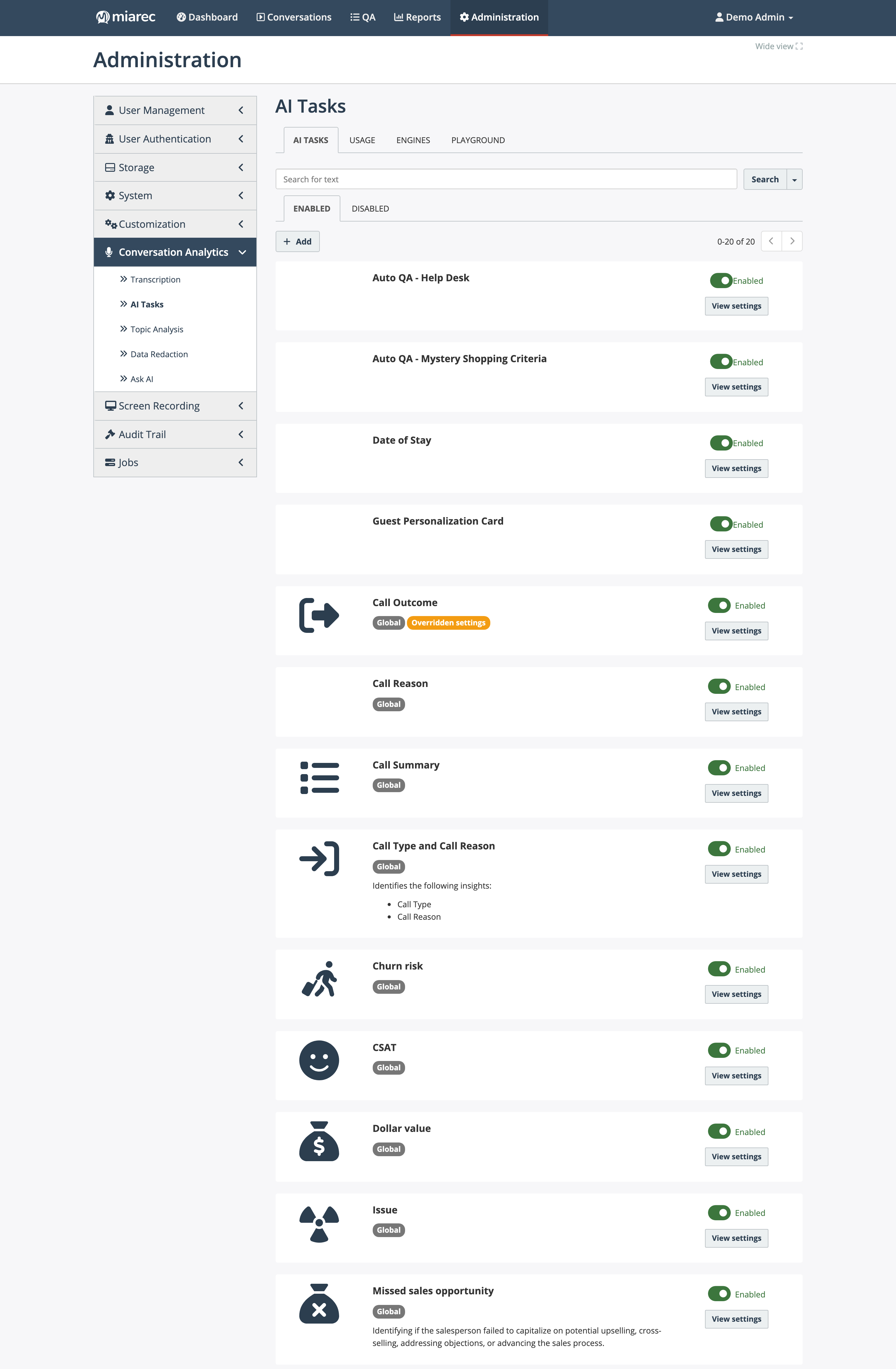
The AI Tasks list. Notice the "Global" badge on the built-in tasks and the "Overridden settings" badge on a global task whose prompt or filters were customized for your organization.
Global tasks vs your organization's tasks
- Global tasks (badge Global) are preconfigured and shared by your service provider — for example Call Summary, sentiment scoring, or Topic analysis. You can enable or disable them and override their prompt and filtering criteria; an overridden task shows the Overridden settings badge. Everything else about a global task — its type, destination mapping, and processing engine — is fixed.
- Tasks created in your organization (visibility Local) are fully yours: you can edit, clone, test, and delete them. See Custom insights for creating them.
Destinations
The task's type/destination decides what product data the AI output becomes:
| Destination | Result |
|---|---|
| Call summary | The summary panel on the conversation detail page |
| Sentiment score | Overall, agent, and customer sentiment scores with explanation |
| Topics | Detected topics (using your topic list — see Topics) |
| Custom field / Multiple custom fields | One or several custom-field values, with the AI's confidence and explanation |
| Auto QA | A scored evaluation against a linked scorecard — see Auto QA setup |
| Call note | A note attached to the conversation |
Viewing and editing a task
View settings on a task shows its type, name, visibility, destination (for Auto QA, the linked evaluation form), response type, status, the full prompt (Task Instructions and Task Inputs), max tokens, and the filtering criteria, with Test, Clone, Edit, and Delete buttons where the task allows them.
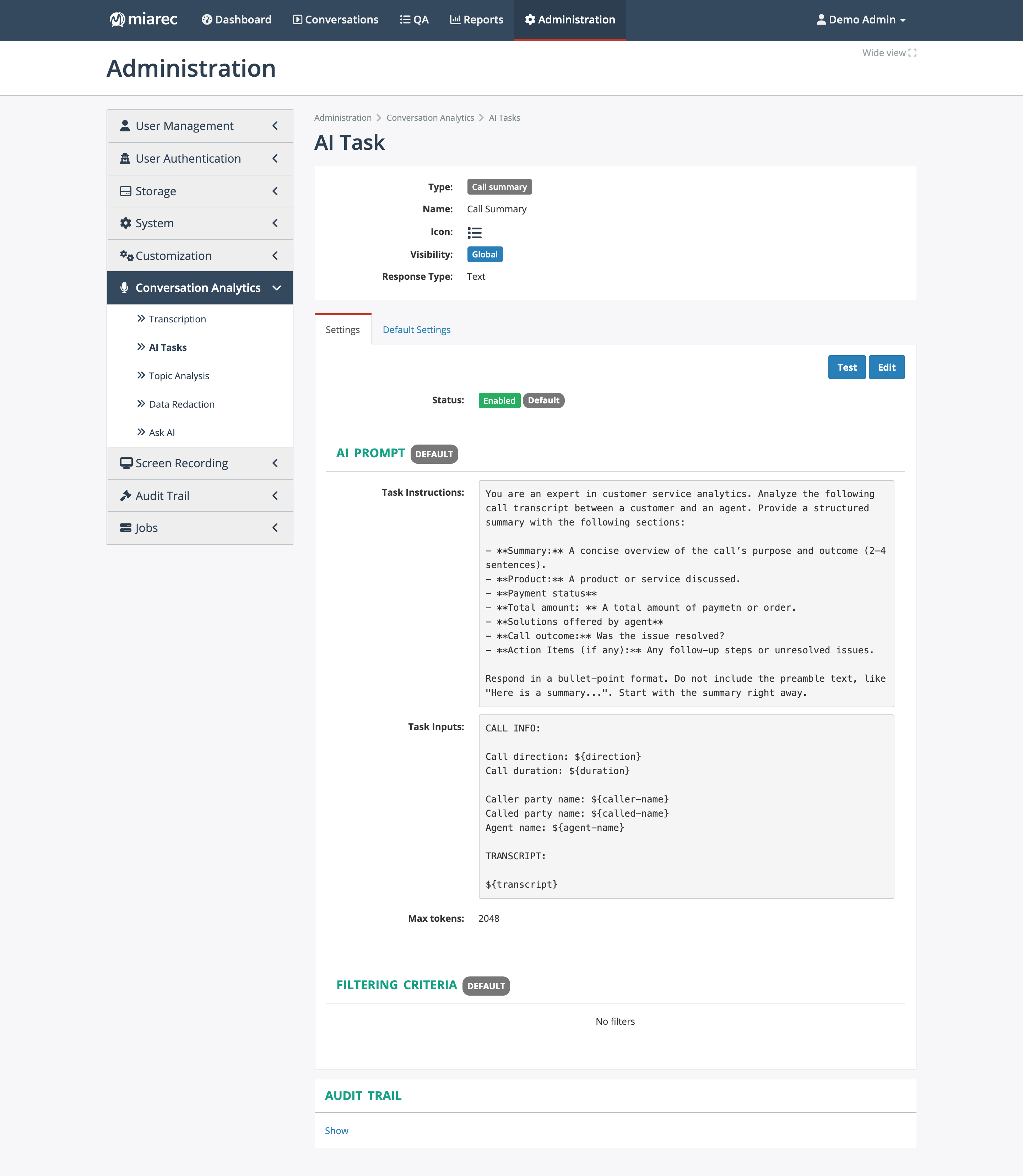
A global task's settings page. Notice the Settings / Default Settings tabs — the Default Settings tab shows the unmodified global configuration when your organization has overrides.
The editor exposes:
- Task instructions — the AI's role and what to produce.
- Task inputs — the data sent with every request; it must include the
${transcript}variable and can include conversation attributes such as${direction},${duration}, or${agent-name}. - Response Type — Auto detect, Text, or JSON (with an optional response JSON schema).
- Max tokens — the response size limit (default 8192).
- Filtering criteria — optional filters that restrict which conversations the task processes (for example, only conversations longer than a minute, or only a specific group).
- Save and Save and Test — the latter opens the AI Playground to run the task against a real conversation.
Managed by your service provider
The AI processing engines that execute these tasks are provisioned and managed by your service provider — there is nothing to configure on your side.
Enabling, disabling, and reprocessing
Use the Enabled toggle on the list (or the Status checkbox in the editor) to turn a task on or off. Changes apply to conversations processed from that point on; already-analyzed conversations are not reprocessed automatically. To re-run analysis over historical conversations, contact your service provider.
Related pages
- Custom insights — creating your own tasks, with prompt-writing guidance.
- AI Playground — testing prompts before enabling them.
- Usage and limits — the token budget AI tasks consume.
- AI insights in the User Guide — where users see the results.