Synchronization jobs
This article explains how the system operator finishes the setup, after the tenant administrator has connected MiaRec to Genesys Cloud.
Create three jobs for each connection:
| Job | What it does | Suggested schedule |
|---|---|---|
| Job 1. Pull users | Creates users, updates them, and syncs their active status | Every night |
| Job 2. Pull calls from Amazon SQS | Imports new calls and recordings | Every 2 minutes |
| Job 3. Load the calls of the last 30 days | Imports past calls | Once, started manually |
Create and run the pull users job first. The calls are then linked to users that are already in the right groups.
Where to create the jobs
Go to Administration > System > Integrations, open Genesys Cloud, and select the Synchronization of users or Synchronization of calls tab. Or go to Administration > Jobs > Jobs, and select Genesys Cloud: pull users or Genesys Cloud: pull calls. Select Create.
The following applies to all three jobs:
- Name: include the tenant's name, so that you can tell the jobs of different tenants apart.
- Connection: the list shows the names of the Genesys Cloud organizations. The job works for the tenant of the connection.
- Role of new users, Group of new users: select a role and group of the connection's tenant. The lists can show entries of all tenants with the same names. The form reports an error if you select one of another tenant.
Job 1. Pull users
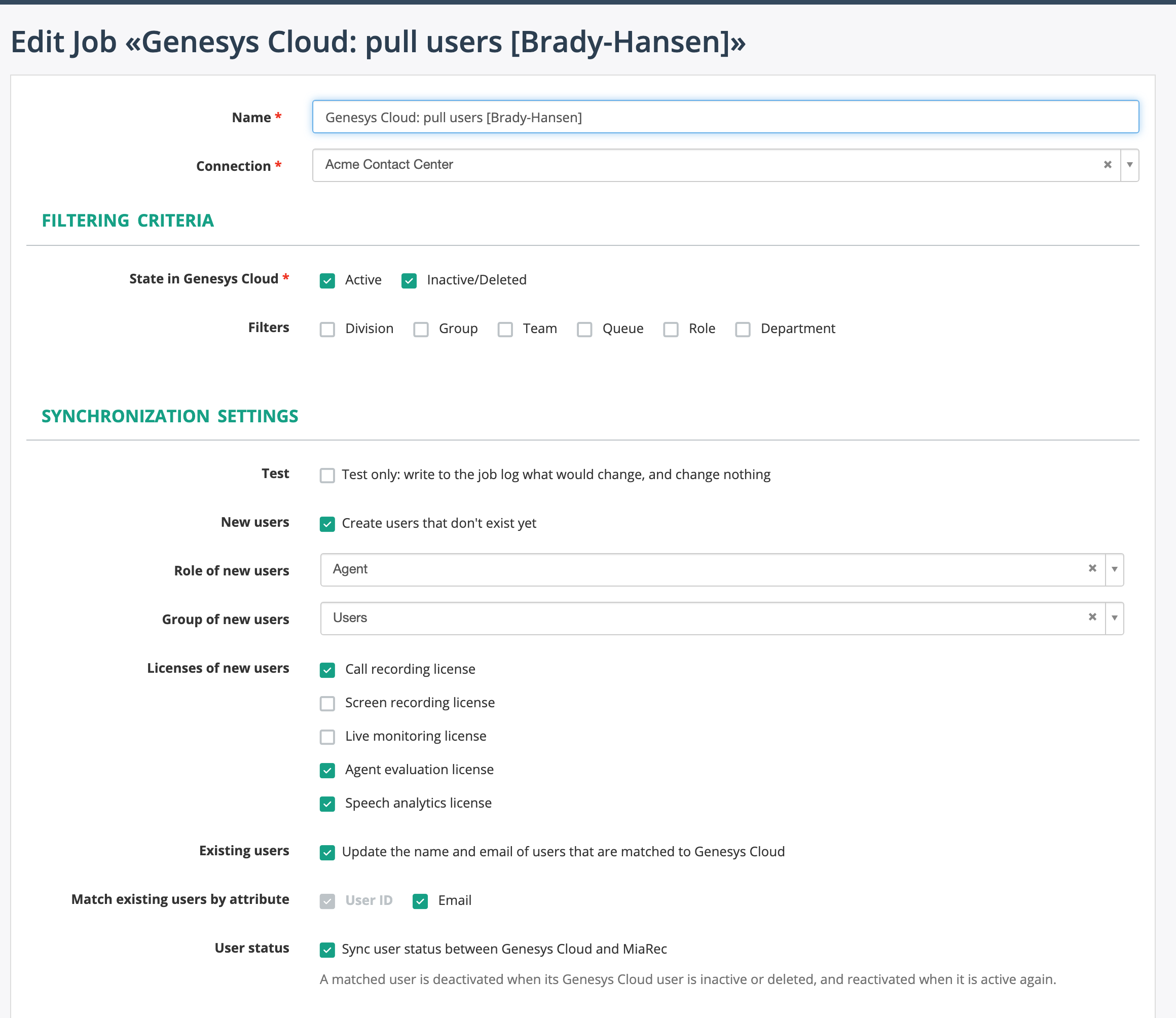
- Create a job of the type Genesys Cloud: pull users, and select the Connection.
- Under Filtering Criteria, select both Active and Inactive/Deleted. The job needs both to sync the status of users: it deactivates a user when it reads the inactive or deleted Genesys Cloud user.
-
Optional: under Filters, limit the users by Division, Group, Team, Queue, Role, or Department.
- Enter the names as they are in Genesys Cloud. The job fails if a name doesn't exist, for example after a rename.
- A user must pass every filter that you use. Within a filter, one of the names is enough.
- The Team and Role filters need more permissions. See Create a role.
- A deleted Genesys Cloud user keeps only its division. With any filter other than Division, the job doesn't see deleted users, and doesn't deactivate them in MiaRec.
-
Under Synchronization Settings, set the following:
- New users: select Create users that don't exist yet, and select the role and group.
- Licenses of new users: select the licenses that each new user gets, for example Call recording license, Agent evaluation license, and Speech analytics license. Call recording license is selected by default. A user that the job links by email keeps its own licenses.
- Existing users: select Update the name and email of users that are matched to Genesys Cloud.
- Match existing users by attribute: also select Email, if the tenant already has users for the agents.
- User status: select Sync user status between Genesys Cloud and MiaRec.
-
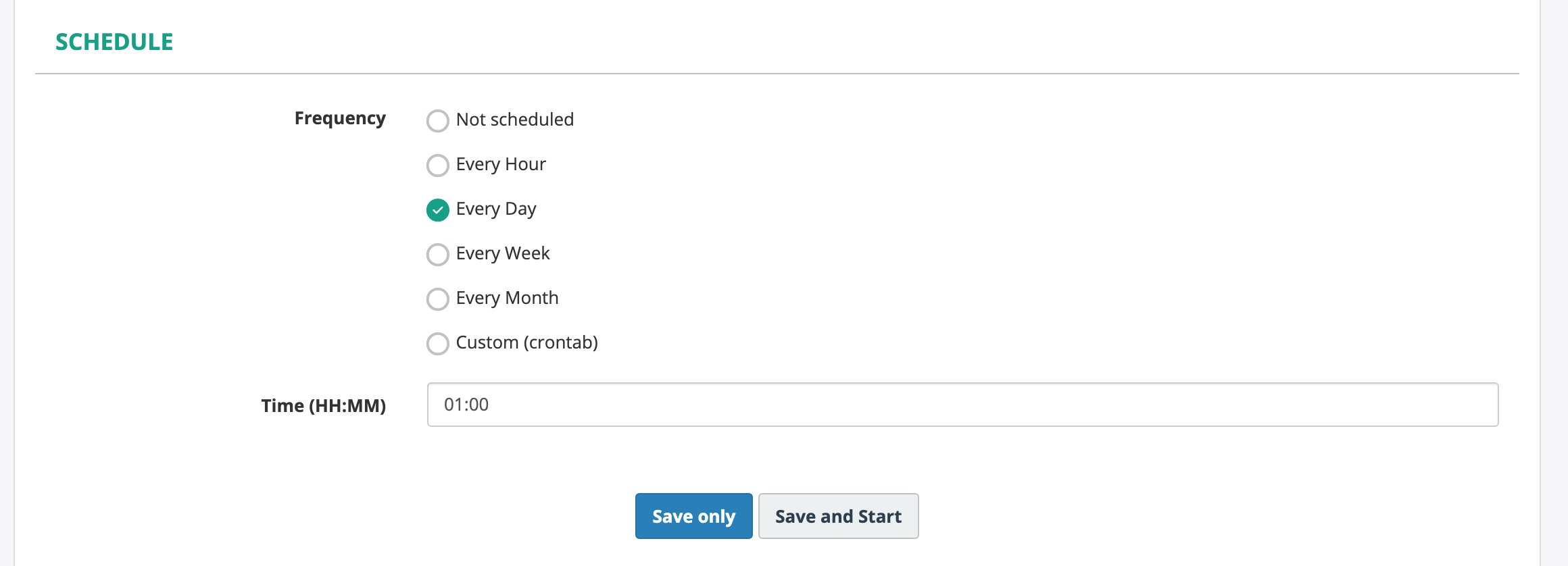
Under Schedule, select Every Day, and enter a time at night.
-
Test the settings first: select Test only, set Log level to Info, and select Save and Start. The Logs tab of the job lists what it would do for each user.
- Edit the job, clear Test only, and select Save and Start.
The result shows how many users were created, linked, updated, and deactivated. Users not imported counts Genesys Cloud users who are inactive or deleted and have no user in MiaRec.
Job 2. Pull calls from Amazon SQS
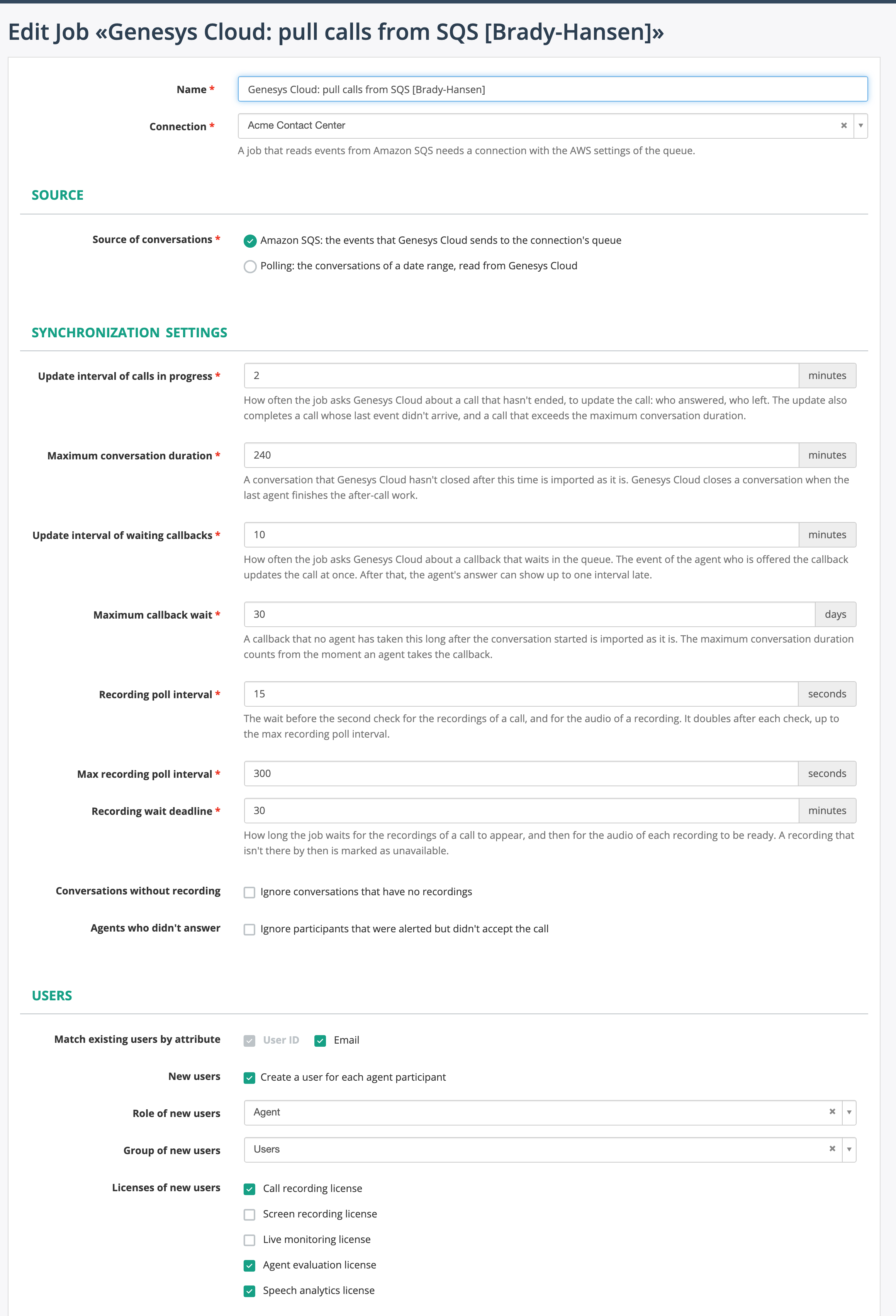
- Create a job of the type Genesys Cloud: pull calls, and select the Connection.
- For Source of conversations, select Amazon SQS.
-
Under Synchronization Settings, keep the defaults, or adjust the following:
Setting Default What it does Update interval of calls in progress 2 minutes How often the job asks Genesys Cloud about a call in progress. A longer interval sends fewer requests. See Rate limits. Maximum conversation duration 240 minutes How long after the start of a call MiaRec waits for Genesys Cloud to close it. Genesys Cloud closes a call when the last agent finishes the after-call work. A call that isn't closed by then is completed with the details it has. MiaRec downloads its recordings if Genesys Cloud has them ready, and doesn't update the call later. For a callback, the time counts from the moment an agent takes the callback. Increase it if a call, with its after-call work, can take longer. Update interval of waiting callbacks 10 minutes How often the job asks Genesys Cloud about a callback that waits in the queue. With the starttopics, MiaRec learns at once when the callback is offered to an agent. The agent's answer can show up to one interval late.Maximum callback wait 30 days How long after the start of a call MiaRec waits for an agent to take its callback. A callback that no agent takes by then is completed as it is. Recording poll interval, Max recording poll interval 15 and 300 seconds How often the job checks for recordings. The interval doubles after each check. Longer intervals send fewer requests. Recording wait deadline 30 minutes How long the job waits for a recording before it's marked as unavailable. Conversations without recording Off Ignore calls that Genesys Cloud doesn't record. Agents who didn't answer Off Leave out agents who were alerted but didn't answer. See Agents who don't answer. -
Under Users, set the following:
- Match existing users by attribute: the same as in the pull users job.
- New users: select Create a user for each agent participant, and select the role, the group, and the Licenses of new users, the same as in the pull users job. The job then creates a user for a new agent whose first call arrives before the next run of the pull users job.
-
Optional: under Action after successful processing, select the processing queue for transcription in Publish to queue(s). The job publishes a call after its recordings are downloaded. See Pipeline and queues.
- Under Job Advanced Settings, select Create one job record per day. Otherwise, the job adds a record to its history at each run.
-
Under Schedule, select Custom (crontab), and enter
*/2for Minute and*for the other fields. The job then runs every 2 minutes.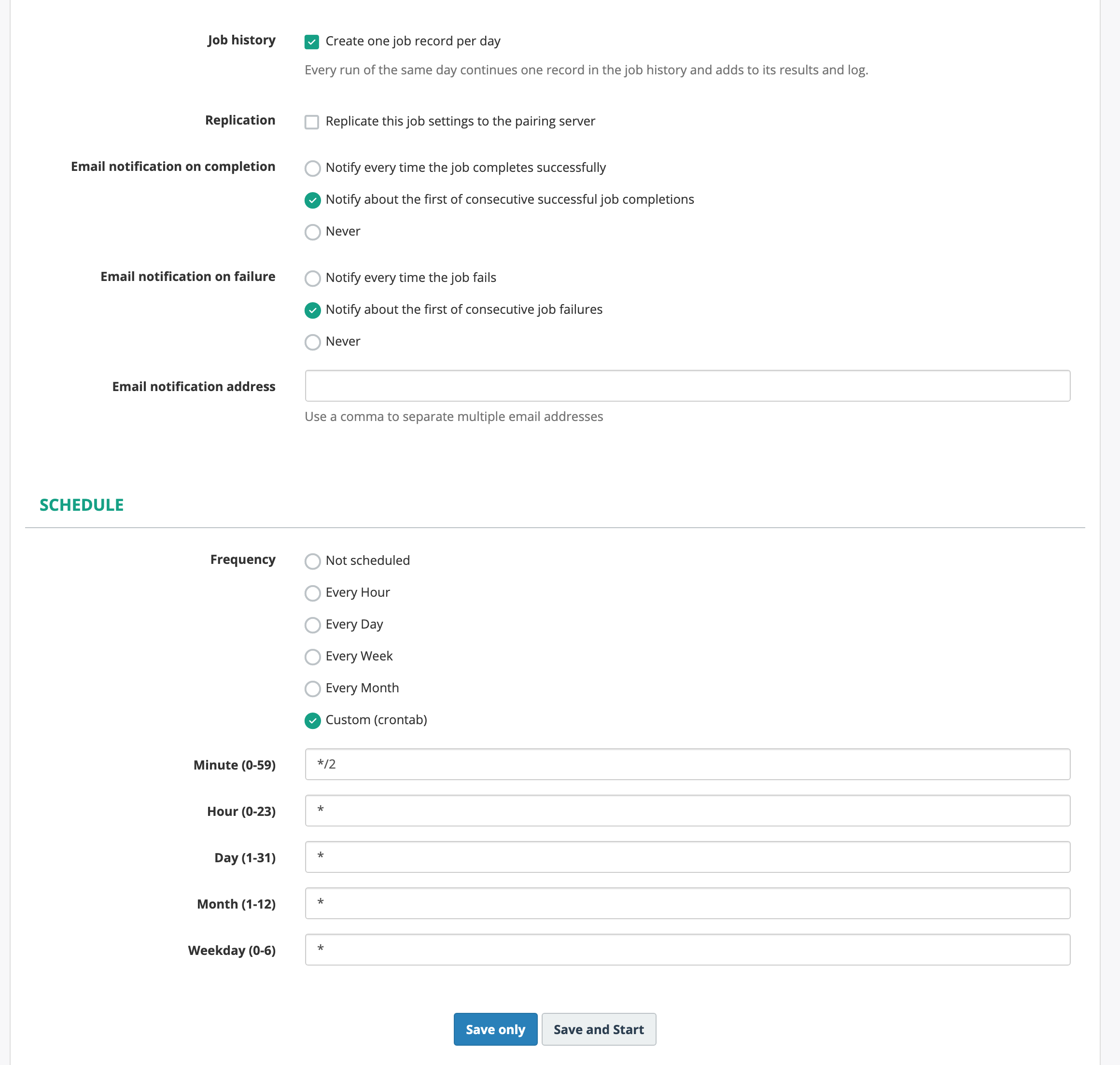
-
Set Email notification on failure, and enter an address, so that you learn about a problem with the queue or the credentials.
- Select Save and Start.
The queue must hold only the events of the connection's organization
The job fails if the queue holds a message that isn't a Genesys Cloud event, or an event of another organization. It then imports no new calls until the queue is corrected. See The job reports a foreign message.
Job 3. Load the calls of the last 30 days
This job imports the calls from before the connection was created.
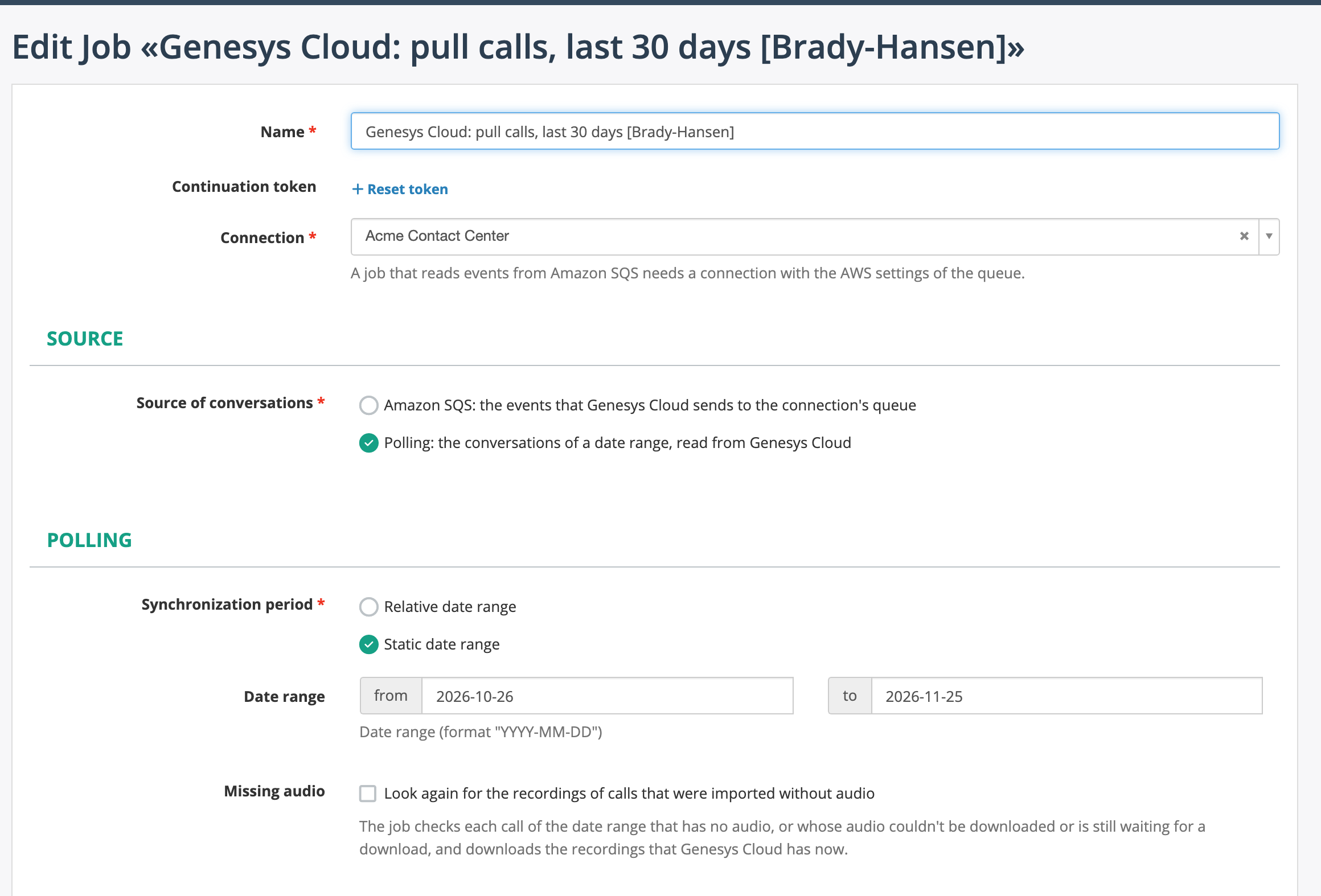
- Create another job of the type Genesys Cloud: pull calls, and select the same Connection.
- For Source of conversations, select Polling.
- For Synchronization period, select Static date range, and enter the dates, for example from 30 days ago until today. The days are days in the Timezone of the job (Job Advanced Settings), or in UTC without a time zone.
- Set the Users and Action after successful processing sections as in job 2.
- Under Schedule, keep Not scheduled.
- Select Save and Start.
-
Start the job again until it has nothing left to do. On the Latest run tab, look at Will check later. If the number isn't zero, wait a minute or two, and select Start again. The date range isn't read again: the job continues where it stopped. It keeps this position, the start time of the last call that it reached, in the Continuation token of the job settings.
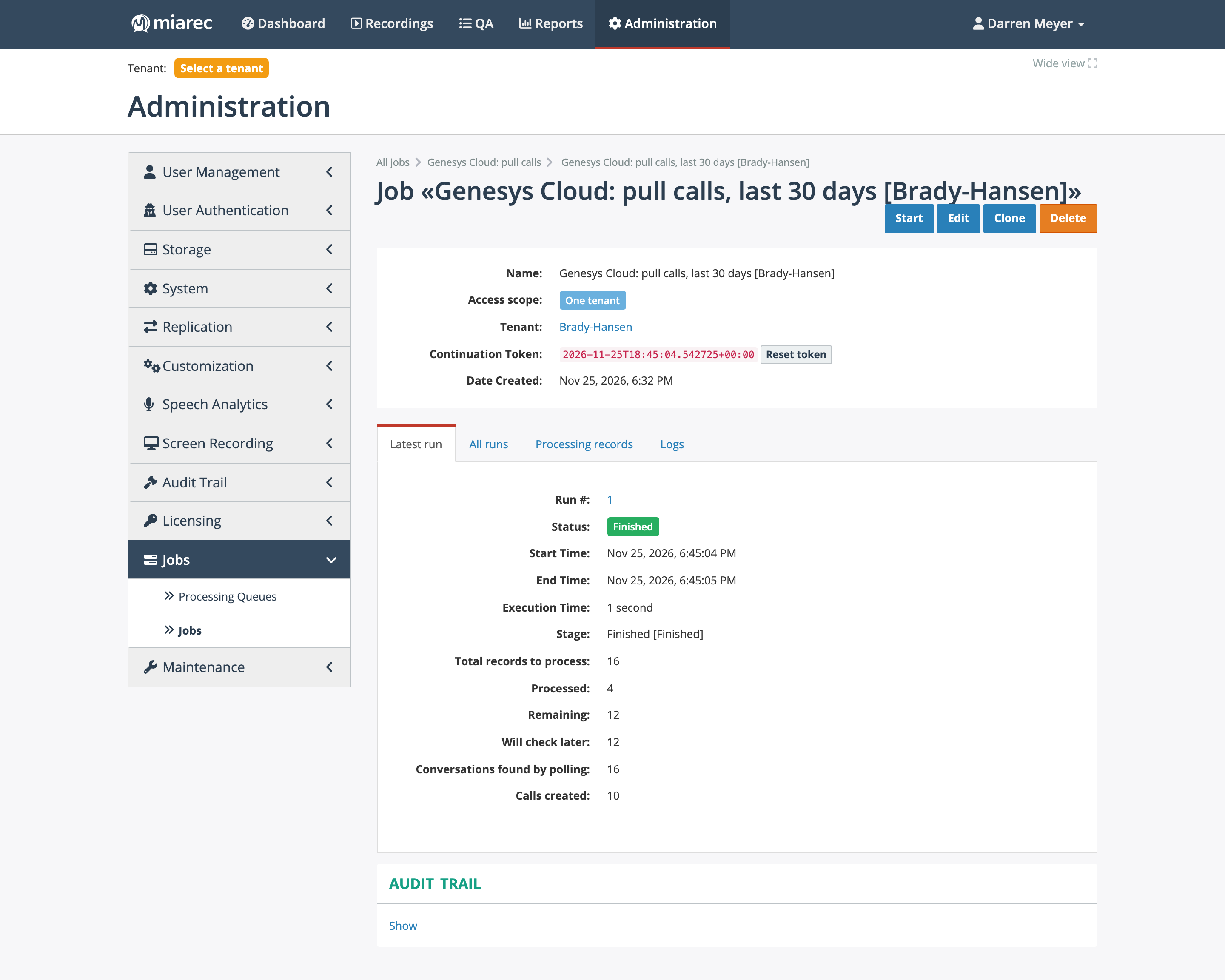
One run isn't enough
Genesys Cloud prepares each audio file when the job asks for it the first time, which takes a while. A run ends when there is nothing to do at that moment, and the status is then Finished, although the last recordings aren't downloaded yet. Only another run of this job downloads them.
For a large number of calls, give the job a schedule of every 5 minutes instead of starting it by hand. Set the schedule back to Not scheduled when Will check later and Remaining stay at zero.
The job can run at the same time as job 2. A call that one job imported is skipped by the other.
To load the calls faster, increase Parallel workers in Job Advanced Settings, for example to 5. Genesys Cloud limits the number of requests. If the result shows Rate limit responses (429), the job waits and continues by itself, and more workers don't help.
Deleted calls are imported again
The job imports every call of the date range that isn't in MiaRec. If a call was deleted in MiaRec, for example on request or by a retention job, and you reset the Continuation token of the job, so that the job goes over the date of the call again, the call is imported again. Delete the job when you no longer need it.
Optional: a job that catches lost events
Events are rarely lost, but the job that reads the queue never learns about a call whose events were lost. To import such calls, add another pull calls job with the source Polling, a Relative date range of the last 2 days, and a schedule of every hour. It skips the calls that are already imported.
Select Look again for the recordings of calls that were imported without audio in this job to also download recordings that Genesys Cloud had ready only after the recording wait deadline.
With a relative date range, a call that was deleted in MiaRec within the last 2 days is imported again. Don't use this job if you delete calls soon after they are recorded.
Rate limits
Genesys Cloud limits how many API requests an OAuth client can send per minute. With many calls, the pull calls job can reach these limits. Genesys Cloud then refuses requests for a while, and the calls and their audio arrive late. The job waits and continues by itself. Its result shows how often this happened in Rate limit responses (429).
The limits that apply to MiaRec, at the time of writing:
| Limit | Value | Requests |
|---|---|---|
client.credentials.token.rate.per.minute |
500 per minute | All requests of the OAuth client |
recording.rate.per.minute |
120 per minute | Requests for the recordings of calls |
Genesys Cloud can change the values. See Rate limits and Limits in the Genesys Cloud Developer Center.
The pull calls job sends requests for these reasons:
- An event in the queue: a request for the details of the call.
- A call in progress: a request for the details of the call at each Update interval of calls in progress, until Genesys Cloud closes the call.
- A callback that waits in the queue: a request for the details of the call at each Update interval of waiting callbacks, until an agent takes the callback.
- A completed call: requests for the recordings at the Recording poll interval, until the audio is ready, and then a request for each audio file.
To send fewer requests:
- Don't select the
customer.startanduser.starttopics in the Amazon EventBridge integration. MiaRec then learns about a call when it ends, and doesn't ask about it while the conversation goes on. The call appears in MiaRec only after it ends. See Amazon SQS and EventBridge configuration. - Select the
acwtopic. MiaRec then completes a call as soon as the last agent finishes the after-call work, and stops asking about it. - Increase the Update interval of calls in progress, for example to 5 or 10 minutes. Changes to a call in progress appear later.
- Increase the Update interval of waiting callbacks, if your queues hold many callbacks for a long time. An answered callback can show as waiting for longer.
- Increase the Recording poll interval and the Max recording poll interval. The audio appears later.
- Reduce Parallel workers in Job Advanced Settings. The job sends the same requests, but spreads them over a longer time.
- Use an OAuth client only for MiaRec. The requests of other applications that share the client count against the same limits.
Next step
Continue with Verification.