Recording settings
Each user profile carries the capture settings that decide whether and how that user's conversations are recorded. This page covers the Recording Settings section of the user form and the role permissions that control on-demand recording and pause/resume.
Who can do this: administrators with edit rights on users (the per-tab user settings in the role's permission grid). See Roles and permissions.
Per-user recording settings
Go to Administration › User Management › Users, then edit a user. The Recording Settings section contains:
- Record — the user's recording mode:
- Always — every conversation is recorded.
- On-demand — conversations are captured only when recording is triggered for them — by the user or a permitted supervisor, from the portal or from phone keys. See Recording controls in the User Guide.
- Never — the user's conversations are not recorded.
- Default — the user follows your organization's default recording rule.
- Recording direction — restricts recording to Inbound and/or Outbound conversations.
- Extension — the identifiers used to match conversations to this user; click Add Extension for more. See Associating conversations with users.
- Confidential calls — Automatically mark all calls of this user as confidential. Confidential conversations are hidden from users without the confidential-access permission; see Confidential conversations in the User Guide.
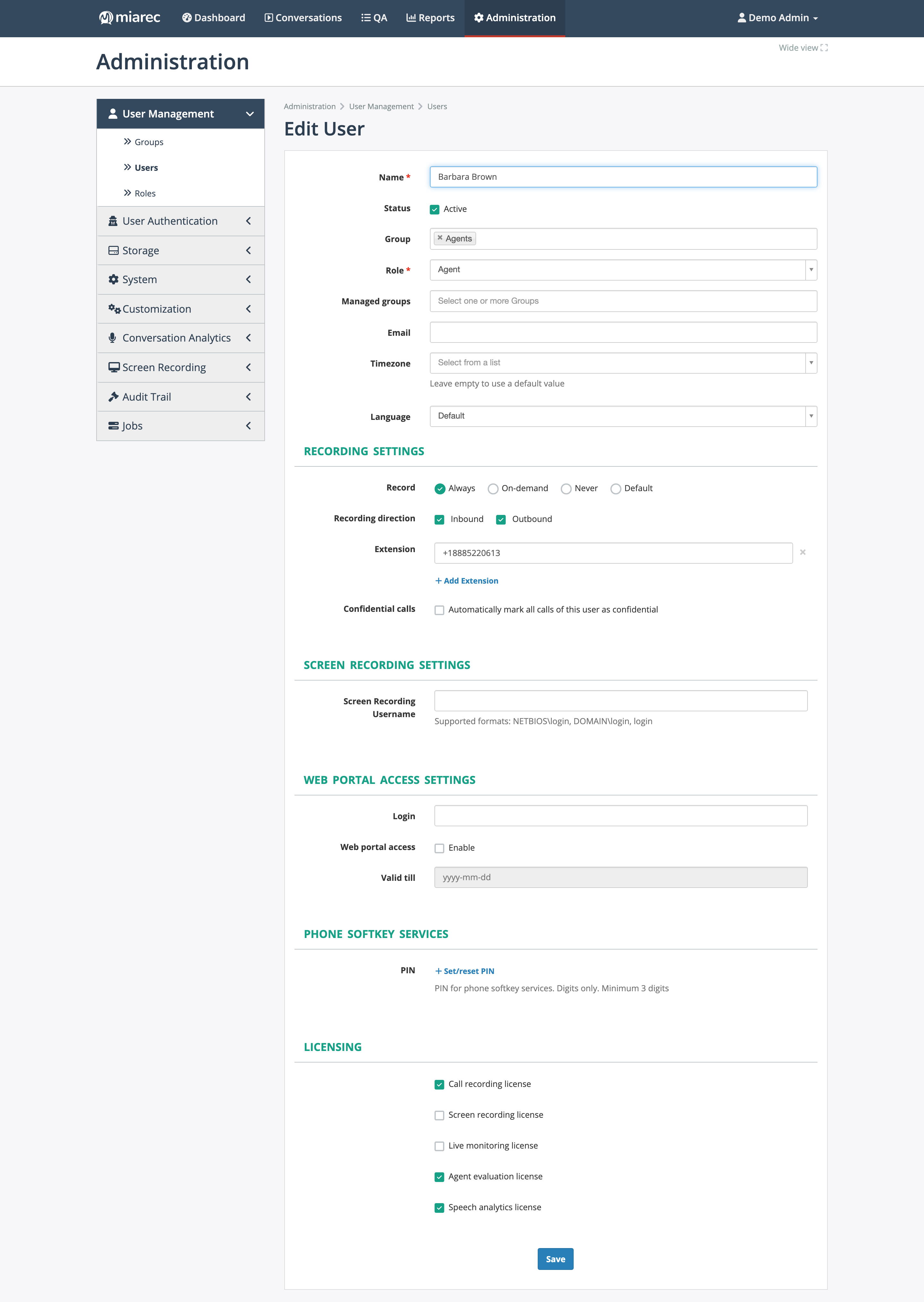
The Edit User form. Notice the "Recording Settings" section — recording mode radios, direction checkboxes, the extension list, and the confidential-calls checkbox — followed by the per-user license checkboxes under "Licensing".
Managed by your service provider
The organization-wide default recording rule (what Default resolves to) and the recording infrastructure itself are configured by your service provider.
Permissions for recording controls
Two permission verbs on the conversation permission rows of the role editor govern in-call controls:
- Control on-demand recording — lets the role trigger keep/discard of an on-demand recording.
- Pause recording — lets the role pause and resume recording during a conversation (for example, while a payment card number is spoken).
Grant them on Conversations - Own (for a user's own conversations) and/or Conversations - Other users' (for supervisors) in Administration › User Management › Roles. See Roles and permissions.
Users can also control recording from their desk phones through phone softkey services (authenticated by a PIN set on the user profile). Phone-side setup is covered in the Phone Softkey Integration Guide.
Related pages
- How conversations arrive — recording as one capture method among several.
- Users — the rest of the user profile, including licenses.
- Deleting conversations — the do-not-delete flag and undo window.