Saved searches
If you run the same advanced search regularly — say, "negative conversations longer than five minutes" — save it once and re-run it in one click. Saved searches appear as links in the left pane of the Advanced Search page.
Save a search
- On the Advanced Search tab, build your criteria (see Advanced search).
- Click Save Search.
- On the Add Saved Search page, fill in:
- Name — a unique name for the search.
- Visibility — Private (only you) or Public (shared with all users in your organization).
- Refine the search criteria, if needed.
- Click Save.
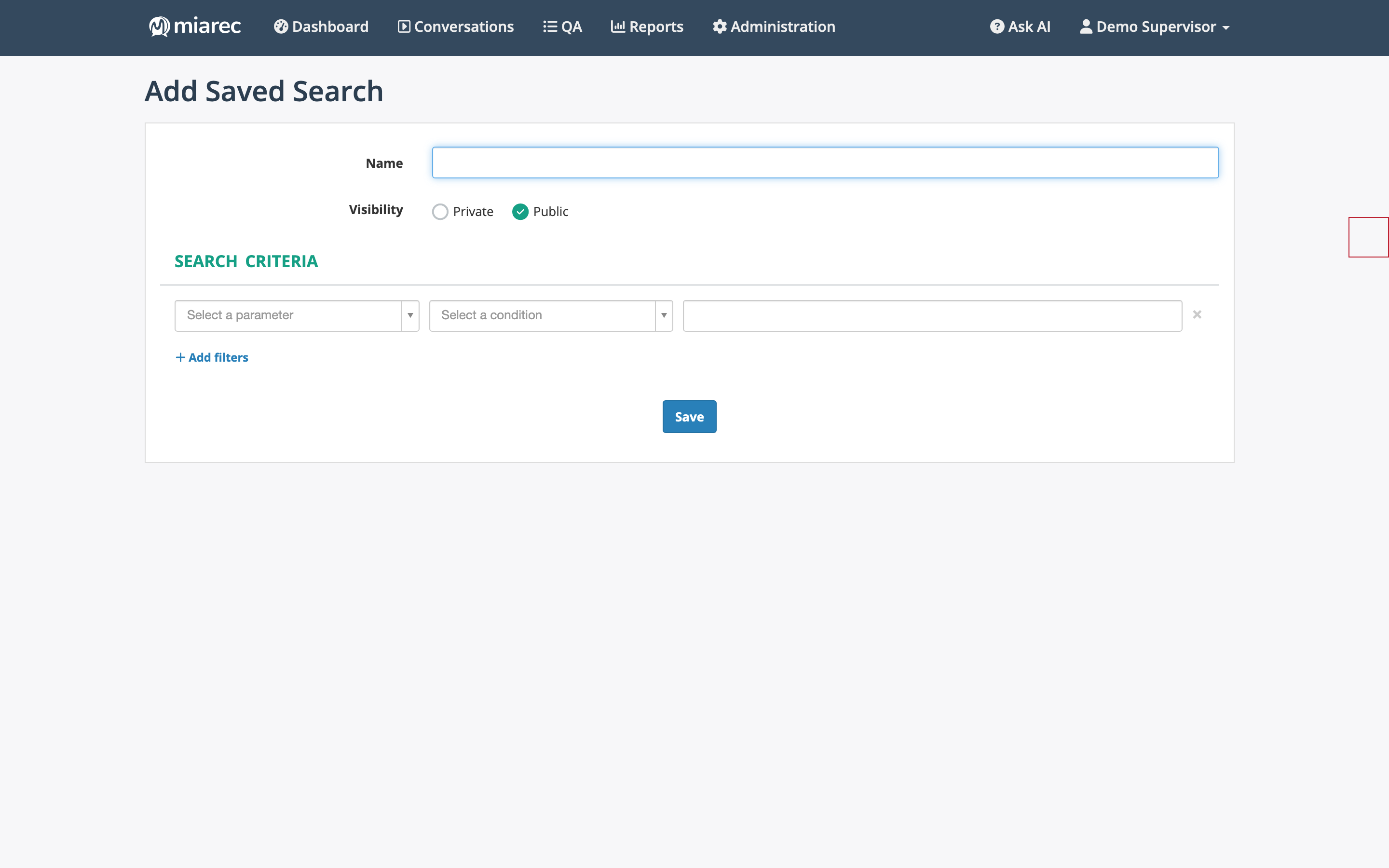
The Add Saved Search page: name the search, choose Private or Public visibility, and adjust the criteria before saving.
Run a saved search
Open the Advanced Search tab and click the saved search in the left pane. The criteria are applied and the search runs immediately.
Manage saved searches
Click Manage Saved Searches in the left pane of the Advanced Search page. The Saved Searches page lists your saved searches with their visibility, and lets you add new ones or delete existing ones (select the checkboxes, then click Delete).
Warning
Deleting a saved search takes effect immediately — there is no confirmation dialog. Use the UNDO link in the notification if you deleted one by mistake.
Related pages
- Advanced search — building the criteria you save.