Jobs console
Jobs are persistent, scheduled or triggered background tasks: pipeline stages (transcription, AI tasks), storage chores (export, relocate, retention), telephony syncs, replication, and utilities. The jobs console at Administration › Jobs › Jobs is the single place where all of them are configured, run, and monitored.
Note
Customer administrators see a reduced version of the same console with only the job types their role permits (tagging, confidential flag, telephony syncs) — see Jobs in the Administration Guide. Each job type is a separate row in the role's Job permissions section, so what a user sees here is entirely permission-driven.
Console tabs
- Overview — the job-type catalog: one row per job type with the number of configured jobs, their latest statuses, and the latest run. A tenant selector and text search narrow the list. Click a type to see its jobs, or View to jump to the latest run.
- All jobs — every configured job across all types, with name, tenant, status, schedule, and latest run.
- Advanced Search — find jobs by their attributes.
Warning
The Overview catalog does not list every registered job type. Some types are reachable only from their own menu section — for example the screen-recording export/import/relocate jobs live under Administration › Screen Recording — and internal types do not appear at all. Do not conclude from the catalog alone that a job type does not exist; see the job type reference.
The job page
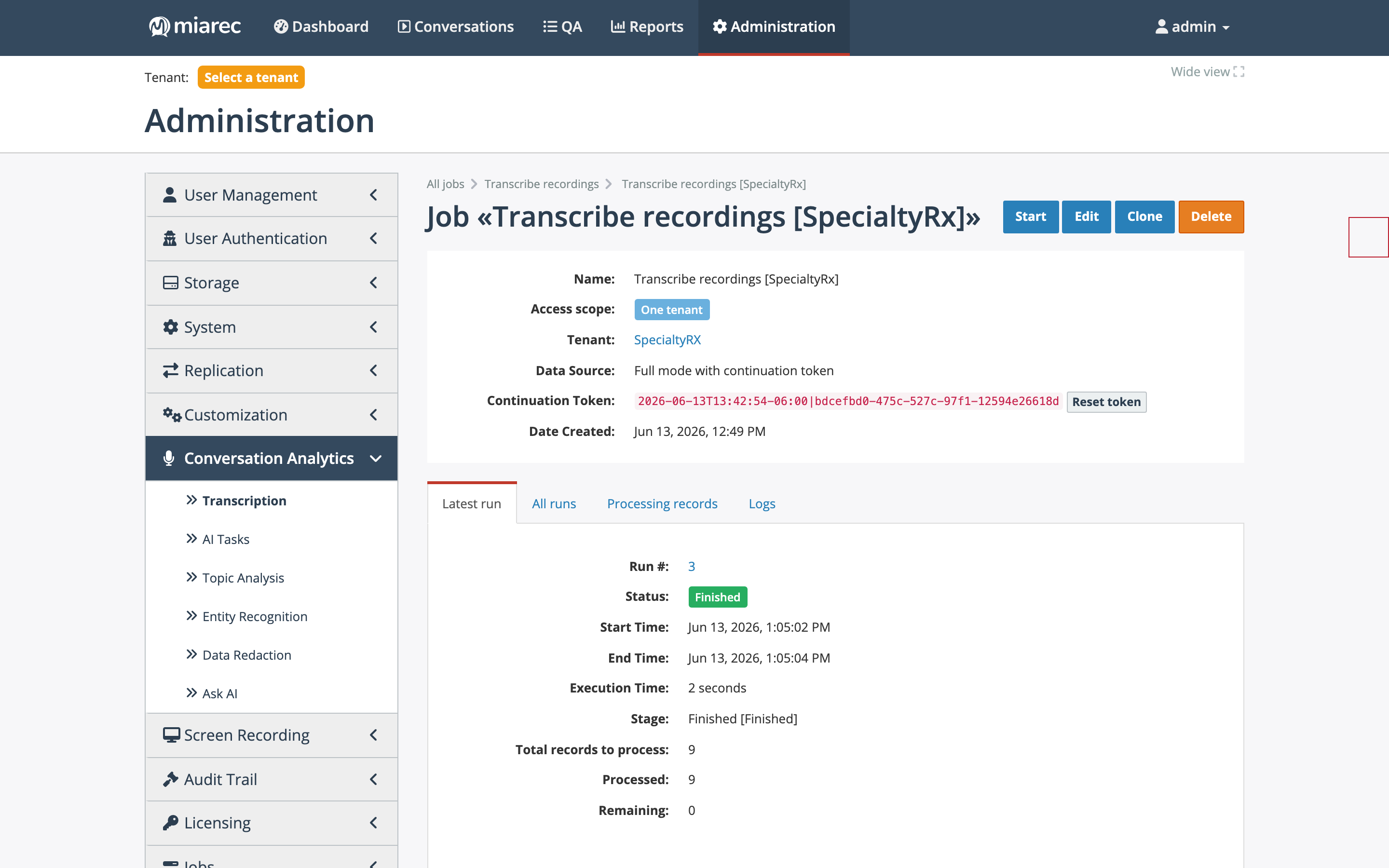
A job page, Latest run tab. Note the header block — access scope, tenant, data source, and the continuation token with its Reset token button — and the Start/Edit/Clone/Delete actions.
The header block describes the job's definition:
- Name — free text; the convention
Type [Tenant]keeps the All jobs list readable. - Access scope — which data the job can touch: Unrestricted (all tenants, including System), Tenants only (all tenants, excluding System), or One tenant (with the tenant named below it).
- Data source — how the job selects records to process:
- Incremental using queue — consumes records from a processing queue; the standard mode for continuous pipeline stages.
- Full mode with continuation token — scans all matching records, remembering its position in a continuation token so the next run resumes where the last one stopped. Reset token makes the next run start over from the beginning.
- Full mode on each run — rescans everything on every run.
- Incremental using replication slot — consumes database change records; used by replication jobs.
- Incremental using DB storage (deprecated) — a legacy incremental mode.
- Date Created.
The buttons Start, Edit, Clone, and Delete act on the job; a running job can be stopped with Abort. An inline audit trail at the bottom of the page records who changed or ran the job.
Schedules and notifications
A job's Schedule section sets how it runs: Not scheduled (manual only), Continuously (keeps running and picks up new records as they arrive — for queue-fed jobs), Every Hour / Day / Week / Month, or a custom crontab expression. Job runs pass through statuses such as Starting, In progress, Finished, Failed, Canceled, and Aborted.
Jobs can email a notification on completion or failure — every time, only on the first of consecutive failures/completions, or never. Delivery uses the Notification about job completion and Notification about job failure email templates.
Runs, records, and logs
Each job page has four history tabs:
- Latest run — run number, status, start/end times, execution time, current stage, and record counters (total, processed, remaining).
- All runs — the run history with processed-per-day totals and per-run processed vs error counts, filterable by date range and status.
- Processing records — the individual records a run processed, searchable by record ID.
- Logs — the job's log entries with severity filter, record-ID and text search, auto-refresh, export, and per-entry delete.
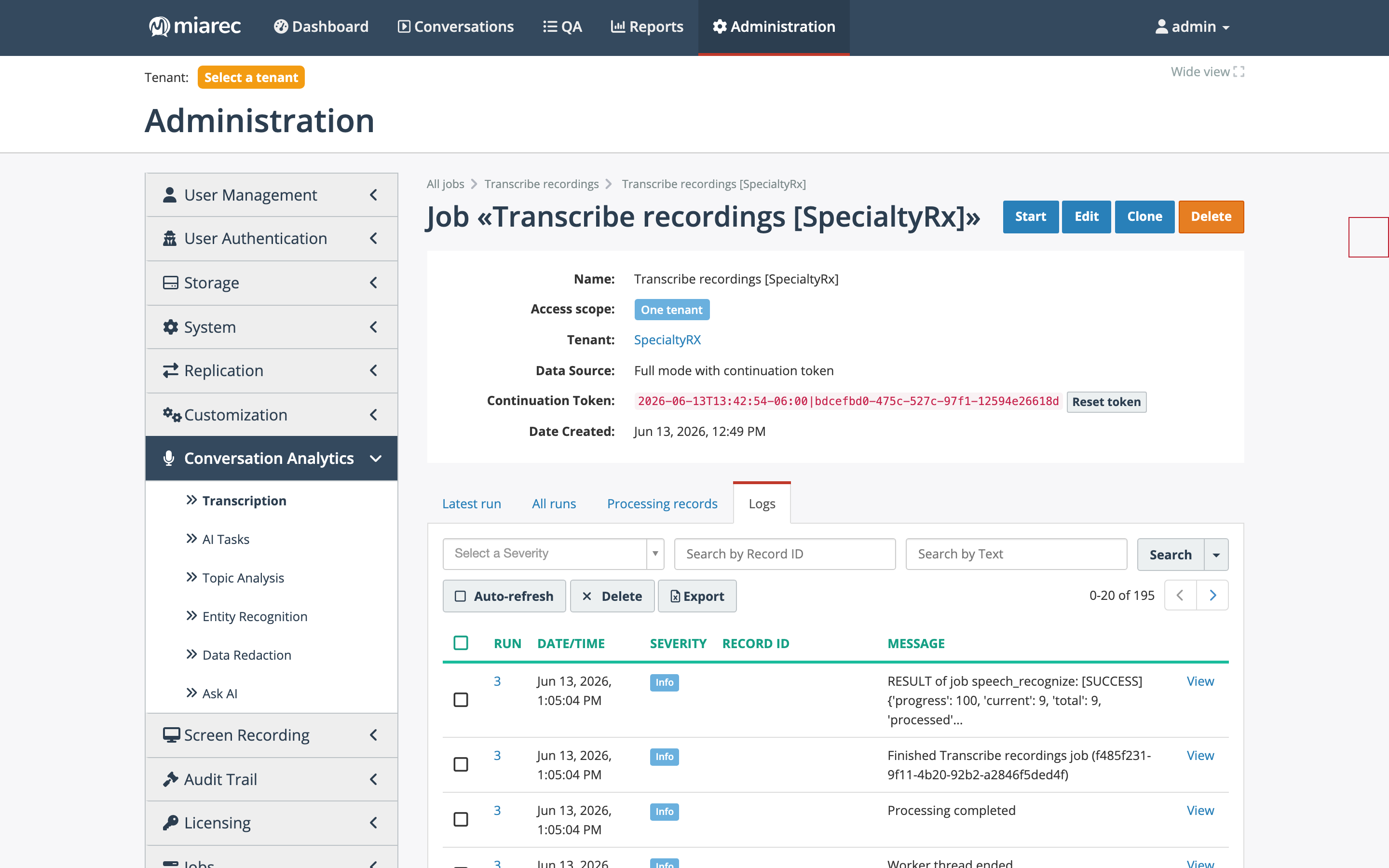
The Logs tab of a transcription job: per-record messages with severity badges, plus Auto-refresh and Export. Filtering by Record ID is the fastest way to trace one conversation through a job.
Related pages
- Pipeline and queues — how jobs chain into a processing pipeline.
- Job type reference — what each job type does.
- Jobs — the customer-administrator view of the console.