Uploading recordings
Manual upload lets users add existing audio files to MiaRec — for example, recordings made outside your telephony platform. Uploaded files become regular conversations: they are transcribed and analyzed like any other conversation. This page covers where the feature lives, its limits, and the organization-level settings.
Where users find it
The Upload Recordings page is available from the user menu (click your name in the top-right corner, then Upload recordings) and from the Conversations list (More › Upload recordings). Users drag files onto the page or click Select files.
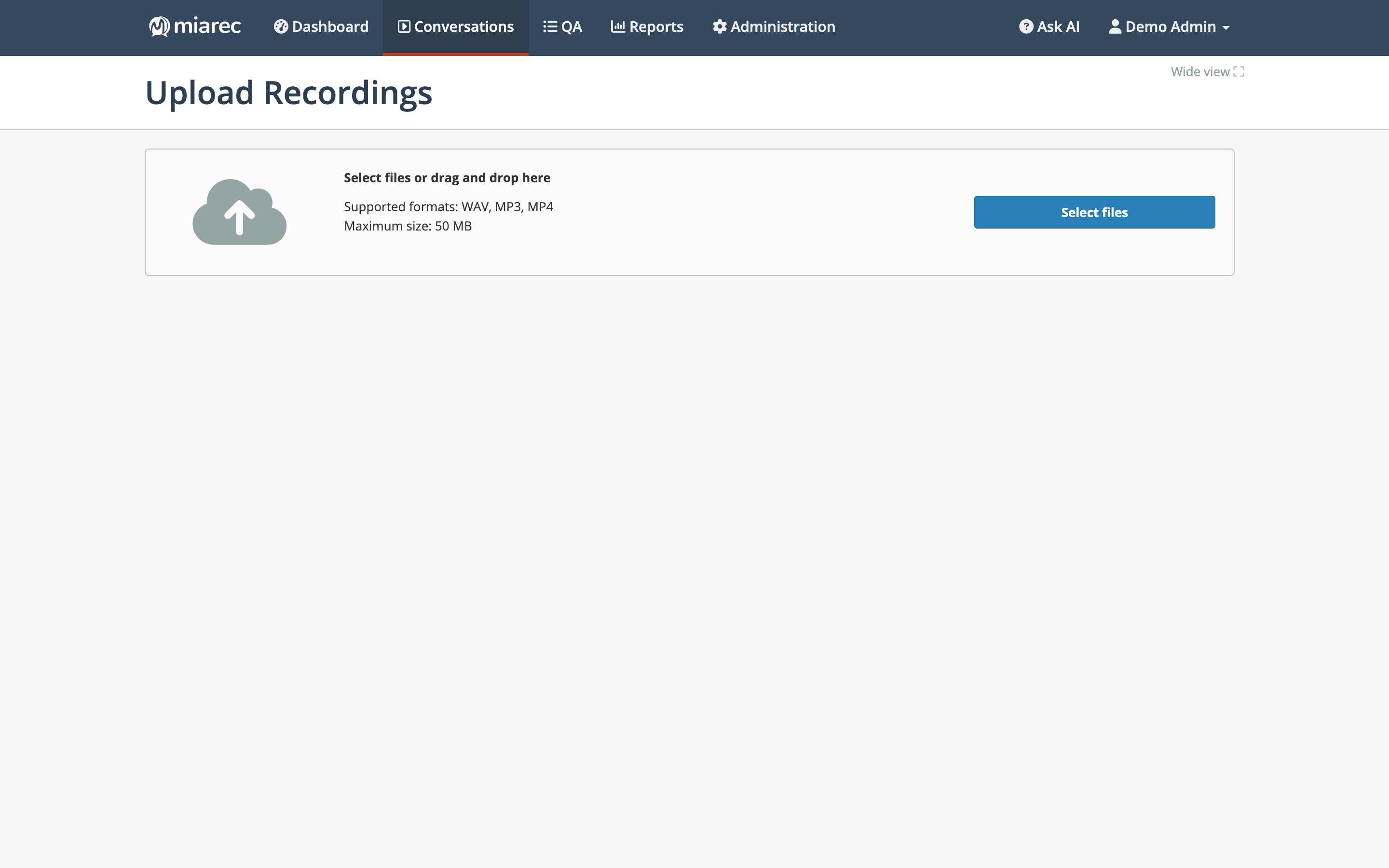
The Upload Recordings page. The drop area states the supported formats and the current maximum file size.
End-user steps, including how to fill in the conversation details, are covered in Uploading audio files in the User Guide.
Formats and limits
- Supported formats: WAV, MP3, MP4.
- Maximum file size: 50 MB per file by default.
- Large files upload in small chunks, so an interrupted upload can resume.
- The number of parallel uploads is limited per user and per organization.
Who can upload
Uploading requires the Upload Recordings permission (verb Allow) on the user's role — see Roles and permissions.
Organization-level settings
Administrators can review the upload configuration under Administration › Storage › Upload Recordings. The page shows:
- Status — whether upload is enabled for your organization,
- Maximum file size (in MB),
- Upload chunk size (in MB),
- Maximum parallel upload per user and per organization.
Managed by your service provider
This page is read-only for your organization's administrators. The upload feature is disabled by default on new deployments — contact your service provider to enable it or to change the limits.
Related pages
- How conversations arrive — upload as one capture method among several.
- Uploading audio files — the end-user procedure.