Transcription system configuration
Enabling transcription platform-wide takes three pieces of configuration:
- A transcription engine — the connection to the speech-to-text service.
- A processing queue — collects conversations as they finish recording.
- A transcription job — consumes the queue and sends conversations to the engine.
Configure the transcription engine
Go to Administration › Conversation Analytics › Transcription, open the Engines tab, and click Add. Select the engine type (see Requirements for the supported providers) and fill in the provider-specific settings — server address or API keys, region, and feature toggles such as punctuation or sentiment where the engine offers them.
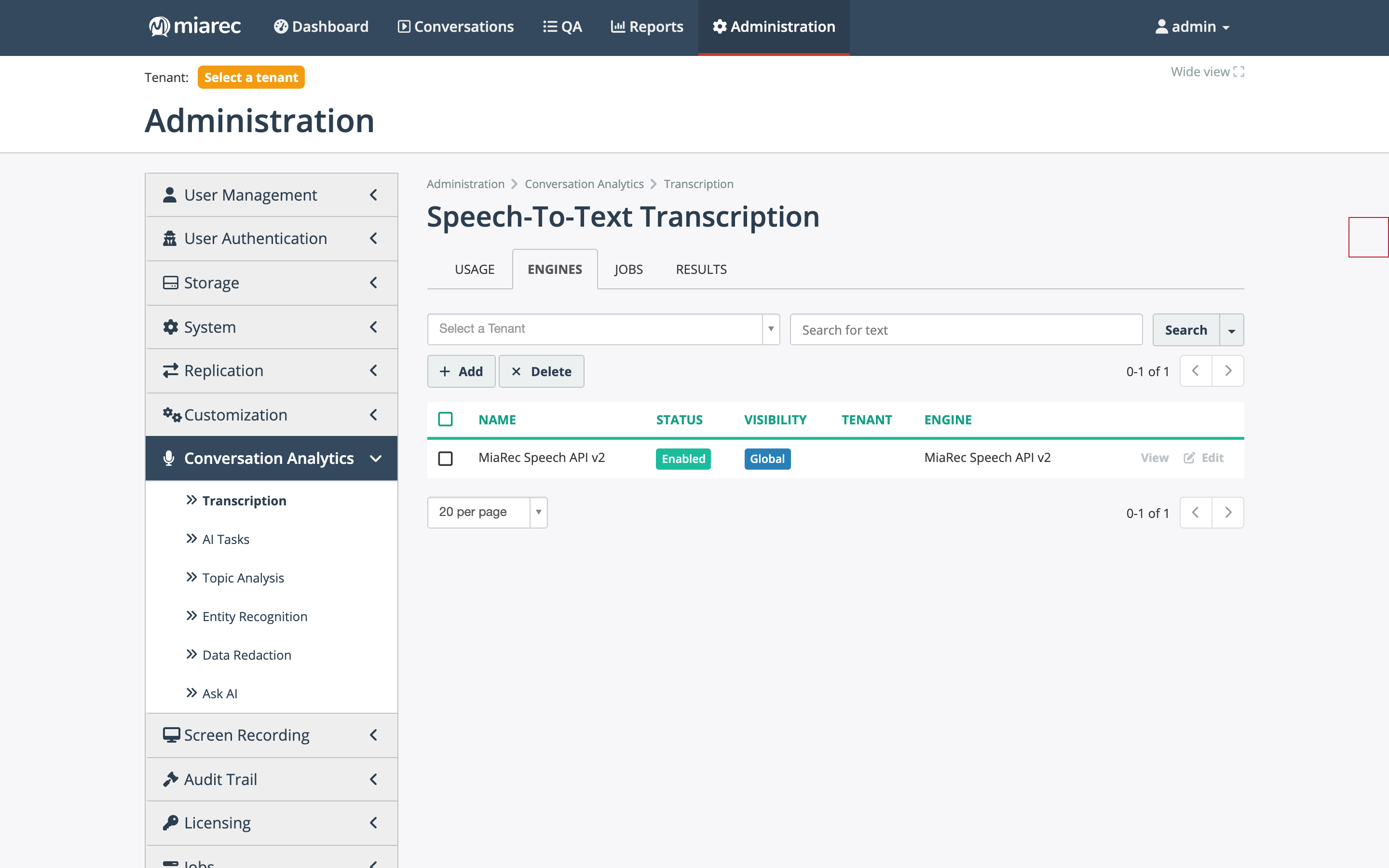
The Engines tab of the Transcription page. Notice the Visibility column: a Global engine serves all tenants; an engine created with a tenant becomes Local to it.
After saving, open the engine and click Test a Connection. A sample audio file is sent to the transcription service and the transcribed text is displayed — this confirms credentials, network path, and service health in one step.
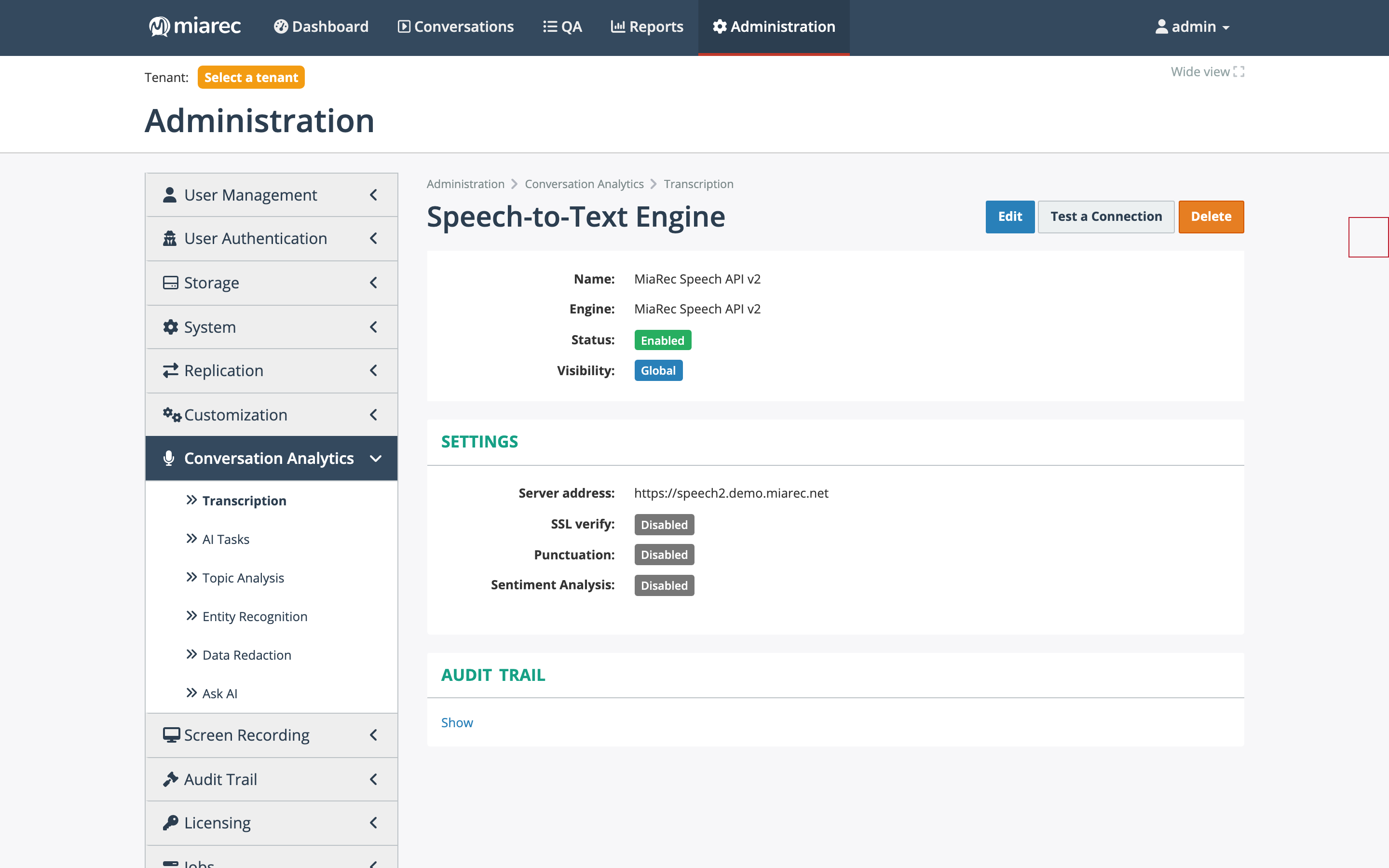
A MiaRec Speech API v2 engine. Notice the Test a Connection button and the inline audit trail — every change to engine settings is recorded.
Configure the processing queue
Go to Administration › Jobs › Processing Queues and click Add to create a queue for transcription. Select:
- Scope: Global
- Record type: Call
- Populate queue with events: Call - Recording finished
With this configuration, conversations are added to the queue as soon as recording finishes.
Note
With the global scope, records from all tenants enter the queue, including tenants without transcription enabled. The transcription job (configured next) filters and processes only records belonging to tenants and users with transcription enabled.
Configure the transcription job
Open the Jobs tab of the Transcription page and click Add to create a Transcribe recordings job. Select:
- Access scope: Unrestricted - All tenants, including System
- Data source: Incremental using queue
- Source queue: the processing queue created above
- Transcription engine: the engine created above
Under Filtering Criteria, add filters so that only licensed conversations are processed:
- User - License is Speech analytics license
- Call - Duration between 0:15 and 2:00:00 (15 seconds to 2 hours)
Tip
The duration filter is optional but recommended: very short conversations rarely produce useful transcripts, and very long ones consume minutes disproportionately.
Under Action after successful processing, optionally chain the next pipeline stage:
- Publish to queue(s): the queue consumed by the AI Assistant job (summaries, sentiment, topics, Auto QA — see Pipeline overview).
Finally, under Schedule, select Run this job: Continuously. The job then processes new conversations automatically as they enter the queue.
Per-tenant transcription hint
A tenant-level Transcription Prompt (up to 128 characters) can be fed to the engine as a hint — for example, the company name spoken in the greeting, so it is transcribed correctly. It is edited in the tenant's settings and shown as a column in the tenant list. See Tenant and user configuration.
Verify
After the first conversations complete, check the Results tab of the Transcription page — it lists all transcriptions with status, conversation date, duration, and parties. Then continue to Monitoring and troubleshooting.