Storage limits
Storage limits cap how much recorded data each tenant can accumulate. When a tenant exceeds a limit, the enforcement job deletes that tenant's oldest recordings until usage is back under the cap — an automatic, rolling retention mechanism per tenant.
Where: Administration › Storage › Storage Limits — a per-tenant table showing the audio and screen-recording limit status (UI columns: Audio Storage Limits and Video Storage Limits), with View Usage and Edit Limits per row. The same limits are also editable in the tenant profile — see Tenant configuration.
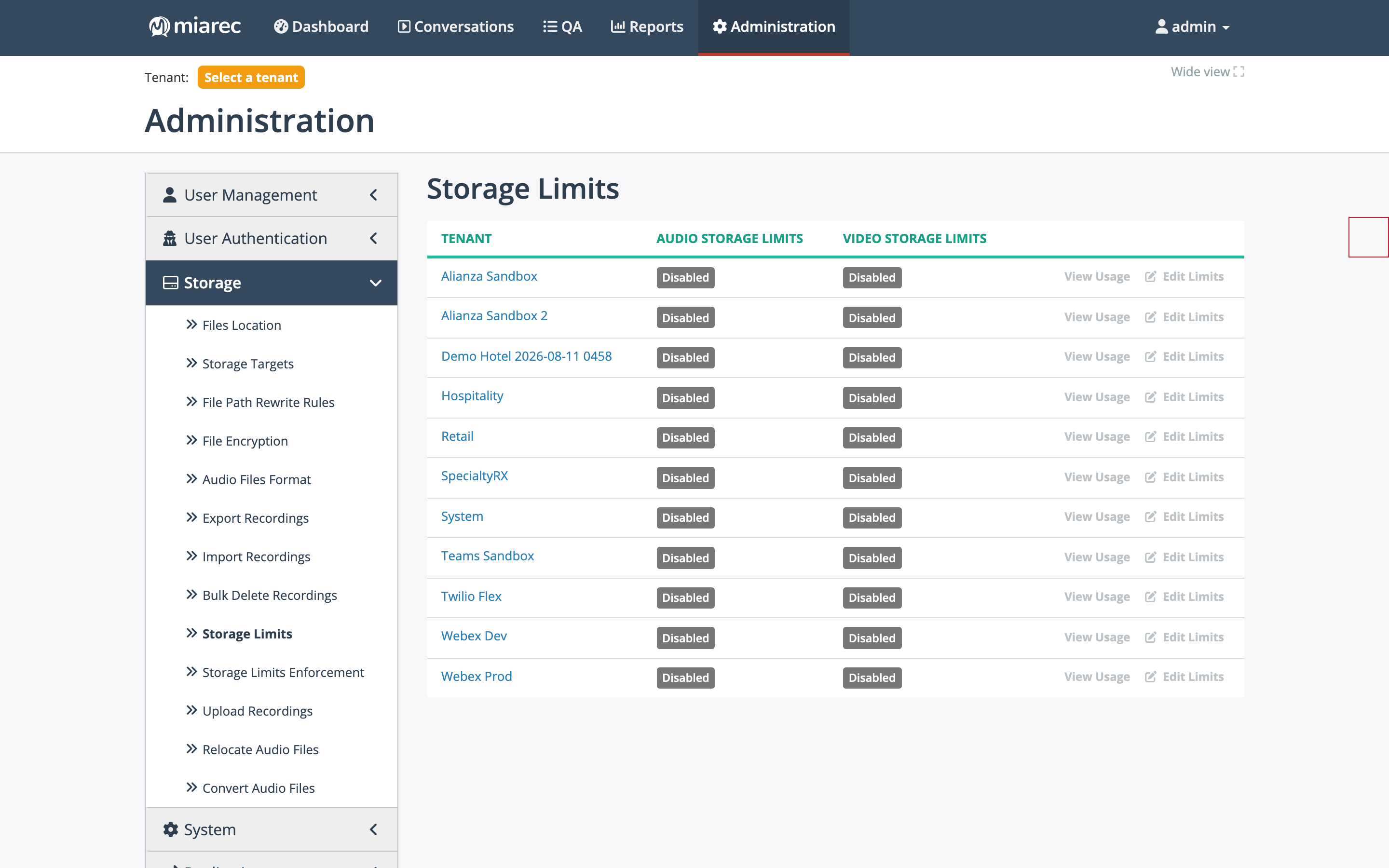
The per-tenant Storage Limits table. Each row links to that tenant's usage view and limit editor; limits are disabled for all tenants in this environment.
Limit types
Limits are set separately for audio recordings and screen recordings, and each side supports three limit types that can be combined:
- Size — total stored bytes.
- Minutes — total stored duration.
- Age (days) — maximum age of a recording.
View Usage shows the tenant's current consumption against its limits — the same numbers a tenant administrator sees on their Storage usage page.
Enforcement
Limits do nothing by themselves — the Enforce storage limits job (Administration › Storage › Storage Limits Enforcement) applies them. On each run it processes every tenant with limits enabled, finds recordings exceeding the age limit and the oldest recordings above the size/minutes overage, and deletes their files. Schedule it (for example, nightly) like any other job; runs and logs are in the jobs console.
Do-Not-Delete is honored
The enforcement job always skips conversations flagged Do-Not-Delete, regardless of the job's other criteria. This is a hard exclusion built into the job — unlike the bulk delete job, where the exclusion must be part of the job's filters.
Related pages
- Retention and bulk delete — filter-based retention jobs.
- Tenant configuration — the tenant-profile view of the same limits.
- Storage usage in the Administration Guide — what tenant administrators see.