Password policy (system defaults)
The System tenant's Password Policy page holds the platform-wide defaults: whenever a customer organization has not set its own rule, the value configured here applies (their page shows "Not enforced (using a system default setting)" or "System default"). The same page also contains the system-level reCAPTCHA setting, which exists only here.
Go to Administration › User Authentication › Password Policy while in the System tenant, and click Edit Configuration to change any section. The per-organization counterpart is documented in Password policy in the Administration Guide.
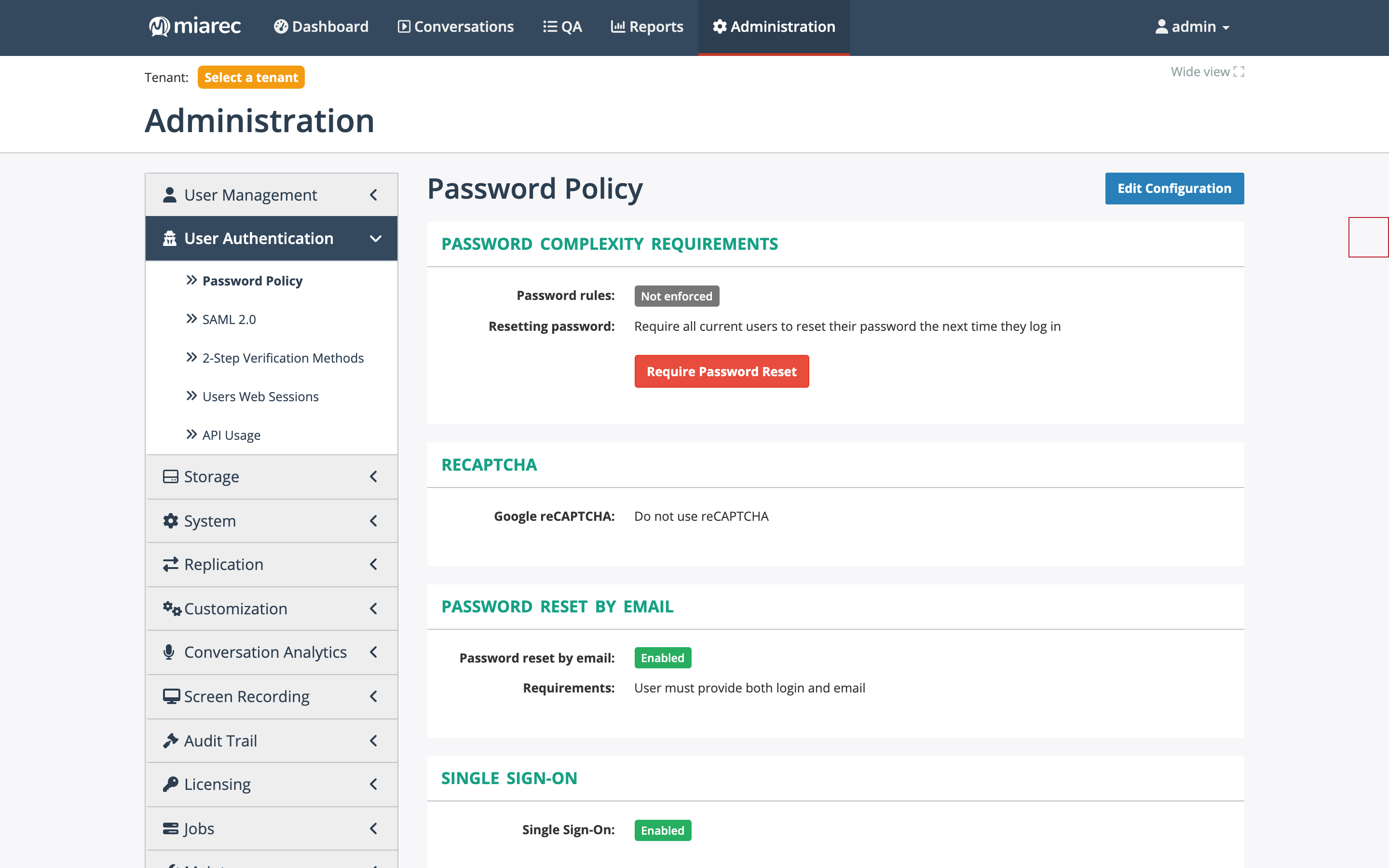
The Password Policy page in the System tenant. Unlike the per-organization page, it includes the Recaptcha section, and its values serve as the defaults that organizations fall back to.
Password complexity requirements
Password rules — when enforced, set the Minimum password length and the required character classes (uppercase, lowercase, numeric, special characters). Rules apply when passwords are created or changed; use Require Password Reset to force all current password-authenticated users to reset at next sign-in and bring existing accounts under new rules.
reCAPTCHA
Google reCAPTCHA protects the sign-in page against automated credential attacks. Options:
- Do not use reCAPTCHA (default);
- Always use reCAPTCHA — every sign-in includes the challenge;
- Use reCAPTCHA to allow users to bypass failed login attempts rate limit — the challenge appears only after repeated failures, letting a legitimate user proceed where the rate limit would otherwise block them.
Enabling it requires a Google reCAPTCHA site key and secret key.
Note
reCAPTCHA is rarely used in practice — failed sign-ins are already rate-limited — and the setting may be retired in a future release. Leave it at Do not use reCAPTCHA unless a deployment has a specific requirement.
Password reset by email
The default for the self-service Forgot your password? link: enabled (with the choice of requiring email only, or both login and email), or disabled. Organizations may override this; self-service reset requires SMTP to be configured.
Single Sign-On and two-factor authentication
The remaining sections mirror the per-organization page and act as system defaults:
- Single Sign-On — Enabled / Disabled / Mandatory, with optional restricted email domains. Identity providers themselves are registered on the SAML 2.0 page.
- 2-step verification — Not enforced, Required for all users, or Required for non-SSO users. The verification methods must first be enabled under Two-step verification methods.
Related pages
- Password policy (per organization) — what customer administrators see and can override.
- SAML 2.0 identity providers — registering IdPs.
- Two-step verification methods — enabling TOTP, SMS, email.