Quality Assurance overview
The QA menu is where your team evaluates conversations against your organization's quality standards. The primary method is Auto QA — AI scoring of conversations against a scorecard — with manual evaluation available as a secondary method for cases where a human review is preferred.
This chapter covers the day-to-day QA workflow. If you are new to the QA concepts (scorecards, Auto QA, scoring), start with the Quality Assurance concept page.
Note
Quality Assurance features are available if your subscription includes Auto QA. Manual evaluation is included with the Auto QA product. In addition, an agent must have an evaluation license assigned to be evaluated — licenses are managed by your administrator.
What is in the QA menu
The QA menu has up to three tabs, depending on your permissions:
- Overview — the QA dashboard: scores, trends, and breakdowns by scorecard, group, and user.
- Evaluations — the list of all evaluations you are allowed to see, with Pending, In progress, and Completed views and an advanced search.
- Scorecards — the scorecard designer, where supervisors and QA leads create and edit the evaluation forms. This tab is visible only to users with scorecard-management permissions.
Agents typically see only Overview and Evaluations, scoped to their own results — evaluations are visible to the evaluated agent in view-only mode, so feedback reaches them directly in the product.
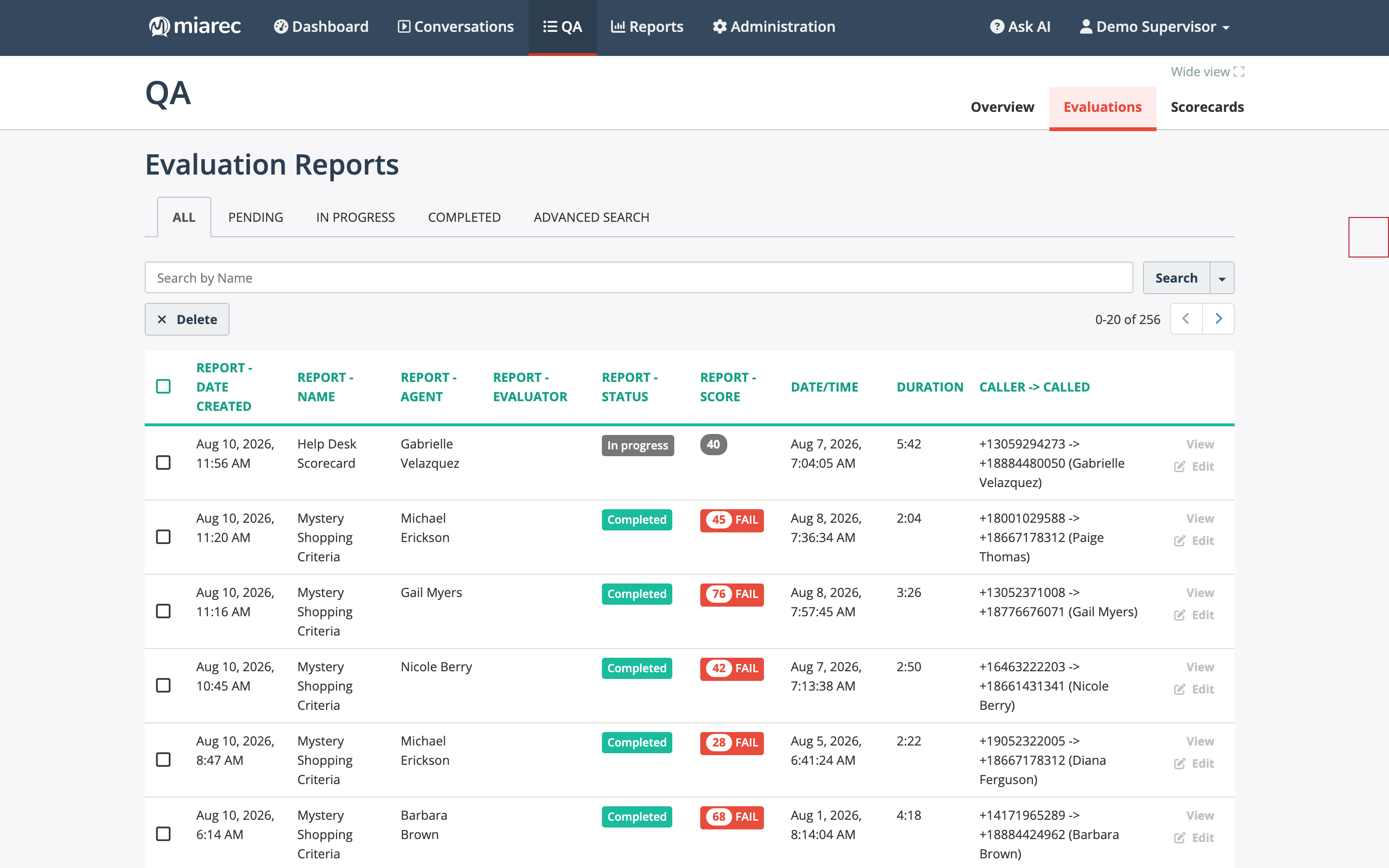
The Evaluations list (supervisor view): each evaluation shows its scorecard, agent, status, and score — with a PASS/FAIL chip when the scorecard has a passing threshold.
Auto QA first, manual evaluation second
With Auto QA, evaluations appear automatically: the AI reads the transcript of each matching conversation, answers every scorecard question with a justification, and produces a scored evaluation — no evaluator needed. Supervisors then review the results and override any answer they disagree with. Because scoring is automatic, coverage is not limited to a small sample.
A manual evaluation is created by a supervisor from a conversation page: pick a scorecard, answer the questions while listening, and save. Manual evaluation is the secondary method — useful for calibration, sensitive cases, or scorecards you prefer to keep human-scored.
Which conversations Auto QA scores, and with which scorecard, is configured by your administrator — see Enabling Auto QA in the Administration Guide. Everything else — scorecards, review, tuning — is done in the QA menu and covered in this chapter.
Evaluation lifecycle and statuses
Every evaluation, automatic or manual, carries a status that is updated automatically based on how complete it is:
| Status | Meaning |
|---|---|
| Pending | The evaluation is assigned but not started — no questions answered yet. |
| In progress | Some questions are answered, others are not. |
| Completed | Every question is answered; the score is final unless someone edits the evaluation. |
There is no separate "submit" step: an evaluation becomes Completed as soon as all of its questions have answers, and drops back to In progress if a question is left unanswered. An auto-scored evaluation can also sit In progress — for example, when the AI's answer did not match any of the configured choices for one of the questions and left it unanswered for a human reviewer (see Understanding Auto QA).
The Evaluations tab offers a filtered view for each status, so evaluators can work through their Pending queue, and supervisors can watch for evaluations stuck In progress.
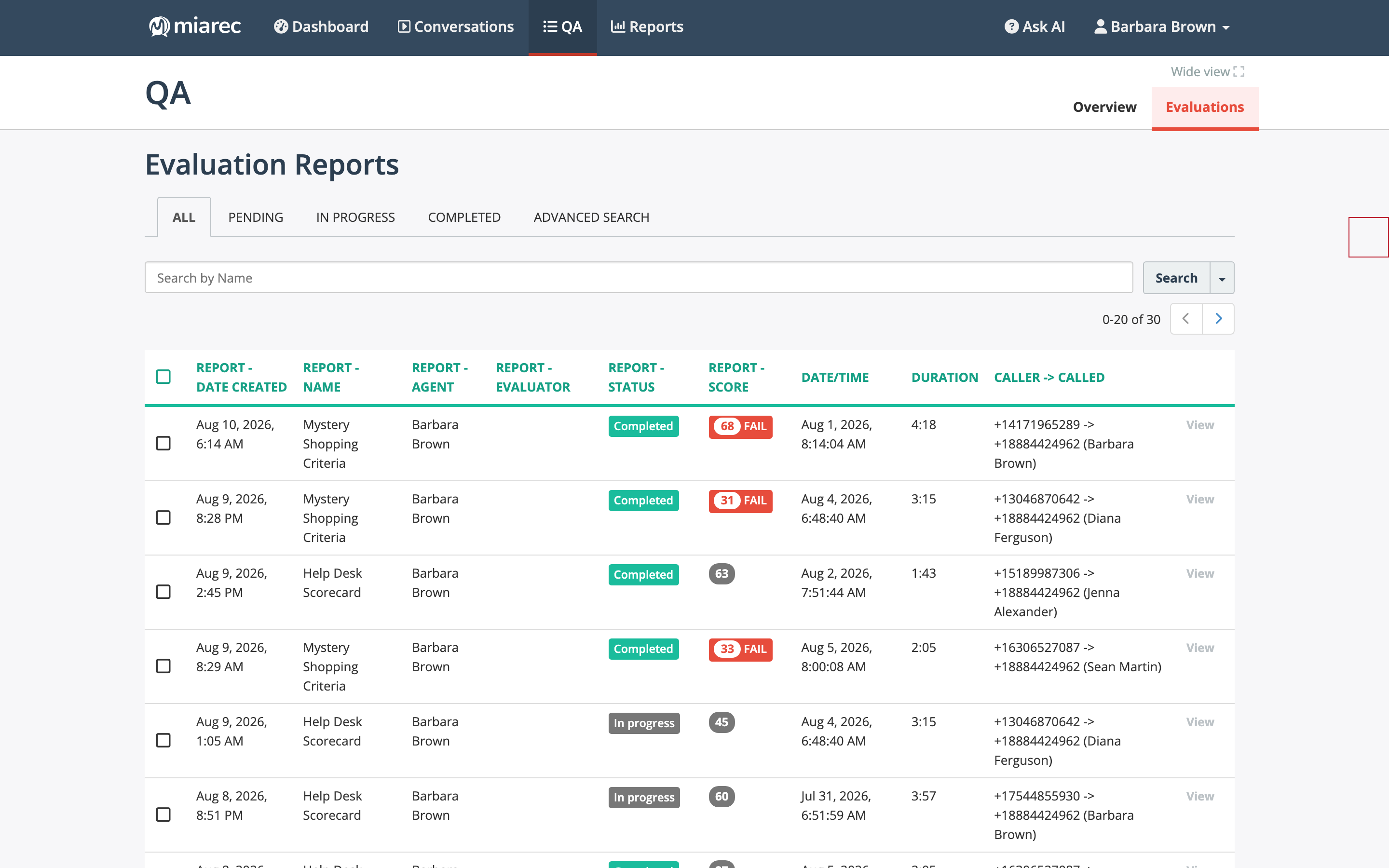
An agent's view of the Evaluations list: only their own evaluations, view-only.
Where scores come from
Whether an evaluation was scored by the AI or by a person, the score is calculated the same way from the scorecard's questions, weights, and thresholds — see Score calculation for the exact rules with worked examples.
Next steps
- QA dashboard — monitor scores and trends.
- Scorecards — design and maintain your evaluation forms.
- Understanding Auto QA — read your first auto-scored evaluation.
- Manually evaluating a conversation — when you need a human review.